

Important: The AI-Ready Redline is generated entirely on your local machine. No document data is sent to any external service during the export process. Draftable does not use or connect to any LLM — the AI-Ready Redline simply formats your comparison results into a text representation that is ready for use with AI tools of your choice.
Requirements
- Draftable Legal version: 26.03.100 or later
- Comparison type: Redline in Draftable only (not Tracked Changes in Word, Side-by-side, or other comparison types)
- Supported file types: Word and PDF only (not Excel or PowerPoint)
Where to find AI-Ready Redline
AI-Ready Redline is available from two places in Draftable Legal:Desktop ribbon (Next Actions)
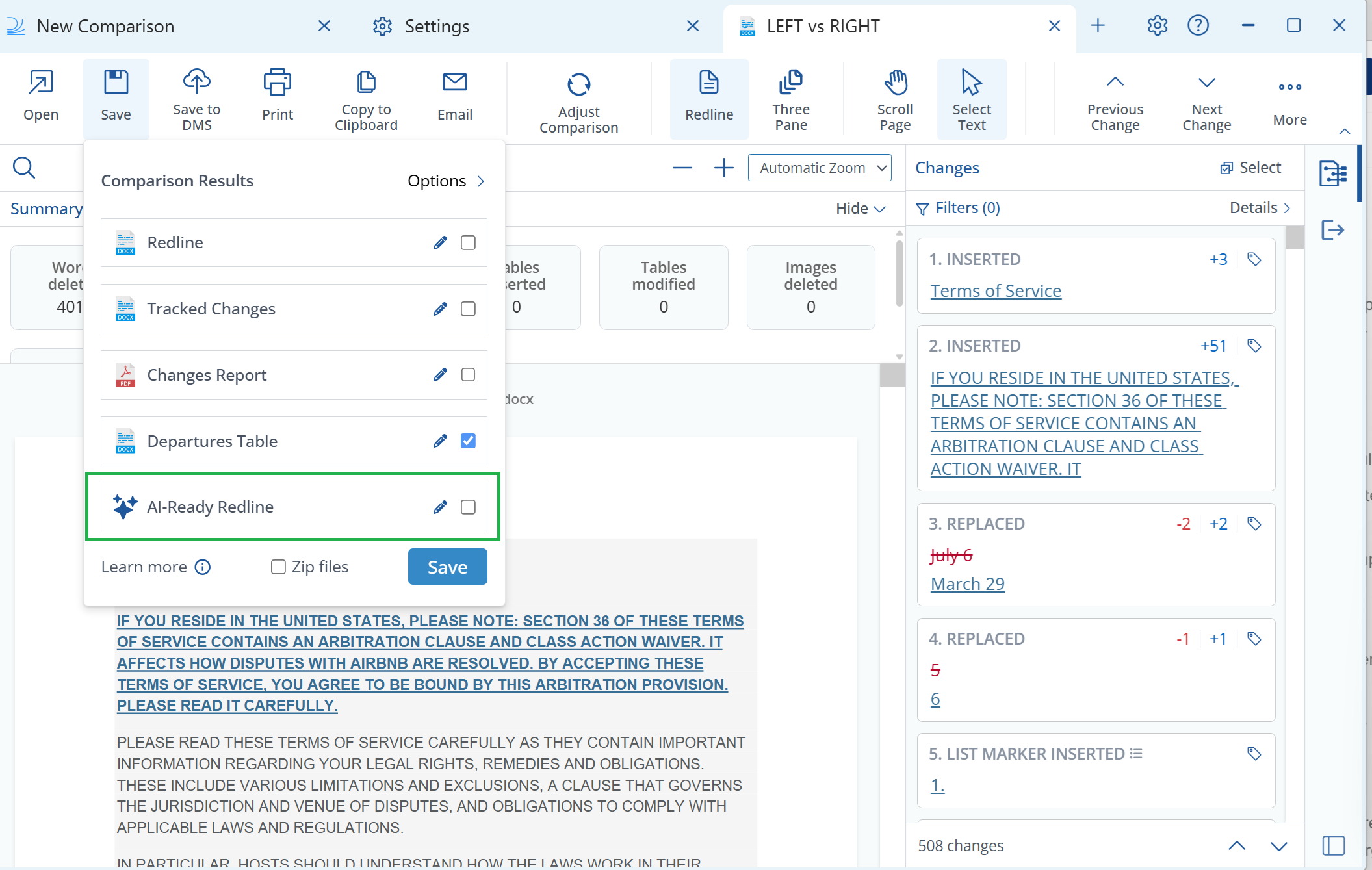
AI-Ready Redline appears as its own output card in the ribbon, alongside existing output cards (Changes Report, Departures Table, etc.). It is identified by a sparkles icon.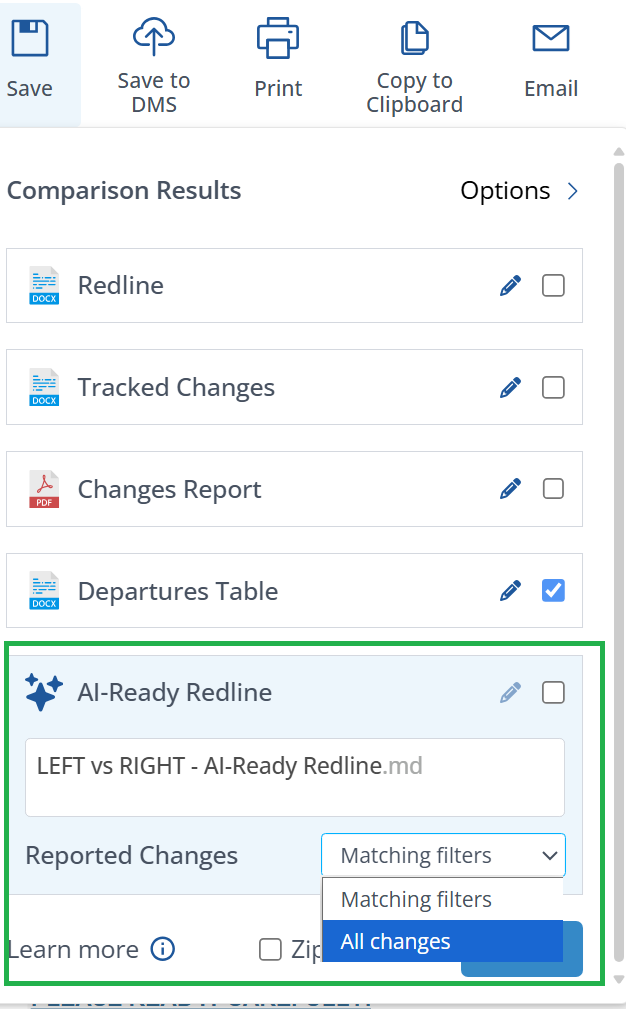
Available actions from the card:
- Open — Opens the output in your default text editor
- Save — Saves as a
.md(Markdown) file - Save to DMS — Saves to your connected DMS as a
.mdfile - Copy to Clipboard — Copies plain text to the clipboard
- Email — Attaches the
.mdfile to a new email
Live Redline Preview
A Copy AI-Ready Redline button appears in the Live Redline Preview panel, allowing you to copy the output directly to your clipboard.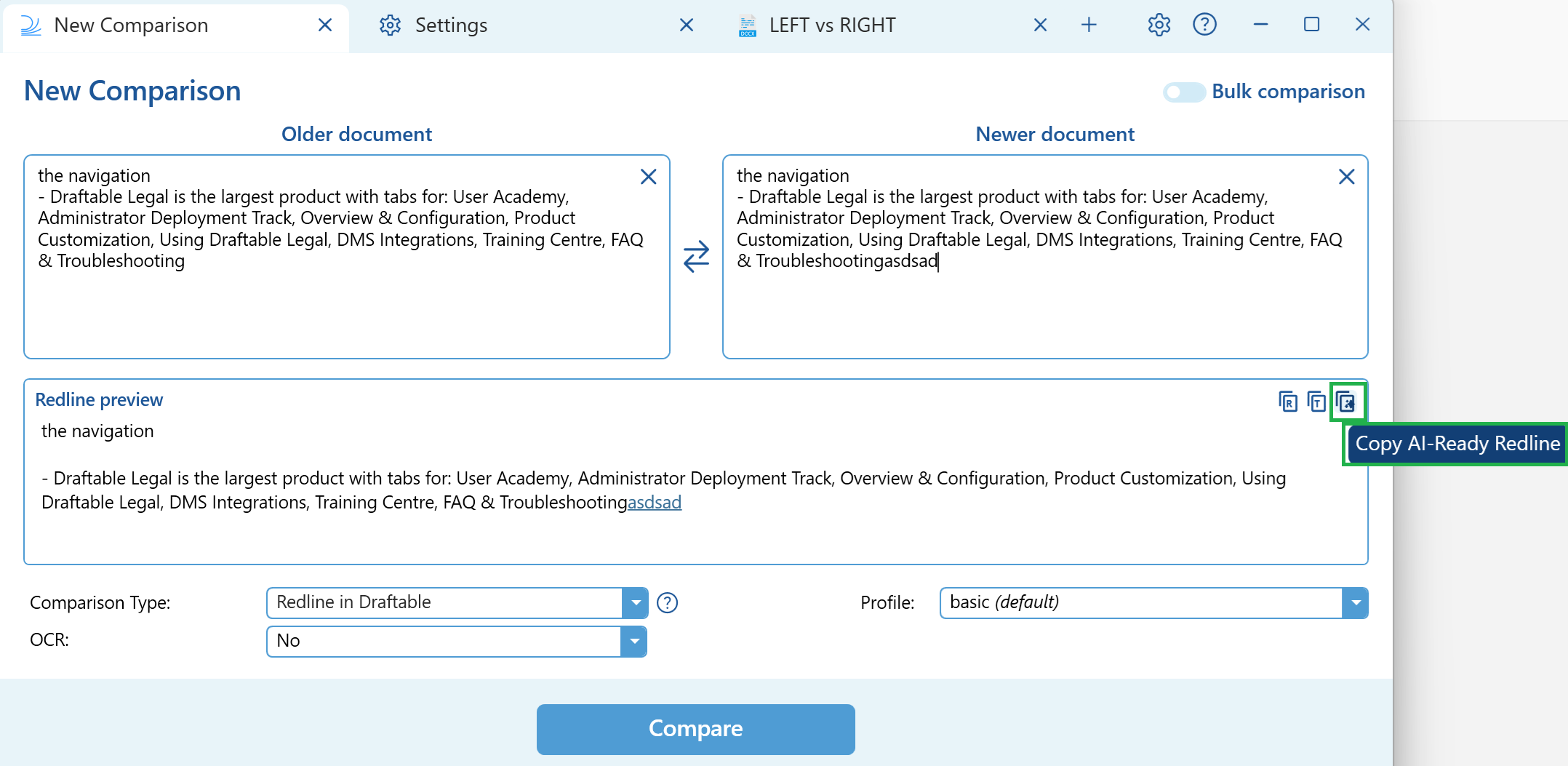
Not available from
AI-Ready Redline is not currently available from the following workflows:- Draftable in Office add-in
- Draftable in Outlook / Draftable for Outlook add-ins
- 1-Click Compare workflows
- Windows Explorer context menu
How to use AI-Ready Redline
From the desktop ribbon
1
Run a Redline comparison
Run a Redline in Draftable comparison using Word or PDF documents.
2
Review and filter results
Review the comparison results in the Draftable viewer. Optionally, apply filters to focus on specific change types.
3
Locate the AI-Ready Redline card
In the ribbon, locate the AI-Ready Redline card (sparkles icon).
4
Select your reported changes scope
Select the Reported Changes option:
- All changes to include every detected change
- Matching filters to include only changes matching your current viewer filters
5
Choose an export action
Choose an action: Open, Save, Copy to Clipboard, Save to DMS, or Email.
6
Share with your AI tool
Paste or share the output with your preferred AI tool.
From Live Redline Preview
1
Start a comparison
Start a comparison in Live Redline Preview mode.
2
Copy the AI-Ready Redline
Click Copy AI-Ready Redline in the preview panel.
3
Paste into your AI tool
Paste the output into your preferred AI tool.
Understanding the output
The AI-Ready Redline output is a continuous text stream of the full document with changes marked inline using a simple delete/insert syntax. It is not JSON — it is readable text that any person or AI tool can understand.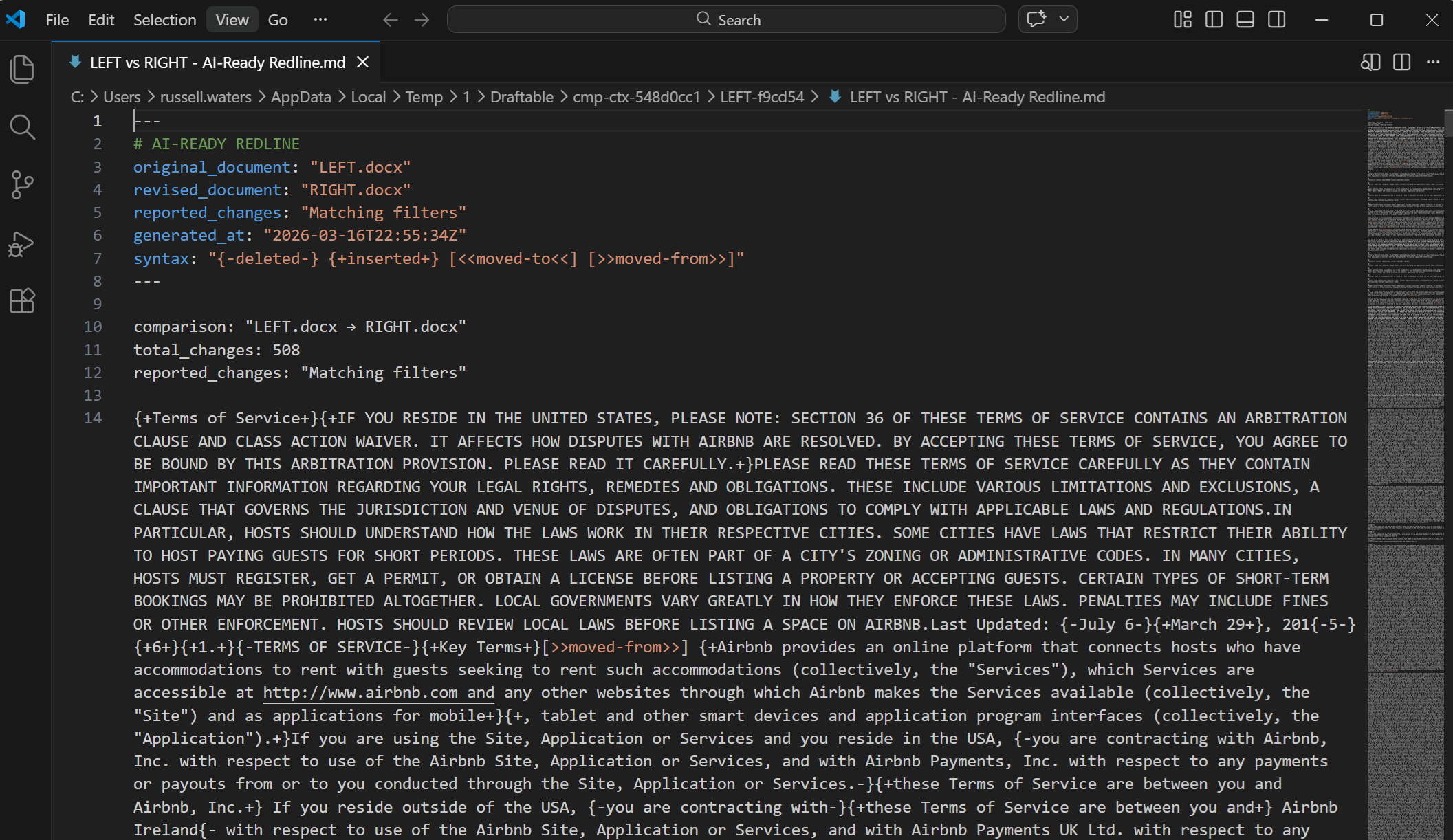
Output syntax
Header preamble
Every output starts with a metadata header that includes:- Original and revised document names
- Reported changes setting (All changes or the active filter)
- Timestamp of when the redline was generated
- Syntax legend so any reader or tool can interpret the markers
- Total change count
Example output
- “brown” was deleted and replaced with “red”
- “jumps” was deleted and replaced with “leaps”
Getting the best results
Compare with clarity in mind
- Compare the nearest document versions — avoid skipping many intermediate drafts, as this produces a cleaner, more meaningful redline.
- If a document was heavily restyled, expect more formatting noise in the output.
Pick the right export scope
- Use All changes for a complete legal or risk review.
- Use Matching filters for targeted analysis — for example, focusing on one clause family or a specific change type.
Prompting AI tools for best results
AI-Ready Redline works with any generative AI tool that accepts text input. Paste the output into the tool’s chat or input field and ask questions about the changes. When prompting, ask the AI to:- Cite clause anchors and section names so you can trace findings back to the document
- Explain reasoning from Before vs. After text so conclusions are grounded in the actual changes
Quick prompts
- “Summarise the key changes between these two documents.”
- “Identify any changes to liability, indemnity, or limitation of liability clauses.”
- “Are there any changes that shift risk from one party to the other?”
- “Draft review notes for my client summarising what changed and what to pay attention to.”
- “List all changes to defined terms and assess whether they are consistent throughout the document.”
- “Flag any changes that could affect the governing law or dispute resolution provisions.”
Example detailed prompt for thorough reviews
Example detailed prompt for thorough reviews
For a thorough review of a complex agreement, try a structured prompt like this:
Quality checklist before sharing AI output
Before relying on or sharing AI-generated analysis of your redline, verify:- Did the AI cite clause anchors or section references?
- Did it separate substantive changes from formatting-only changes?
- Did it justify its conclusions from Before/After text?
- Has a human reviewer verified the high-impact items?
Compatible AI tools
AI-Ready Redline works with any AI tool that accepts text input, including:- General-purpose: ChatGPT, Microsoft Copilot, Claude, Google Gemini
- Legal-domain-specific: Harvey, Legora, CoCounsel
Large documents
For very large documents (hundreds of pages), the AI-Ready Redline output can be substantial. Some AI tools may not accept the full text if pasted directly due to input size limits.Privacy and security
The AI-Ready Redline is generated entirely on your local machine. No document data is sent to any external service during the export process. Draftable does not use, connect to, or process data through any LLM or AI service — the AI-Ready Redline is purely a local formatting operation that structures your comparison results into a text representation ready for use with AI tools.Known limitations
Frequently asked questions
I don't see the AI-Ready Redline card in the ribbon
I don't see the AI-Ready Redline card in the ribbon
Check that you are on Draftable Legal version 26.03.100 or later, and that you have run a Redline in Draftable comparison (not Tracked Changes in Word, Side-by-side, or another comparison type). AI-Ready Redline is only available for Word and PDF comparisons.
The AI tool says my input is too large
The AI tool says my input is too large
For very large documents, the output text may exceed what some AI tools accept via paste. Save the AI-Ready Redline as a file (using the Save action) and upload the
.md file into the AI tool instead.Why are tables showing up as flat text?
Why are tables showing up as flat text?
AI-Ready Redline represents the document as a continuous text stream. Table structure (rows, columns, borders) is not preserved — table content is flattened to plain text. Text changes within cells are still captured.
Why don't I see image changes?
Why don't I see image changes?
AI-Ready Redline is a text-based output. Image additions, removals, and replacements cannot be represented in text and are not included.
Can I use AI-Ready Redline with Excel or PowerPoint comparisons?
Can I use AI-Ready Redline with Excel or PowerPoint comparisons?
No. AI-Ready Redline is available for Word and PDF comparisons only.
Does AI-Ready Redline respect my Draftable profile settings?
Does AI-Ready Redline respect my Draftable profile settings?
No. AI-Ready Redline output is not affected by profile settings.
Is any data sent externally when I export an AI-Ready Redline?
Is any data sent externally when I export an AI-Ready Redline?
No. The export is generated entirely on your local machine. No document data leaves your machine during the export. However, when you paste or upload the output into an AI tool, that tool’s own data policies apply.
What is the difference between 'All changes' and 'Matching filters'?
What is the difference between 'All changes' and 'Matching filters'?
“All changes” annotates every detected change in the output. “Matching filters” still includes the full document text, but only the changes matching your currently applied viewer filters are marked up with delete/insert syntax. Non-matching changes appear as plain, unmarked text.
Can I use AI-Ready Redline from the Outlook or Office add-in?
Can I use AI-Ready Redline from the Outlook or Office add-in?
No. AI-Ready Redline is currently available from the Draftable Legal desktop ribbon and Live Redline Preview only.