

Draftable in Office requires Draftable version 25.10.000 or later to be installed and running on the user’s system. We recommend running 25.12.000 or later if possible.
Using Draftable in Word
Once installed, the Draftable in Office add-in appears under the Home tab in Microsoft Word.
Workflow options using Draftable within Word
Under the Home tab, you’ll find three primary buttons:1. Draftable in Office
Selecting the Draftable button opens the Draftable panel on the right-hand side of Word. From here, you can choose which documents or content to use for comparison on the Older and Newer sides.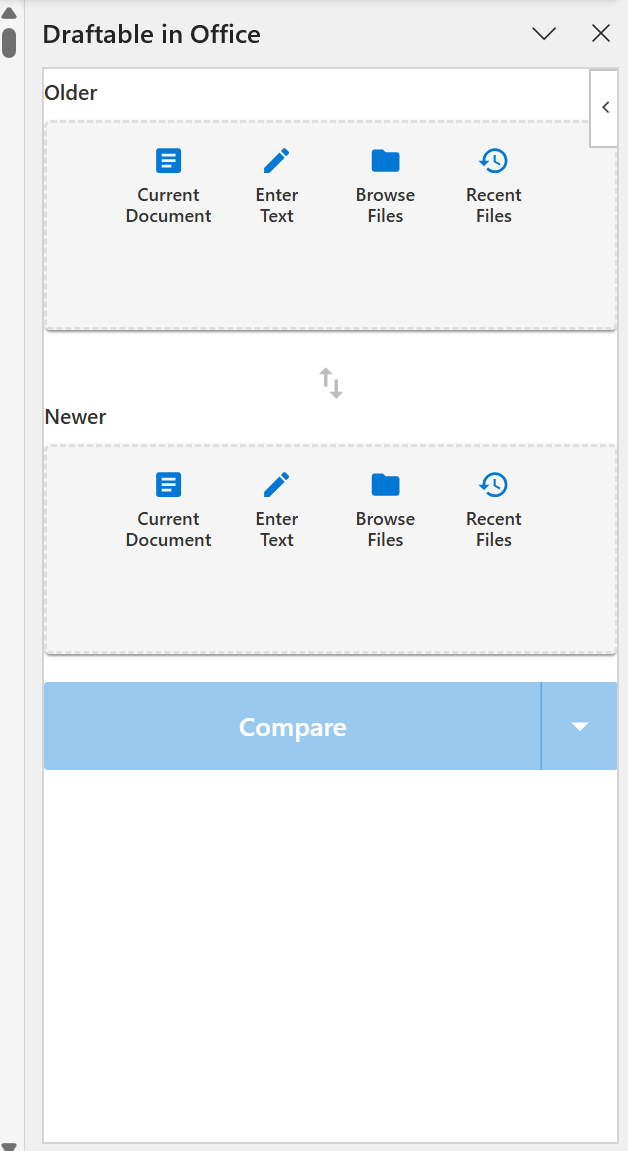
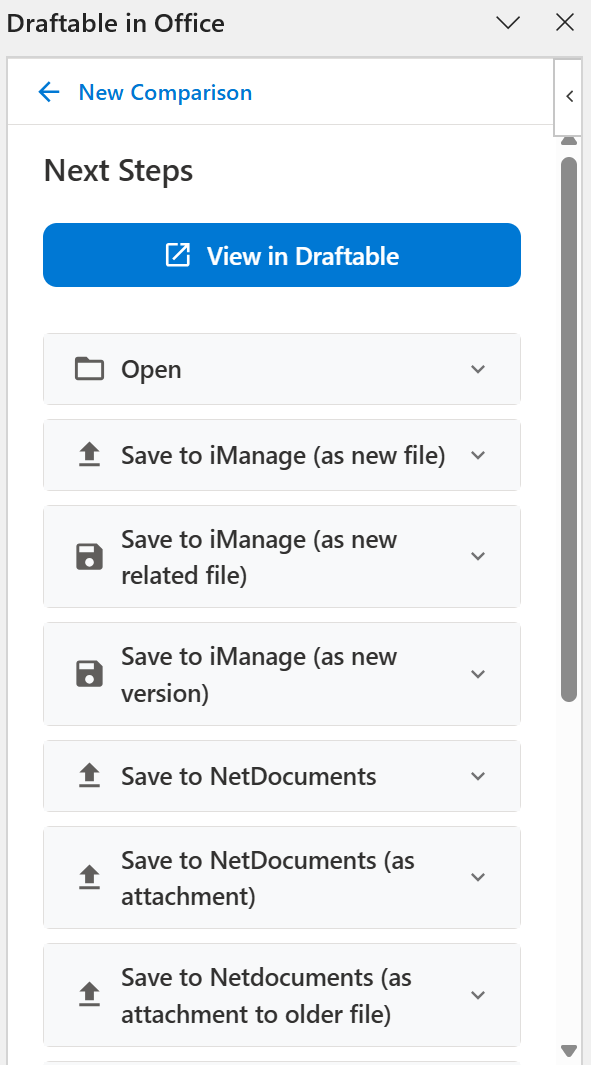
After selecting your documents and running the comparison, you can open the result in Draftable Legal or use one of the export options to save, email, copy, or print the comparison.
2. Compare Open Documents
The Compare Open option lists all documents currently open in Word, allowing you to quickly select two to compare. This is useful when working on multiple files simultaneously within Word. Recent documents are also displayed for convenience. Once the comparison is complete, the same export workflows (open, save, email, copy, or print) are available.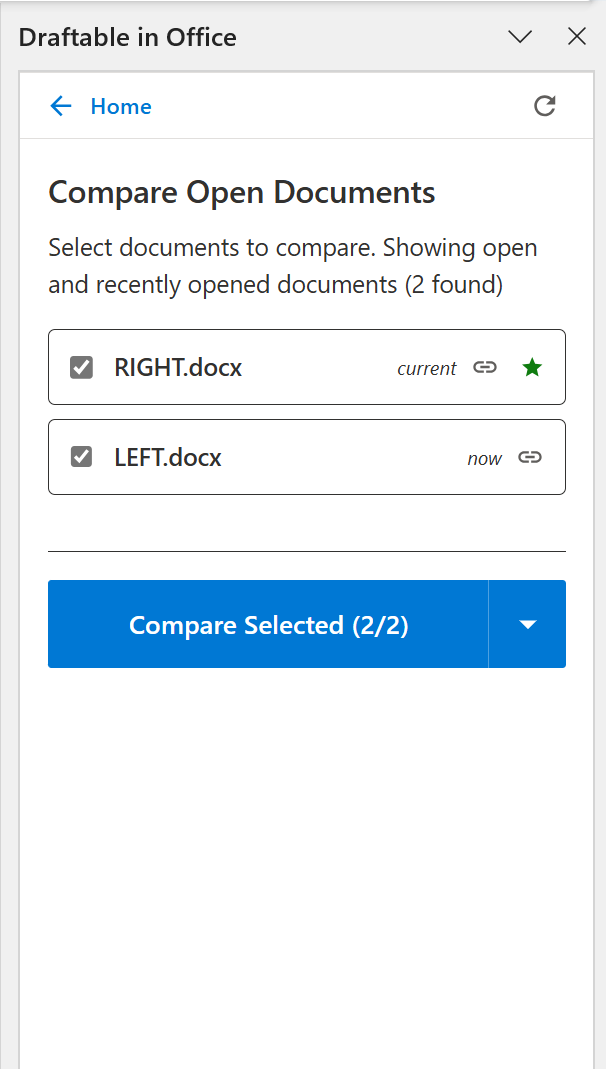
3. Compare Versions
The Compare Versions feature allows you to compare different versions of the same document — ideal for version-controlled files (e.g., from iManage, NetDocuments, or SharePoint). You can also refresh versions if a new version has been saved or published. Just like other comparison modes, results can be opened in Draftable Legal or exported using the available workflows.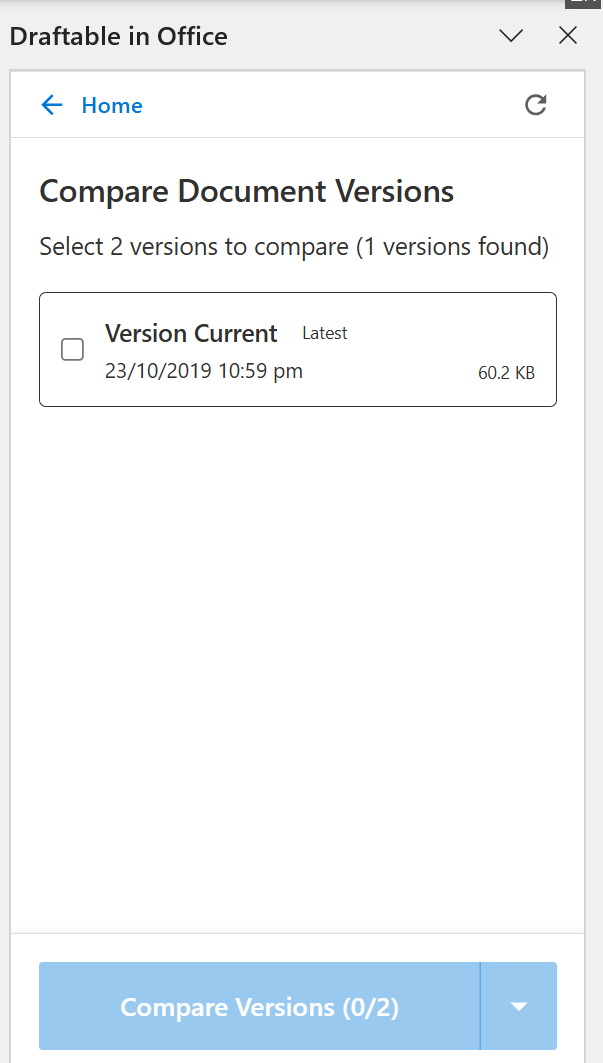
Direct to Draftable options
You don’t have to work entirely within the in-Office panel — you can also send the current document directly to the Draftable application.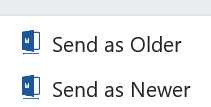
Send as Older
Opens the Draftable New Comparison window with the active Word document preloaded as the older (left) document. You can then select the newer document in Draftable to complete the comparison.Send as Newer
Opens the Draftable New Comparison window with the active Word document preloaded as the newer (right) document. You can then select the older document to complete the comparison.Using Draftable in Excel
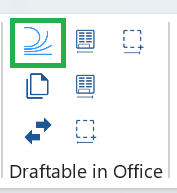
In Excel, the Draftable in Office add-in also appears under the Home tab. The ribbon group includes additional options specific to spreadsheets, including worksheet and cell range comparison.
Workflow options using Draftable within Excel
1. Draftable in Office
Selecting the Draftable button opens the same comparison panel on the right-hand side of Excel. You can choose documents or content for the Older and Newer sides using the same options as in Word — Current Document, Enter Text, Browse Files, and Recent Files.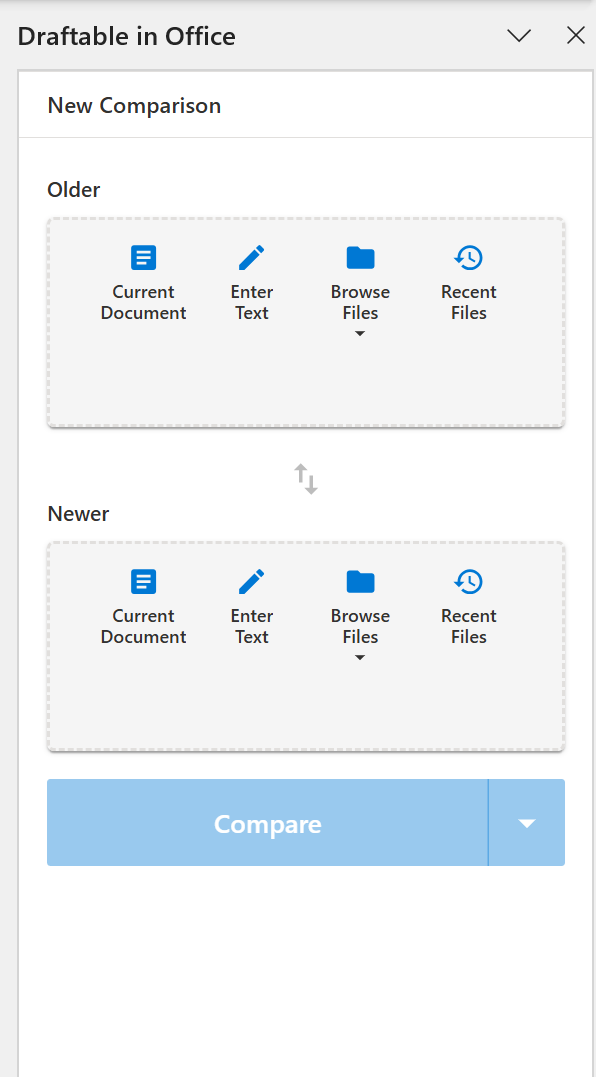
2. Compare Open Spreadsheets
The Compare Open option lists all spreadsheets currently open in Excel, allowing you to quickly select two to compare.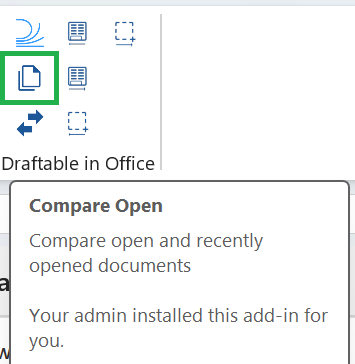

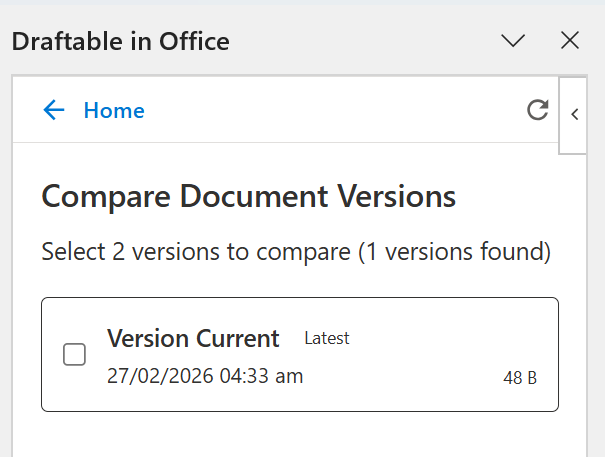
3. Compare Versions
The Compare Versions feature works the same as in Word, allowing you to compare different versions of the same spreadsheet — ideal for version-controlled files from a DMS.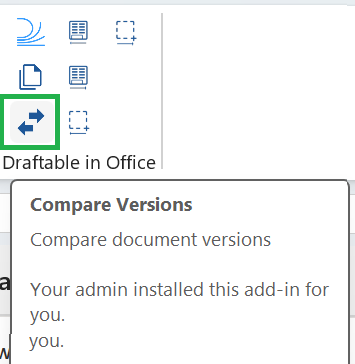
Worksheet comparison
Excel includes Use Worksheet as Older and Use Worksheet as Newer buttons. These send the active worksheet directly into the Draftable in Office comparison panel as either the older or newer side — the same concept as “Send as Older/Newer” in Word, but using worksheet-specific terminology.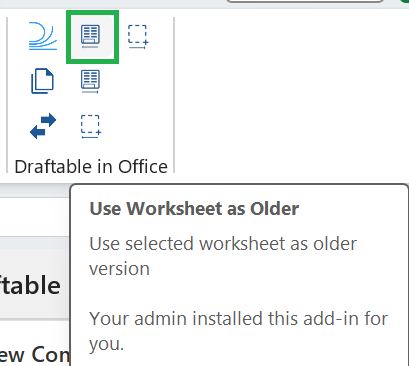
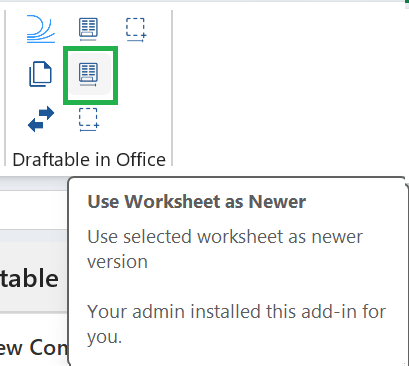

Range comparison
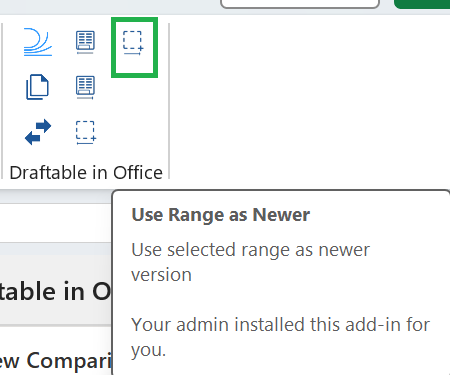
Excel also offers Use Range as Older and Use Range as Newer buttons. These allow you to compare a specific selection of cells rather than an entire worksheet — useful when you only need to compare a particular section of a spreadsheet.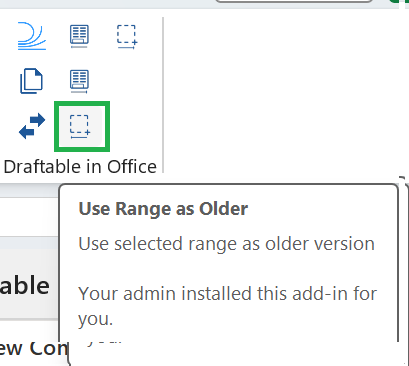
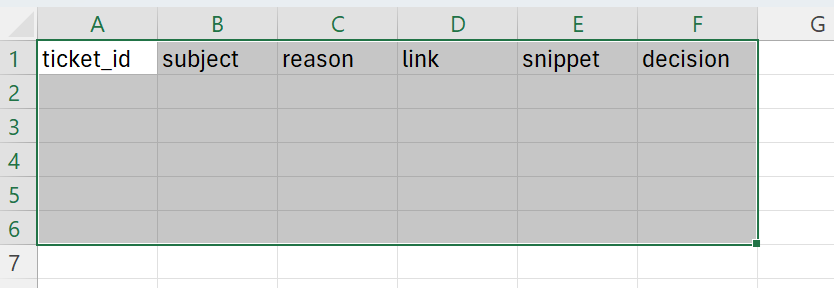
pending_review!A1:F6).

Using Draftable in PowerPoint
In PowerPoint, the Draftable in Office add-in appears under the Home tab with five actions tailored to presentations.
Workflow options using Draftable within PowerPoint
1. Draftable in Office
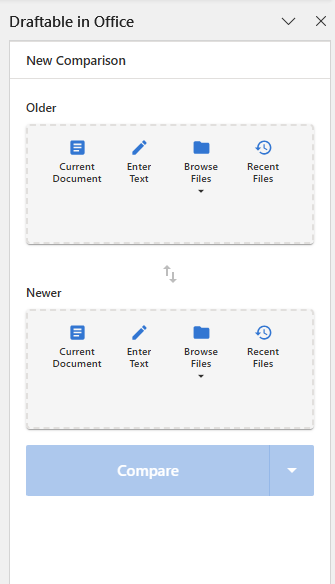
Selecting the Draftable button opens the comparison panel on the right-hand side of PowerPoint. The same options are available — Current Document, Enter Text, Browse Files, and Recent Files.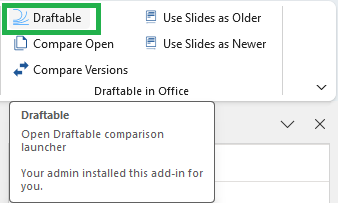
2. Compare Open Presentations
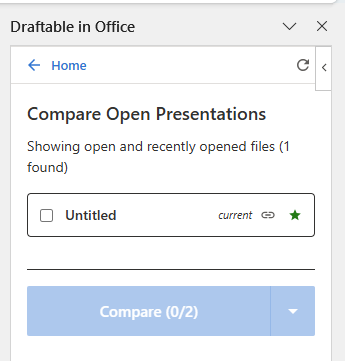
The Compare Open option lists all presentations currently open in PowerPoint, allowing you to quickly select two to compare.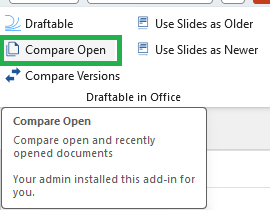
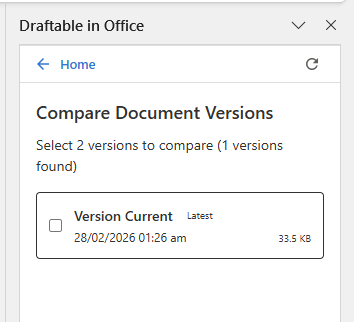
3. Compare Versions
The Compare Versions feature works the same as in Word and Excel, allowing you to compare different versions of the same presentation.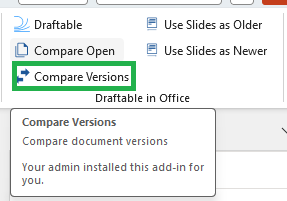
Slide comparison
PowerPoint includes Use Slides as Older and Use Slides as Newer buttons. These send the selected slides directly into the Draftable in Office comparison panel — the same concept as “Send as Older/Newer” in Word, using slide-specific terminology.Use Slides as Older
Loads the selected slides into the comparison panel as the older (left) side.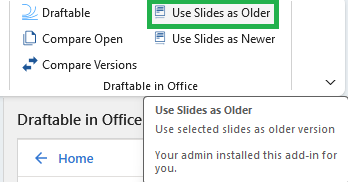
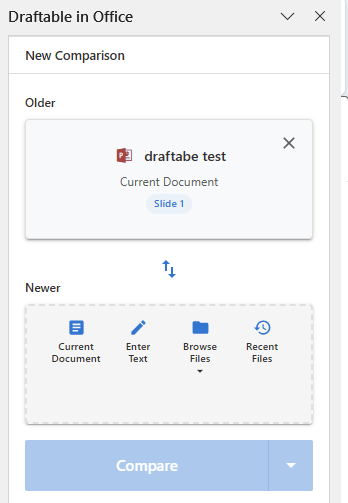
Use Slides as Newer
Loads the selected slides into the comparison panel as the newer (right) side.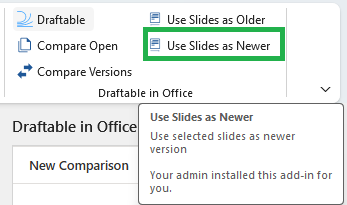
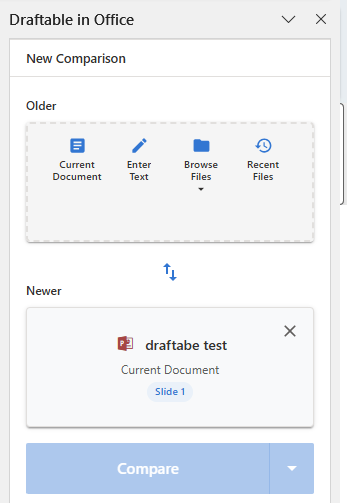
Shared settings
Within the Draftable in Office panel, you’ll find several configuration options that help personalize your comparison experience. These settings are shared across Word, Excel, and PowerPoint.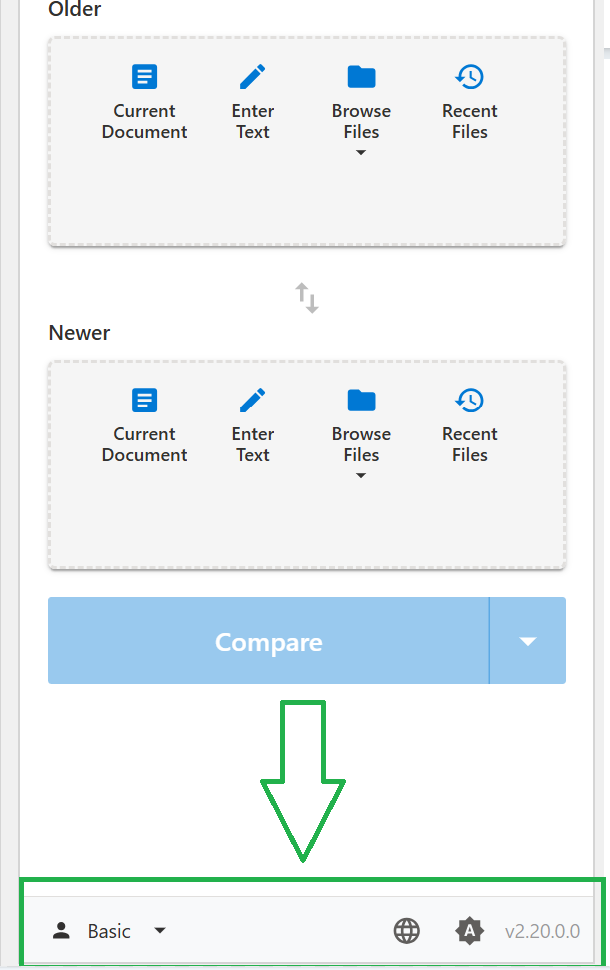
Profiles
You can select which comparison profile to use for your comparisons directly within the Office add-in. Profiles allow administrators or users to predefine comparison settings such as markup style, color scheme, and formatting preferences.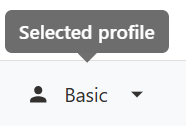
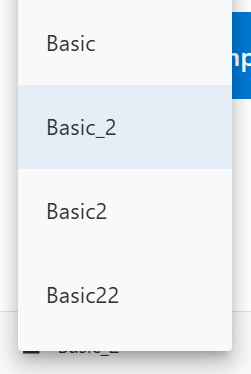
Light/Dark modes
Next to the profile selector is a theme toggle, allowing you to switch between Light, Dark, and Auto color modes to suit your preference or Office theme.
Language
In the same section, you can also choose the language that Draftable in Office operates in. This setting affects the add-in’s interface and messages within Office.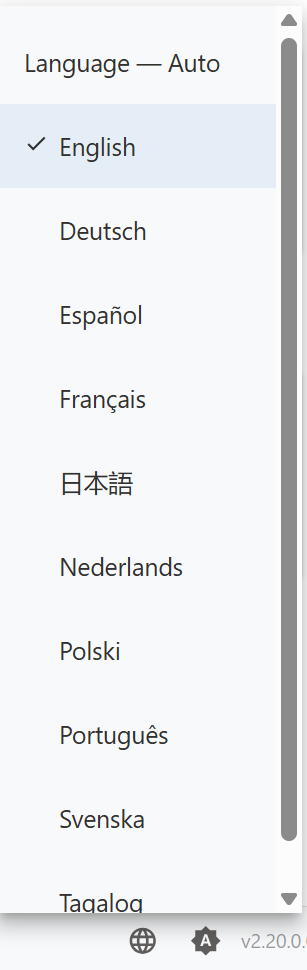
Notes
- Draftable in Office requires Draftable version 25.10.000 or later to be installed and running on the user’s device. We recommend running 25.12.000 or later if possible.
- Comparisons performed within the Office add-in use the same engine as Draftable Legal, ensuring identical accuracy and output consistency across Word, Excel, and PowerPoint.
- You can continue working within your Office application while running comparisons in the Draftable pane.
- When multiple comparisons are active, they can be managed or switched between via tabs in the right-hand pane.