

Note:Draftable for Outlook requires Draftable version 25.10.000 or later to be installed and running on the user’s system.
Accessing Draftable for Outlook
Draftable for Outlook is accessible via the Draftable for Outlook button in the Outlook ribbon. When you open or reply to an email, you’ll find the button on the right-hand side of the Message tab.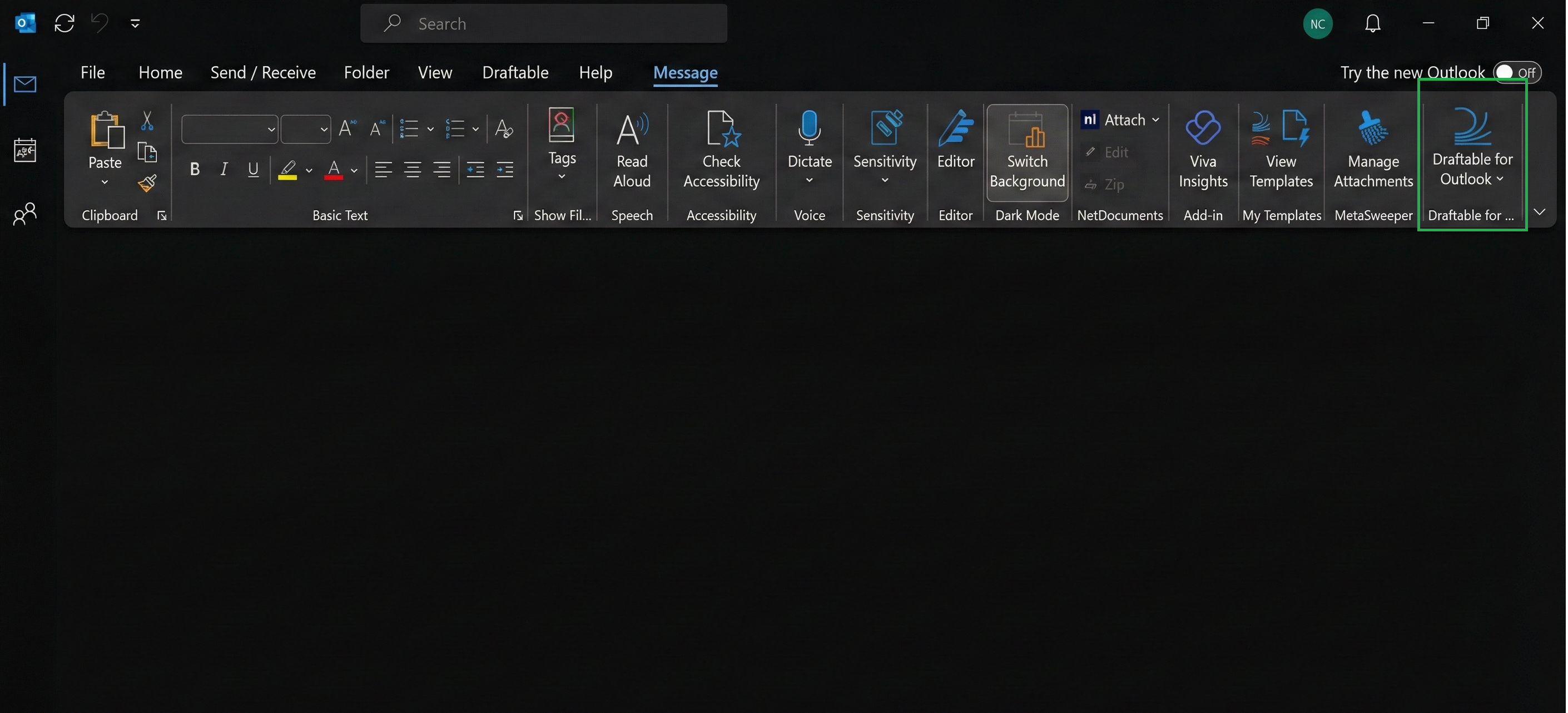
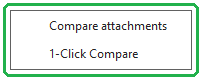
- Compare attachments
- 1-Click Compare
Draftable for Outlook Workflow
The Draftable for Outlook JavaScript add-in sends email attachments and supported DMS links to Draftable Desktop for comparison, without needing to download files manually. All comparisons are performed in Draftable Desktop, providing full access to advanced features, local files, and profiles.Please note:Ensure that Draftable is open in the background when using Draftable for Outlook, otherwise documents will not be loaded correctly or at all into Draftable.
Comparison Options
1. Compare attachments
The Compare attachments command sends the current email’s attachments and supported DMS links to the Draftable New Comparison window. It skips inline images. Choose and arrange the files in Draftable, then run your comparison. There is no attachment picker in this JavaScript add-in. To choose individual attachments inside Outlook, use Draftable in Outlook.2. 1-Click Compare
The 1-Click Compare command sends the current email’s attachments and supported DMS links to Draftable, skipping inline images. When the files form a pair, Desktop starts the comparison automatically using your desktop workflow settings. Otherwise, you choose the files in the New Comparison window. A single DMS document may expand into its versions according to your desktop settings. If a DMS link is unavailable, the add-in warns you and continues with the accessible files. If Desktop declines the request, the add-in reports that it could not send the attachments. To compare text from an email, use Enter Text in Draftable in Outlook. The Draftable for Outlook JavaScript add-in does not provide Send Text as Older or Send Text as Newer commands.Notes
- Draftable for Outlook requires Draftable version 25.10.000 or later to be installed and running on the user’s device.
- Comparisons are performed in Draftable Desktop, ensuring full access to all features, profiles, and local file access.
- Make sure Draftable Desktop is running before using the add-in.
- Draftable Desktop 26.10.0 or later accepts add-in file uploads up to 50 MB per file.
- If you need further assistance or support for Draftable for Outlook, please reach out to support@draftable.com