

Draftable for Office requires Draftable version 25.10.000 or later to be installed and running on the user’s system.
Ensure that Draftable is open in the background when using Draftable for Office, otherwise documents will not be loaded correctly or at all into Draftable.
Using Draftable for Office in Word
Once installed, the add-in appears under the Home tab in Microsoft Word with four primary buttons.
1. Compare Open Documents
The Compare Open option lists all documents currently open in all instances of Word, allowing you to quickly select two to compare. This is useful when working on multiple files simultaneously. Once you click Compare Selected, the chosen documents open in the Draftable New Comparison window.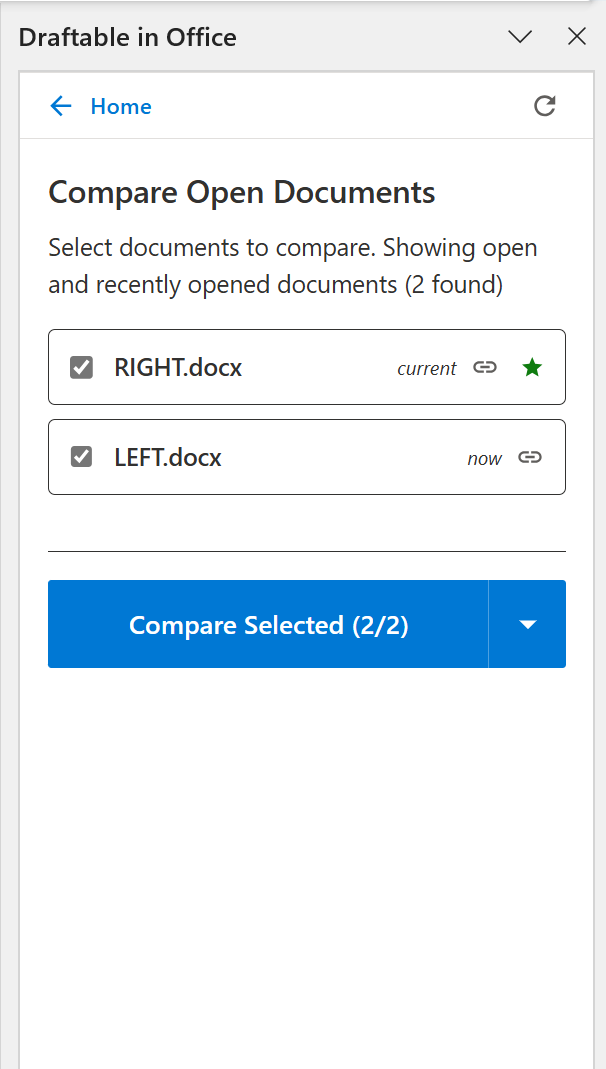
2. Compare Versions
The Compare Versions feature allows you to compare different versions of the same document — ideal for version-controlled files (e.g., from iManage, NetDocuments, or SharePoint). You can also refresh versions if a new version has been saved or published. The selected versions open in the Draftable New Comparison window.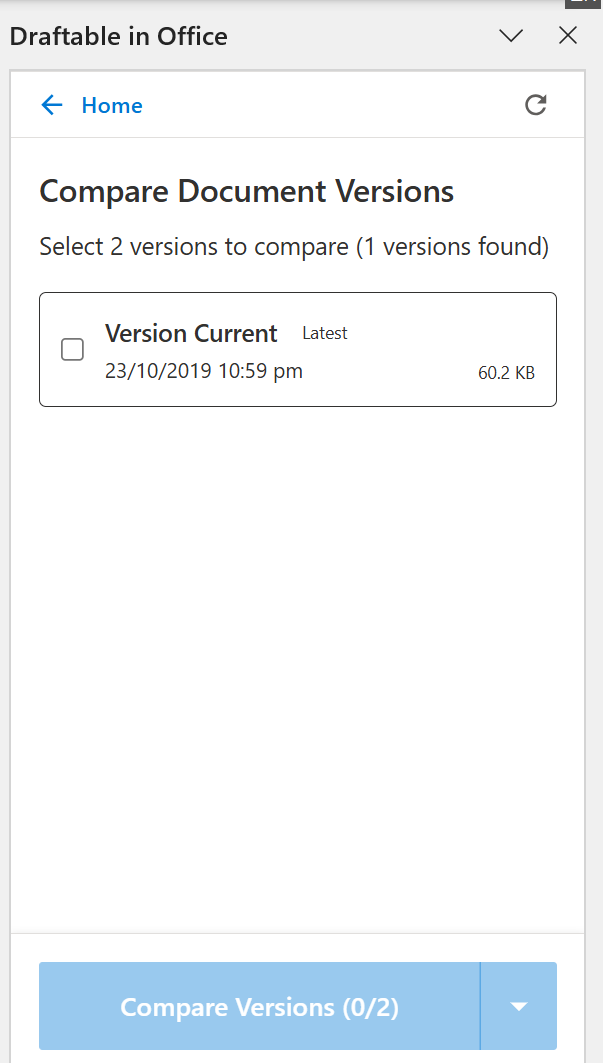
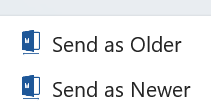
3. Send as Older / Send as Newer
Using Draftable for Office in Excel
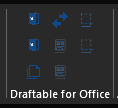
In Excel, the Draftable for Office add-in appears under the Home tab with eight buttons. In addition to the standard options available in Word, Excel provides worksheet-specific and cell range-specific actions.
1. Send as Older / Send as Newer
These work the same as in Word — Send as Older loads the active spreadsheet as the older (left) document in the Draftable New Comparison window, and Send as Newer loads it as the newer (right) document.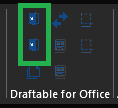
2. Compare Open Spreadsheets
The Compare Open option lists all spreadsheets currently open in Excel, allowing you to quickly select two to compare. The selected files open in the Draftable New Comparison window.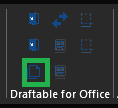
3. Compare Versions
The Compare Versions feature works the same as in Word, allowing you to compare different versions of the same spreadsheet — ideal for version-controlled files from a DMS. The selected versions open in the Draftable New Comparison window.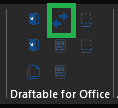
4. Send Worksheet as Older / Send Worksheet as Newer
These Excel-specific buttons send the active worksheet to the Draftable New Comparison window as either the older or newer side. This is useful when you want to compare a specific sheet within a workbook rather than the entire file.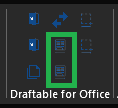
Comparing one worksheet against another
To compare a specific worksheet against its counterpart, you need to send both sides from Excel. The worksheet selection only happens inside the Excel add-in, so both the older and newer worksheet have to be sent using these buttons.1
Send the first worksheet
Open the workbook containing the newer version, click the tab of the specific worksheet you want, then click Send Worksheet as Newer. Draftable opens with that single sheet loaded on the newer side.
2
Send the matching worksheet
Open the other workbook (your older version), click the tab of the worksheet you want to compare against, then click Send Worksheet as Older. It loads into the older side of the same New Comparison window.
3
Run the comparison
Both worksheets are now loaded, one on each side. Click Compare.
5. Send Range as Older / Send Range as Newer
These Excel-specific buttons send a selected cell range to the Draftable New Comparison window. First select the cells you want to compare in Excel, then click Send Range as Older or Send Range as Newer to load that specific range into Draftable. This is useful when you only need to compare a particular section of a spreadsheet.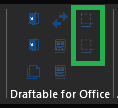
Using Draftable for Office in PowerPoint
In PowerPoint, the Draftable for Office add-in appears under the Home tab with six buttons. In addition to the standard options available in Word, PowerPoint provides slide-specific actions.
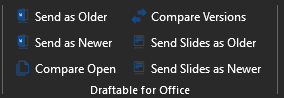
1. Send as Older / Send as Newer
These work the same as in Word — Send as Older loads the active presentation as the older (left) document in the Draftable New Comparison window, and Send as Newer loads it as the newer (right) document.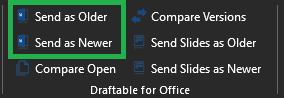
2. Compare Open Presentations
The Compare Open option lists all presentations currently open in PowerPoint, allowing you to quickly select two to compare. The selected files open in the Draftable New Comparison window.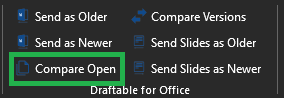
3. Compare Versions
The Compare Versions feature works the same as in Word and Excel, allowing you to compare different versions of the same presentation. The selected versions open in the Draftable New Comparison window.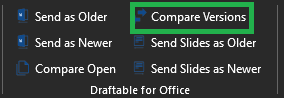
4. Send Slides as Older / Send Slides as Newer
These PowerPoint-specific buttons send the selected slides to the Draftable New Comparison window as either the older or newer side. This is useful when you want to compare specific slides rather than the entire presentation.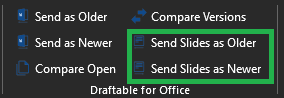
Comparing specific slides against their counterparts
To compare a specific set of slides against another, you need to send both sides from PowerPoint. The slide selection only happens inside the PowerPoint add-in, so both the older and newer slides have to be sent using these buttons.1
Send the first slides
In the newer presentation, select the slide (or slides) you want, then click Send Slides as Newer. Draftable opens with those slides loaded on the newer side.
2
Send the matching slides
Open the older presentation, select the corresponding slide (or slides), then click Send Slides as Older. They load into the older side of the same New Comparison window.
3
Run the comparison
Both sets of slides are now loaded, one on each side. Click Compare.
Notes
- Draftable for Office requires Draftable version 25.10.000 or later to be installed and running on the user’s device.
- All comparisons are sent to the Draftable desktop application using the same comparison engine as Draftable Legal, ensuring identical accuracy and output consistency across Word, Excel, and PowerPoint.
- If you need further assistance or support for Draftable for Office, please reach out to support@draftable.com