

Draftable in Outlook requires Draftable version 25.10.000 or later to be installed and running on the user’s system. We recommend 25.12.000 or later.
Accessing Draftable in Outlook
To access Draftable in Outlook, follow these steps:Step 1: Open the More Options Menu
When viewing or composing an email, locate the ”…” (more options) button in the Message tab ribbon.
Step 2: Select Draftable in Outlook
Click the ”…” button to reveal a dropdown menu. Under the Draftable in Outlook header, select Draftable to open the full Draftable panel within Outlook.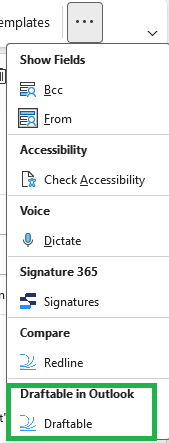
Step 3: The Draftable in Outlook Panel
Selecting Draftable opens the Draftable panel on the right-hand side of the Outlook window.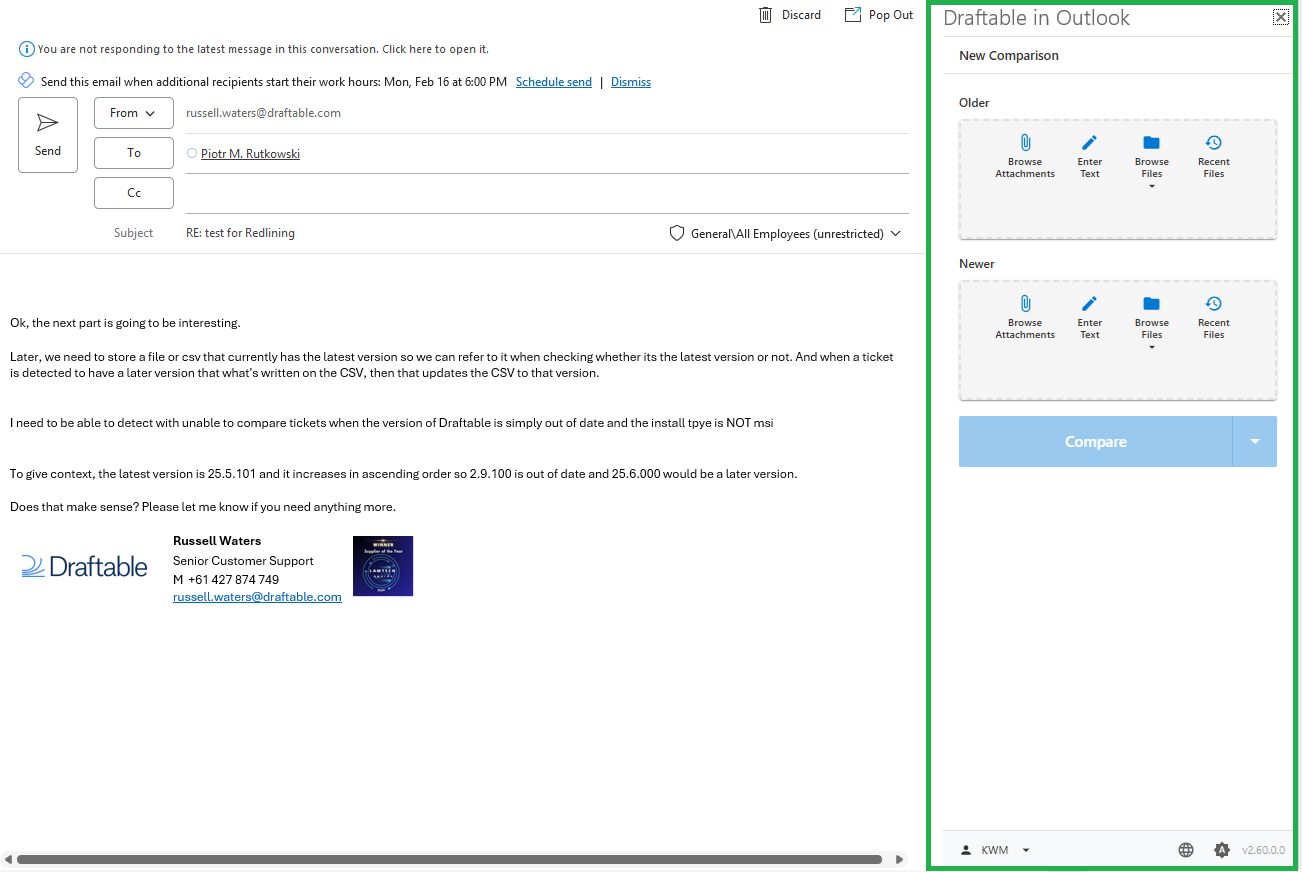
Draftable in Outlook Workflow
The Draftable in Outlook workflow integrates directly into Microsoft Outlook, allowing you to compare email attachments, recent files, and versions — without needing to leave Outlook. The add-in opens a Draftable interface panel on the right-hand side of the Outlook window, where users can select files, run comparisons, and view results.Workflow options using Draftable within Outlook
1. Draftable in Outlook
From the Draftable panel, you can choose which documents or content to use for comparison on the Older and Newer sides.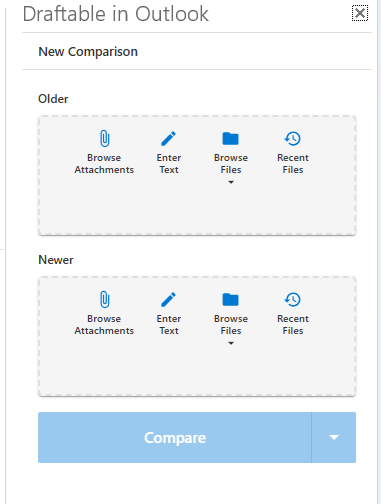
Comparisons run directly from email attachments within Outlook are not added to the Recent files list. Attachment contents are passed straight into the comparison rather than saved as a standalone file, so there is no permanent location for the recent list to link back to. Only files with a stable location — saved on your computer, a synced folder, or a connected DMS — appear under Recent. To keep an attachment handy for re-comparison, save it to your computer or DMS first, then compare it from there. See Recent Documents for details.
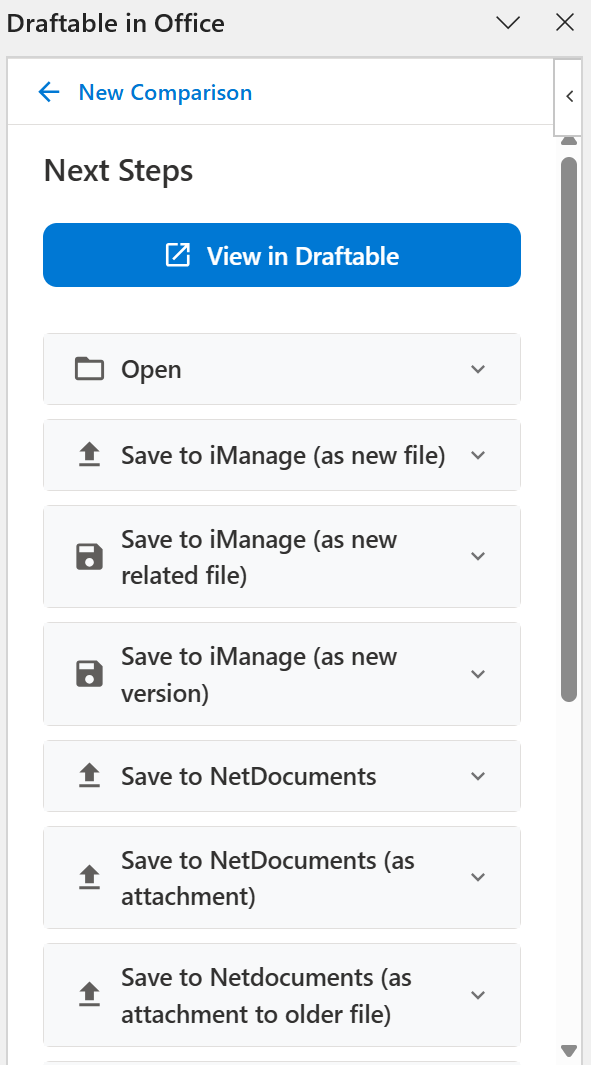
Attach results to an email
To attach a comparison to an email you are composing, choose Email (Reply) in the results panel, select the output you need, then choose Attach to Reply. Attach to Reply is greyed out while you are only reading an email, so open a reply, new message or forward first. In New Outlook, the separate Email export is unavailable. Use Email (Reply) to attach the result to your open message. Draftable in Outlook uses Browse Attachments to select email attachments and supported DMS links. It does not have the Office add-ins’ Compare Open or Compare Versions ribbon commands. To compare pasted email text, use Enter Text on each side.Additional Settings
Within the Draftable in Outlook panel, you’ll find several configuration options that help personalize your in-Outlook comparison experience.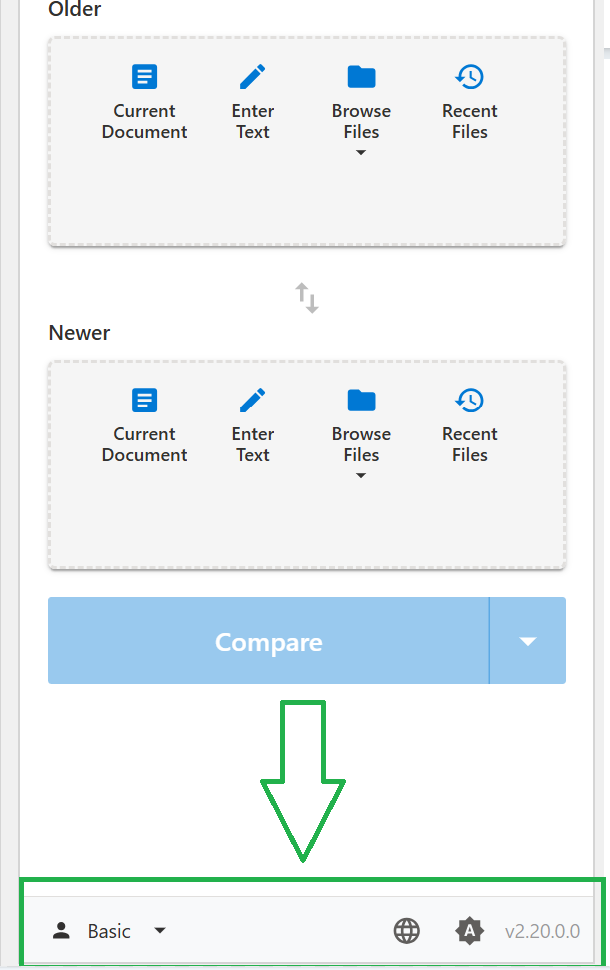
Profiles
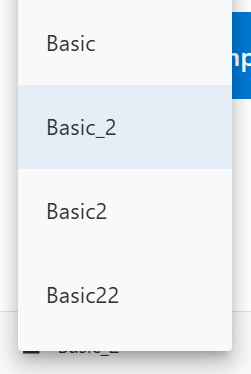
You can select which comparison profile to use for your comparisons directly within the Outlook add-in. Profiles allow administrators or users to predefine comparison settings such as markup style, color scheme, and formatting preferences.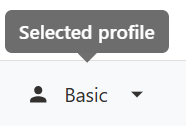
Light/Dark Modes
Next to the profile selector is a theme toggle, allowing you to switch between Light, Dark, and Auto color modes to suit your preference or Outlook theme.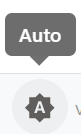
Language
In the same section, you can also choose the language that Draftable in Outlook operates in. This setting affects the add-in’s interface and messages within Outlook. The available languages are English, German, Spanish, French, Japanese, Dutch, Polish, Portuguese, Swedish and Tagalog.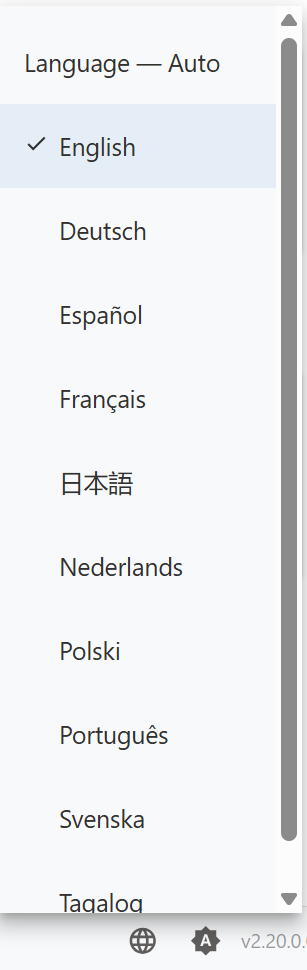
Notes
- Draftable in Outlook requires Draftable version 25.10.000 or later to be installed and running on the user’s device. We recommend running 25.12.000 or later if possible.
- Comparisons performed in Outlook use the same engine as Draftable Legal, ensuring identical accuracy and output consistency.
- You can continue working within Outlook while running comparisons in the Draftable pane.
- Draftable Desktop 26.10.0 or later accepts add-in file uploads up to 50 MB per file.
- If Desktop declines a comparison, the add-in displays a message explaining that Desktop did not accept or start it.