- Matched Pairs — compare documents as discrete one-to-one pairs.
- One-to-Many — compare a single base document against several others.
- Timeline — compare a sequence of versions in order (covered briefly below; see the dedicated article for a deep dive).
The Bulk Compare modes are available from Draftable Legal v26.4.0 onwards. The layout icons are always shown in the top-right of the New Comparison window — if you don’t see them, you may be on an older version.
Finding the Bulk Compare modes
In the top-right corner of the New Comparison window, a row of layout icons lets you switch between the standard single comparison and the three Bulk Compare modes. Hovering over an icon shows its name — Pairs, One-to-Many, and Timeline.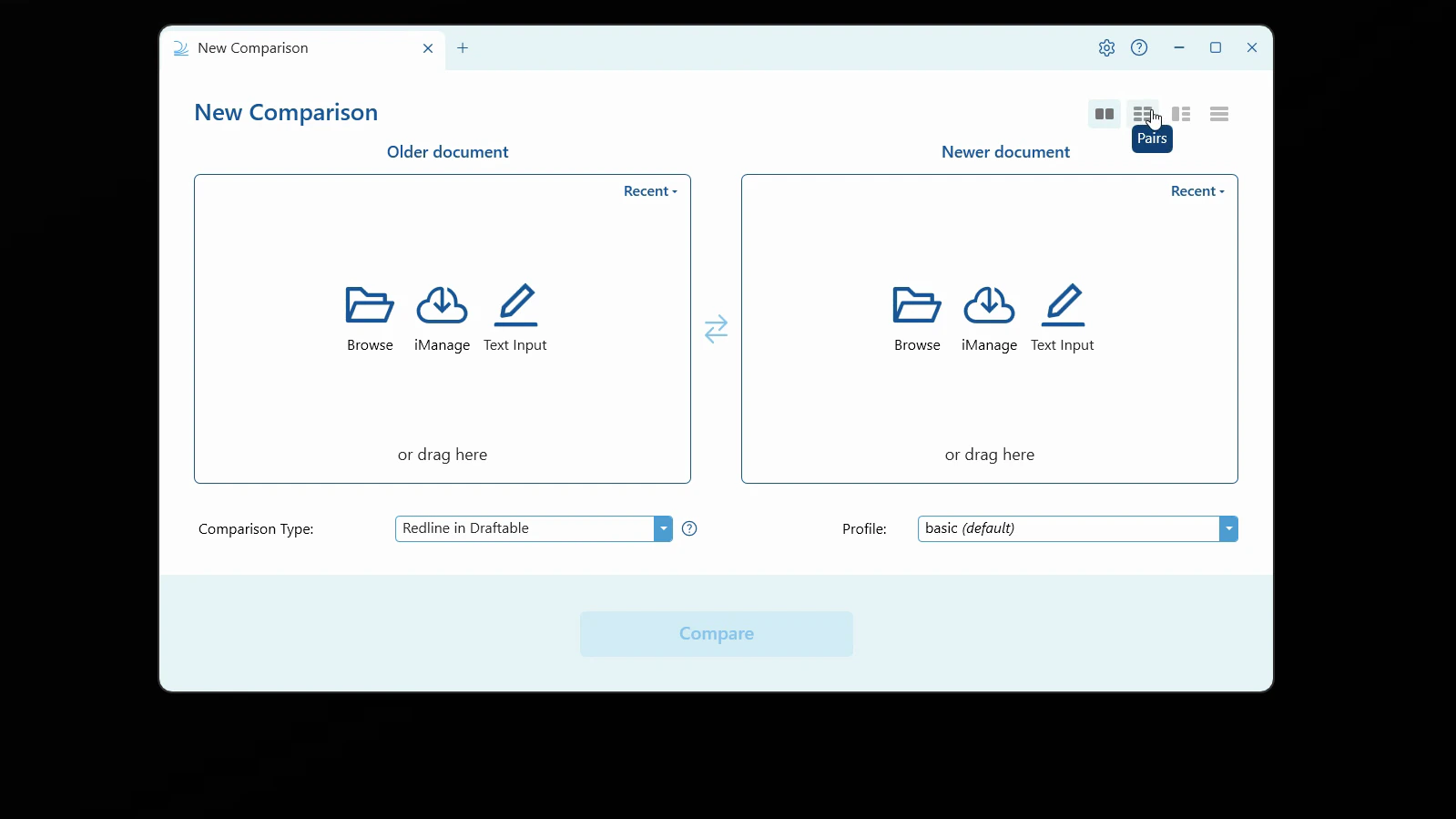
Matched Pairs (one-to-one)
Use Matched Pairs when your documents come in clear couples — each older document compared against its corresponding newer document.1
Select the Pairs layout
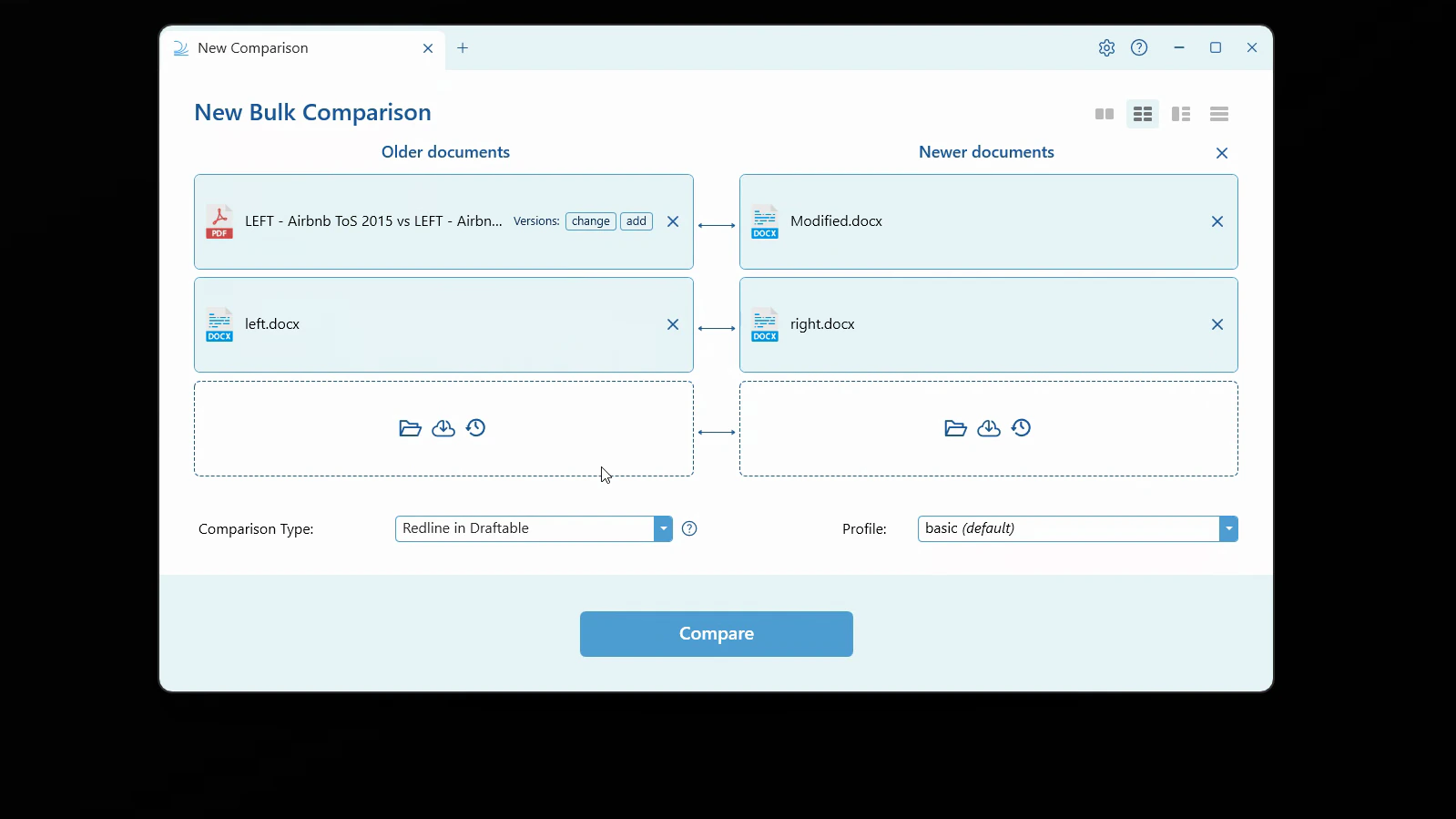
Click the Pairs icon. The window changes to New Bulk Comparison, with stacked slots for Older documents on the left and Newer documents on the right. Each pair is joined by a horizontal arrow.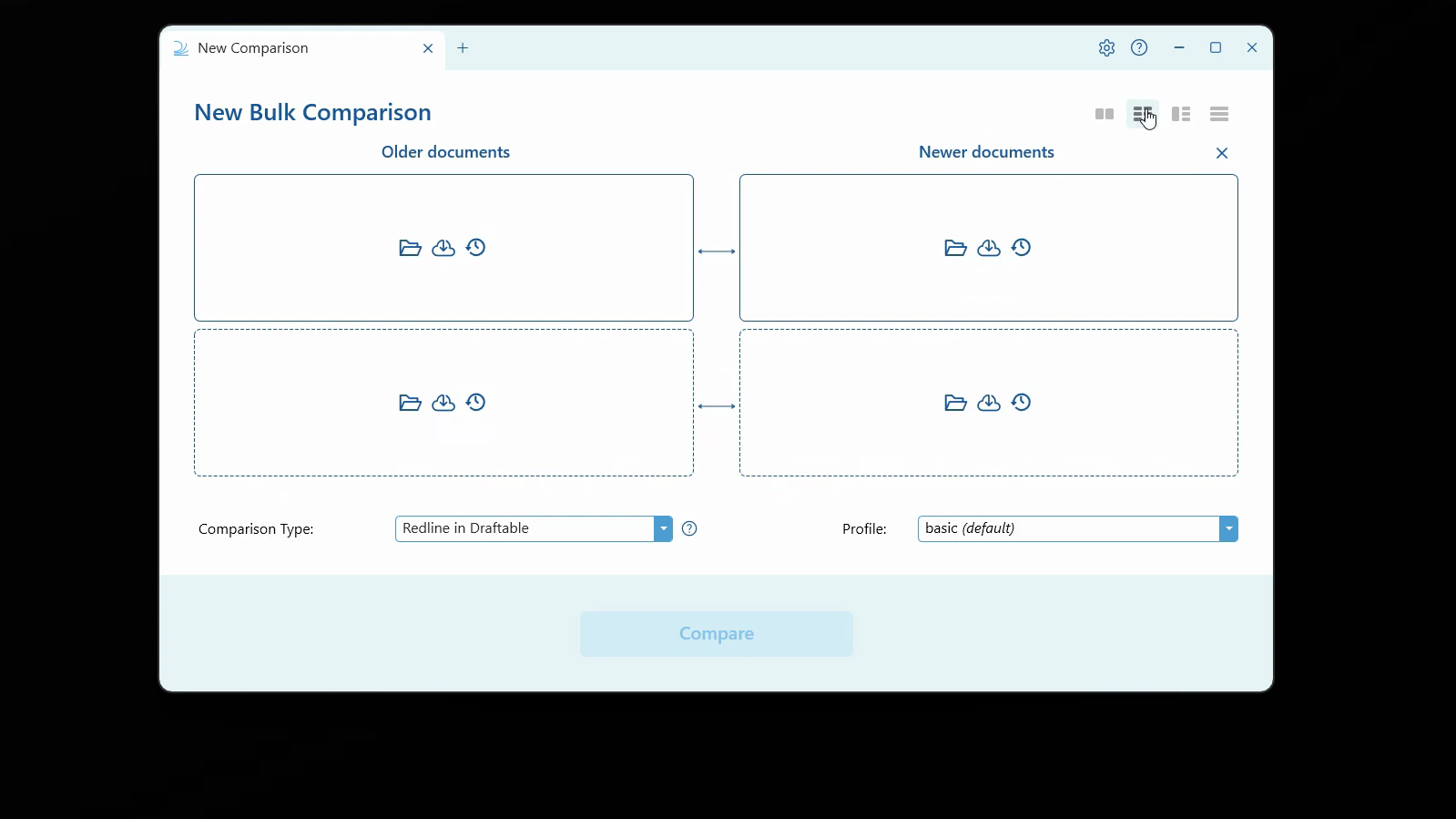
2
Add your documents
Fill the slots using the icons on each one: Browse your computer, load from your DMS (e.g. iManage), or pick from Recent files. You can also drag and drop files onto the slots. A new empty row appears as you fill the slots, so you can add as many pairs as you need.With Automatic version ordering on under Settings > Compare Selector, Draftable matches a batch with files already loaded. For example, 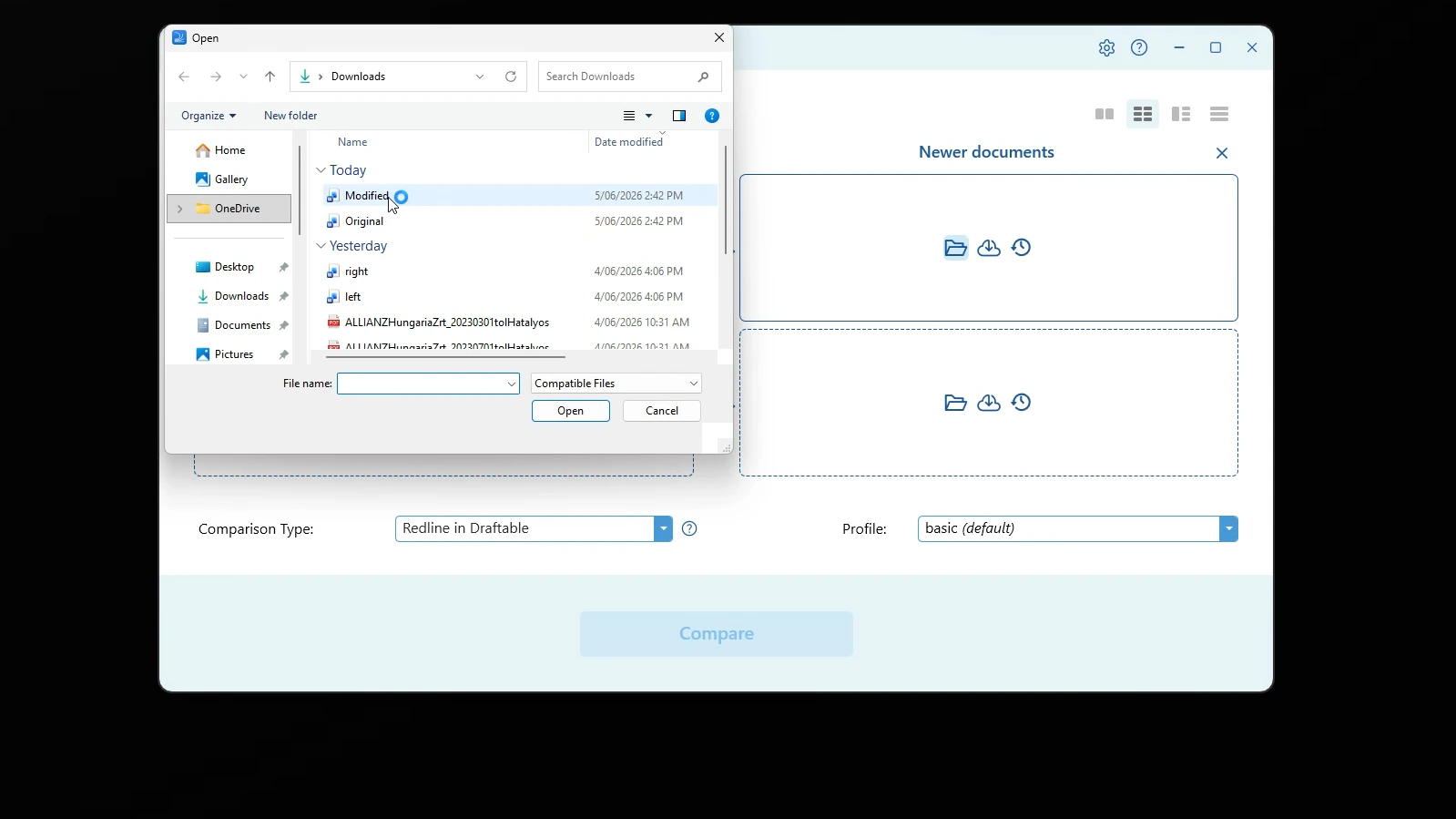
Contract v5.docx can land opposite an unpaired Contract v4.docx. Existing complete pairs and files you placed by hand stay put when you add more files.Selecting or dropping one file into a slot places it there. For a batch added without choosing a column, turning automatic ordering off stacks every file in Older documents, one per row. With ordering on, a batch of more than two files with no matches also stacks there. If you explicitly add files to a column, they stay in that column.3
Arrange your pairs
Each older document on the left is compared against the newer document beside it. The horizontal arrows confirm each pairing. Drag files between slots to re-pair them, use the per-row Versions controls to change or add a version (for DMS files), and remove a file with the × button.Draftable leaves uncertain matches unpaired to avoid comparing the wrong documents. Try Sort files into version order to reconsider the whole grid. If files remain unpaired, place them by hand or remove them before comparing.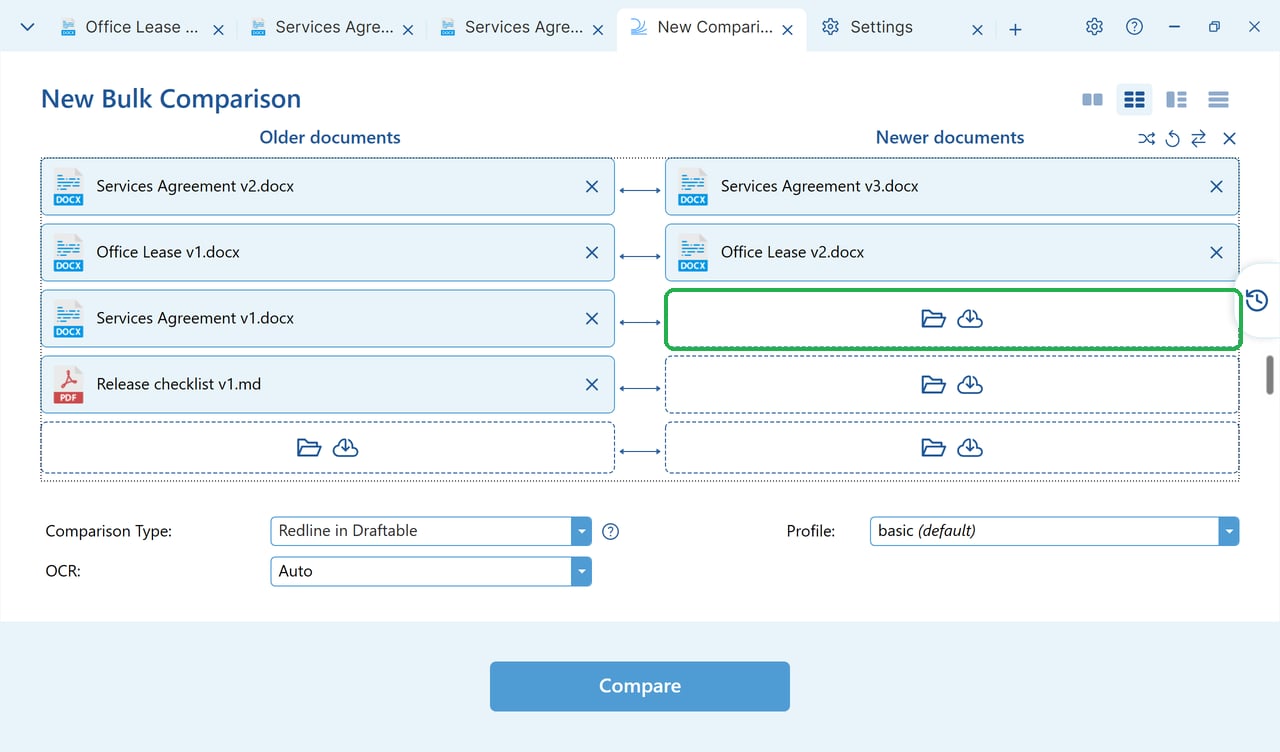
4
Choose your comparison type and profile
Select your Comparison Type (for example, Side by Side in Draftable or Redline in Draftable) and a settings Profile. Options that don’t apply to your files — such as Redline in Excel or PowerPoint — are greyed out.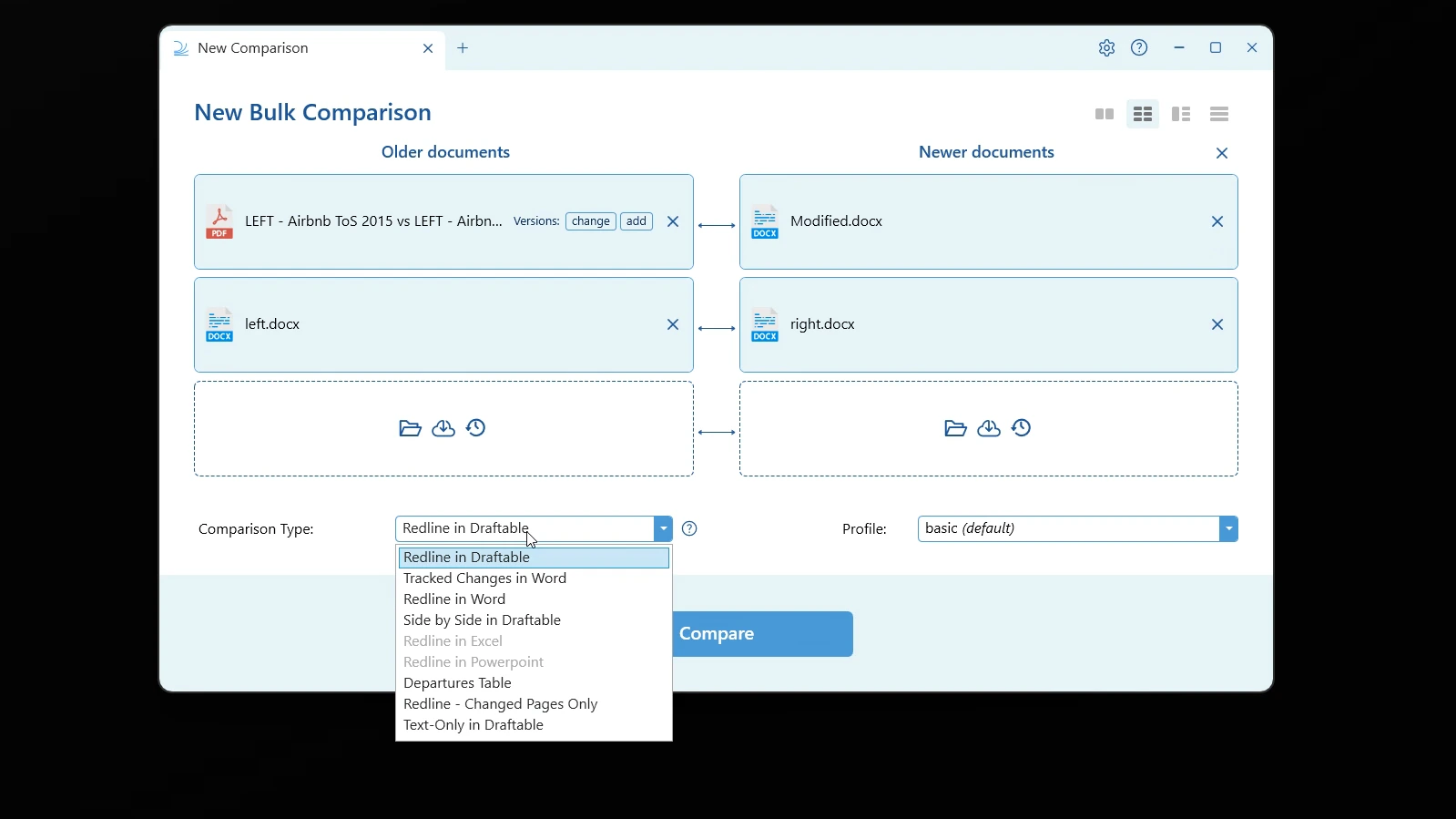
5
Run the comparisons
Click Compare. Draftable runs every pair at once and shows the progress of each comparison. As each one finishes, an Open button appears so you can start reviewing it without waiting for the rest.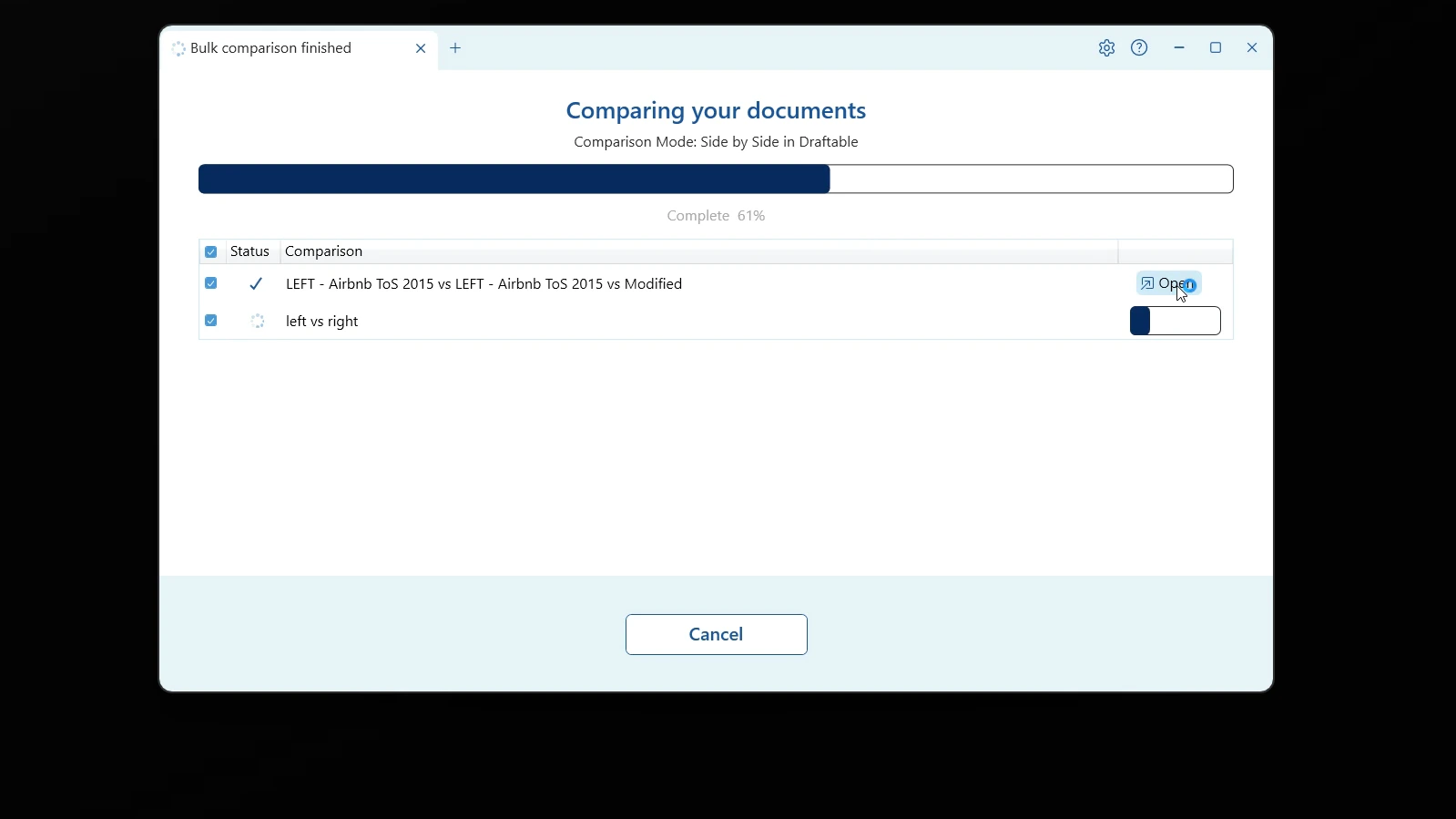
6
Review each result
Open any completed comparison to review it in the viewer. Each opens in its own tab, where you can filter changes and take next actions such as Save, Print, Copy to Clipboard, or Email.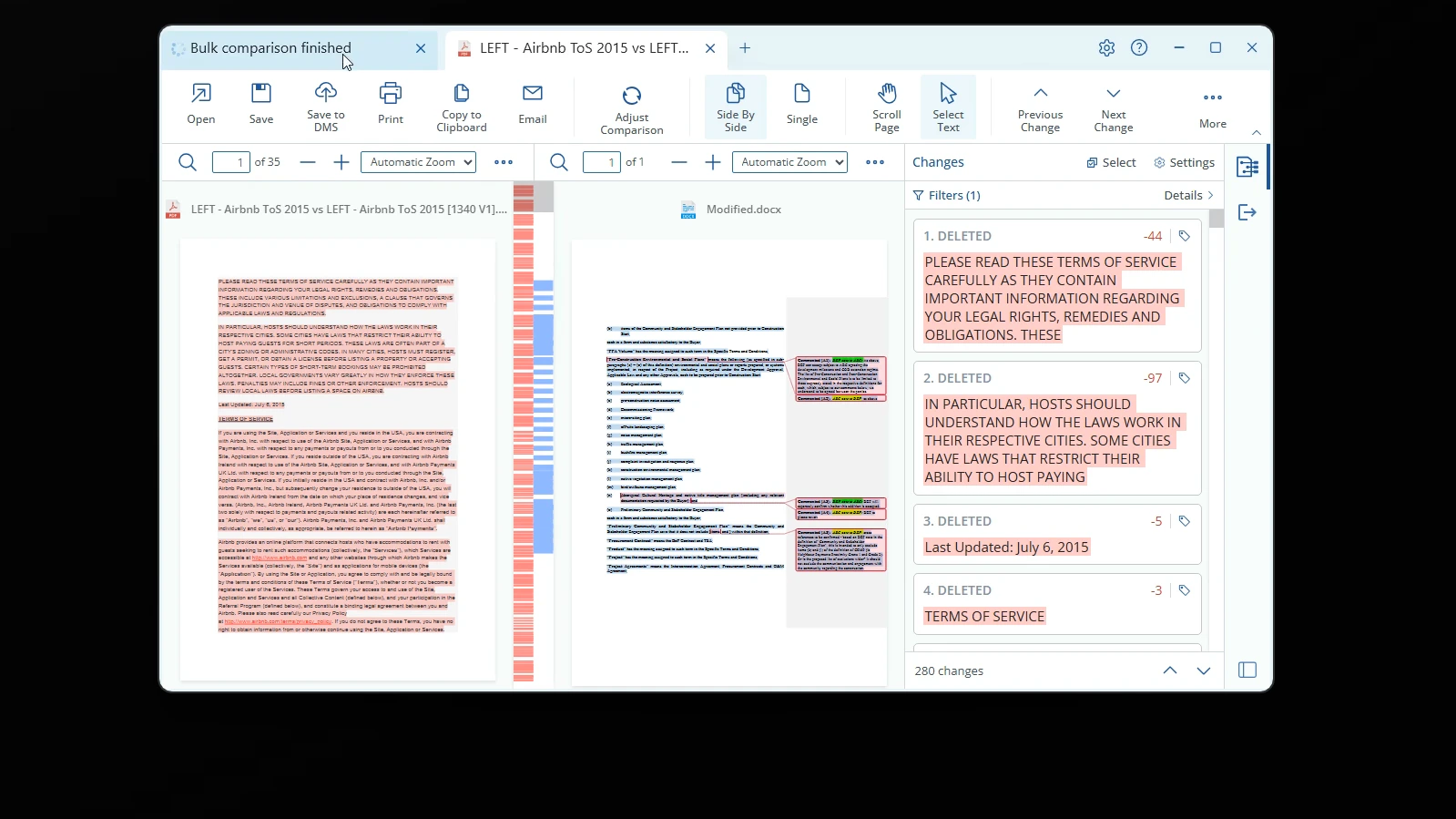
How file names and DMS versions are matched
Available from version 26.10.0 Draftable recognises version labels such asv2, v 2 and v. 2. It can match files that share at least two name words before the version, even when the text after the version differs, such as Supply Agreement v2 - Buyer and Supply Agreement v3 - Seller.
A trailing Base after at least two name words, such as Supply Agreement Base, is an original-version hint. A trailing copy number such as (1) can identify a later copy when stronger clues do not decide the order. These clues help matching but do not guarantee a pair.
For DMS files, Draftable groups versions by document identity. Selecting several versions of several documents keeps each document’s versions together. Version numbers are compared by their parts, so 1.10 comes after 1.9.
Sort files into version order and undo a sort
Available from version 26.10.0 Use Sort files into version order in the Newer documents header to recheck the whole Matched Pairs grid. Unlike adding files, this can change existing pairs and manual placements when the matching evidence is strong. Uncertain matches may remain unchanged. The sort button appears when Automatic version ordering is on and more than one row contains files. After a sort changes the arrangement, Undo sort restores the previous arrangement while keeping files added afterwards. Use undo before manually moving, replacing or removing files, because a manual change makes that undo unavailable. After adding files automatically creates pairs, the undo button can instead read Undo automatic pairing. The sort and undo icons appear in the Newer documents column header beside the swap and clear icons. Hover over them to see Sort files into version order and Undo sort. After you use Undo sort, its icon disappears. Both controls are unavailable when Automatic version ordering is off.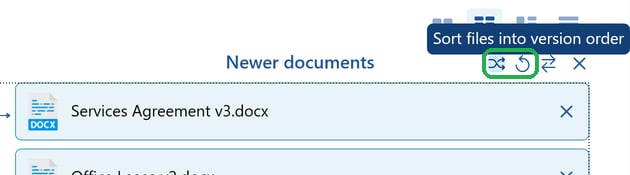
One-to-Many
Use One-to-Many when you want to compare a single base document against several others at once — for example, one standard template against multiple counterparty markups.1
Select the One-to-Many layout
Click the One-to-Many icon. The window changes to New One-to-Many Comparison, with a single Older document slot on the left and multiple Newer documents slots on the right.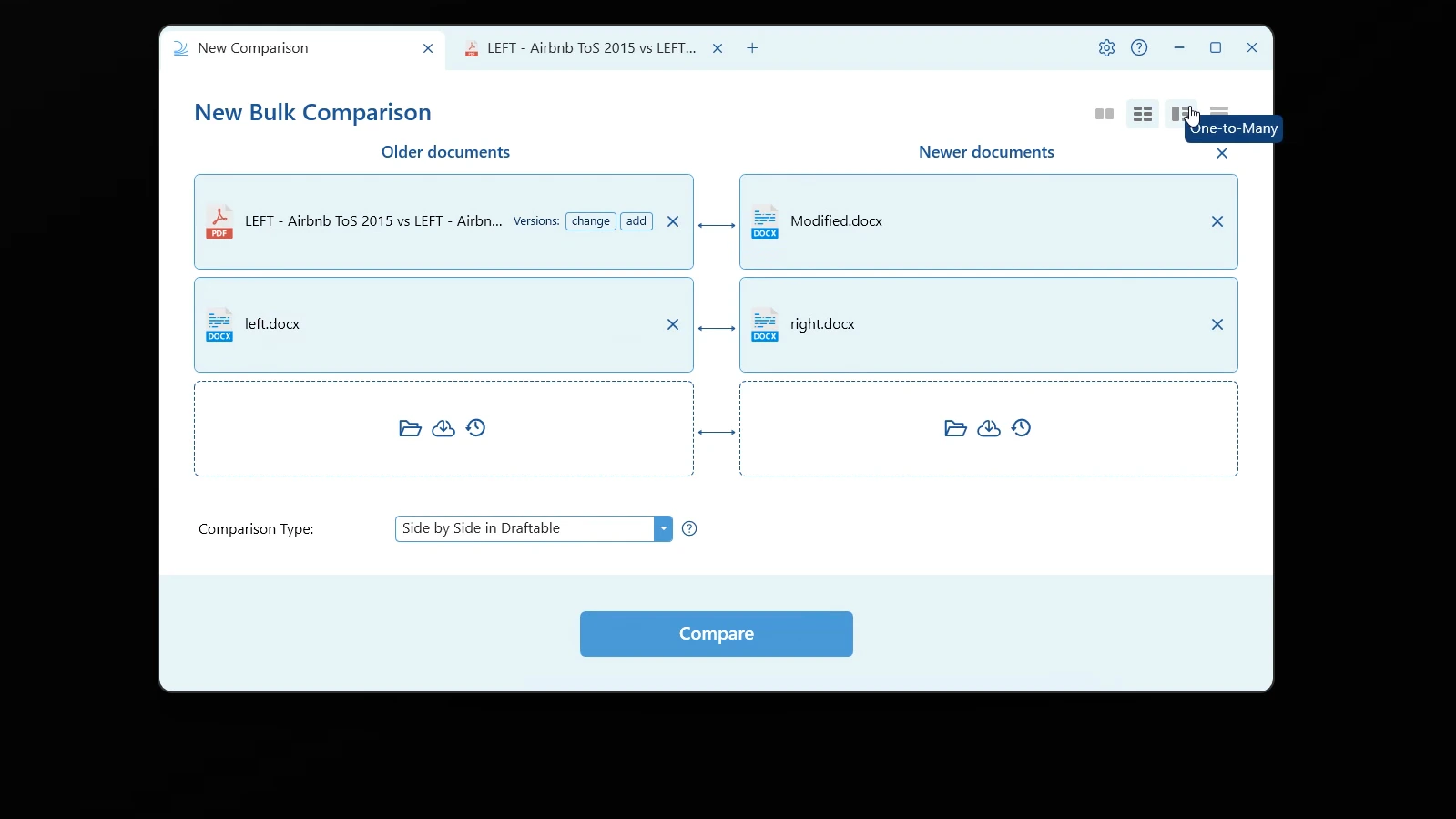
2
Add your base document and the documents to compare against it
Add your base document (usually the older version) to the single slot on the left, then add the documents you want to compare it against on the right. Arrows fan out from the base document to each of the others, showing that each will be compared against your single base.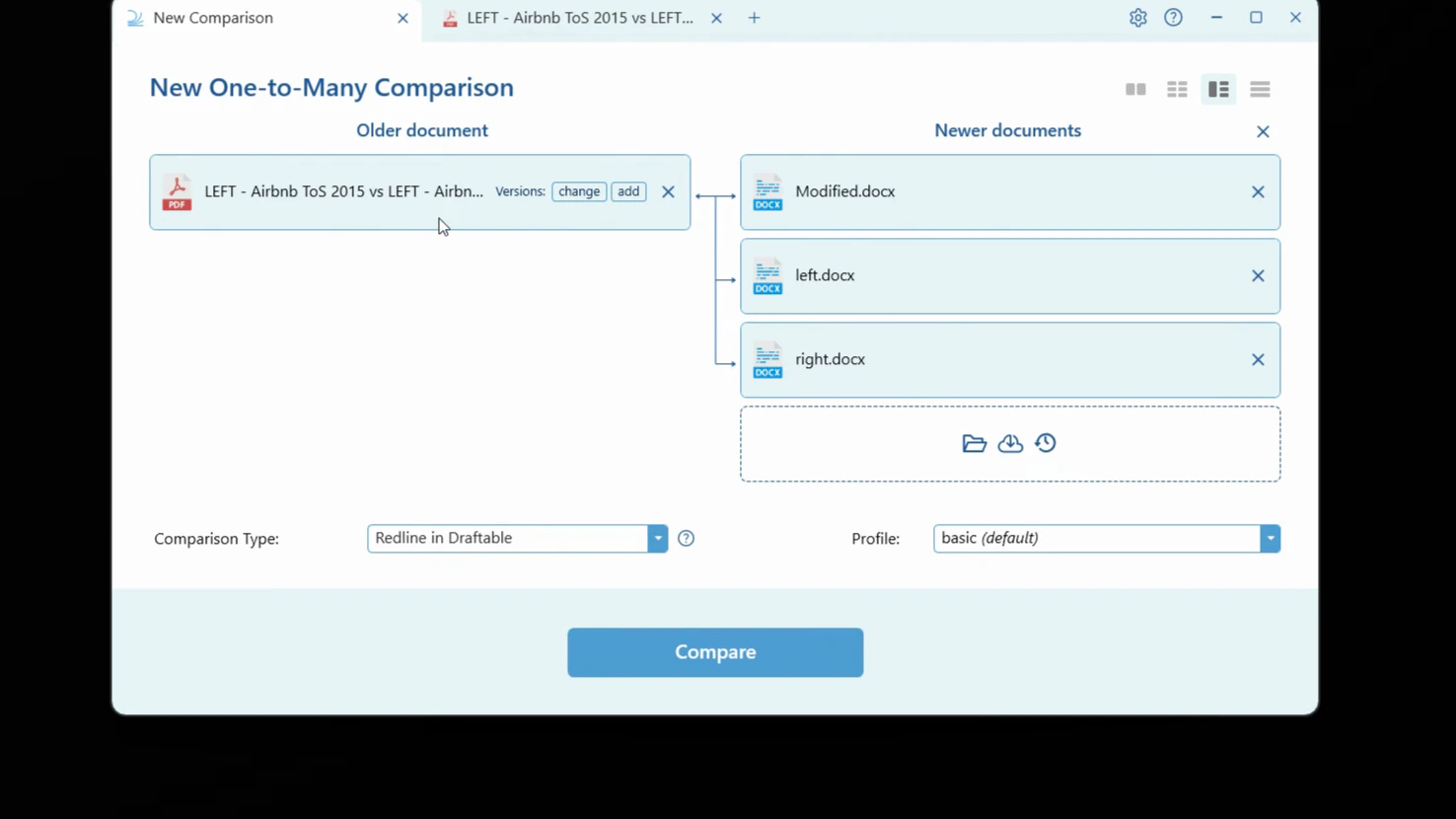
One-to-Many also works the other way around — you can compare multiple older documents against a single newer document. See Bulk Compare: How to load and run multiple comparisons at once for more on arranging files.
3
Choose your comparison type and profile
Select your Comparison Type (for example, Redline in Draftable) and a settings Profile.
4
Run the comparisons
Click Compare. Draftable compares each document against your base in parallel, and you can open each result as it completes.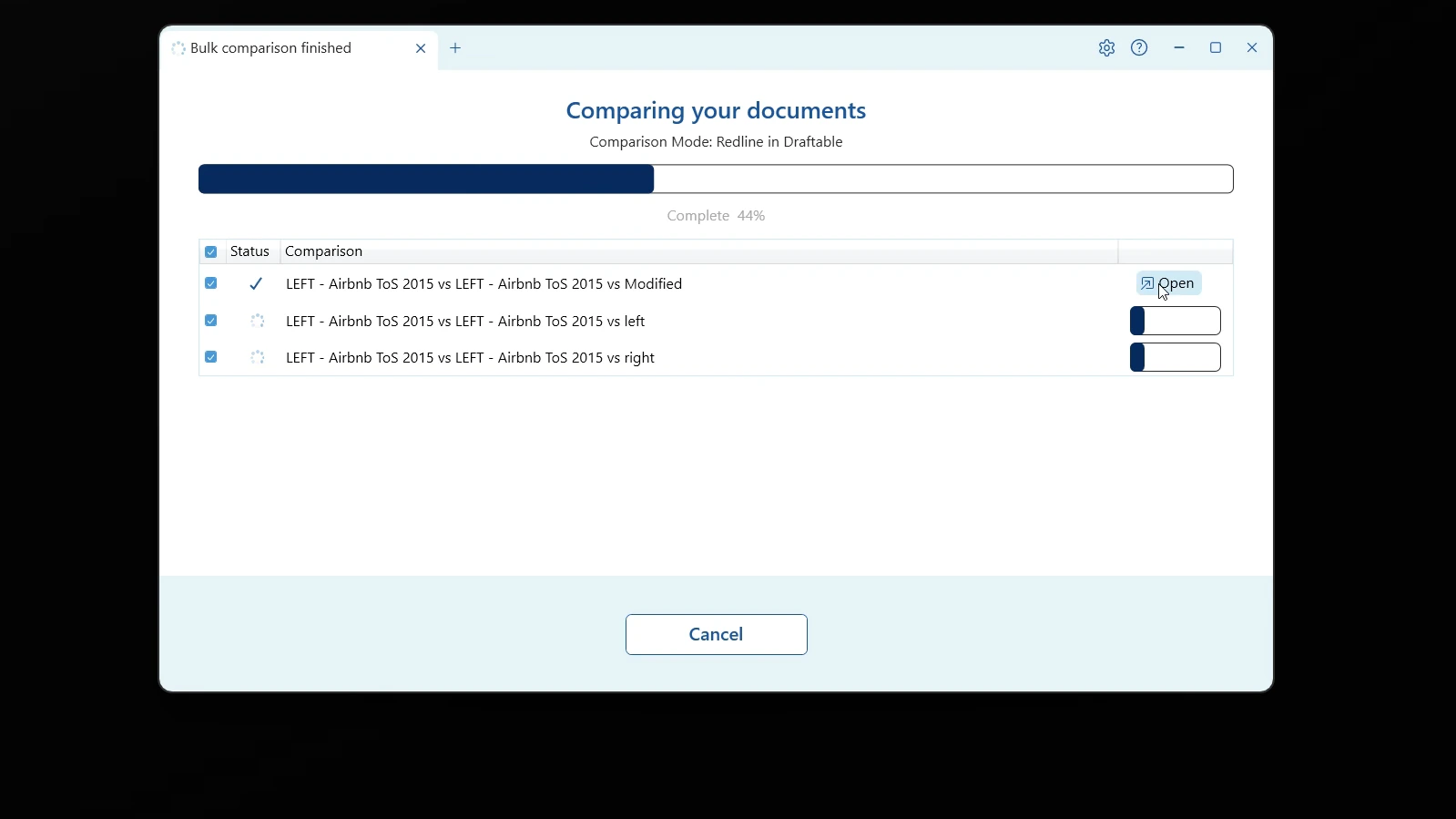
If you click Cancel while comparisons are still running, Draftable asks you to confirm — closing the window loses the progress of any comparisons that haven’t finished.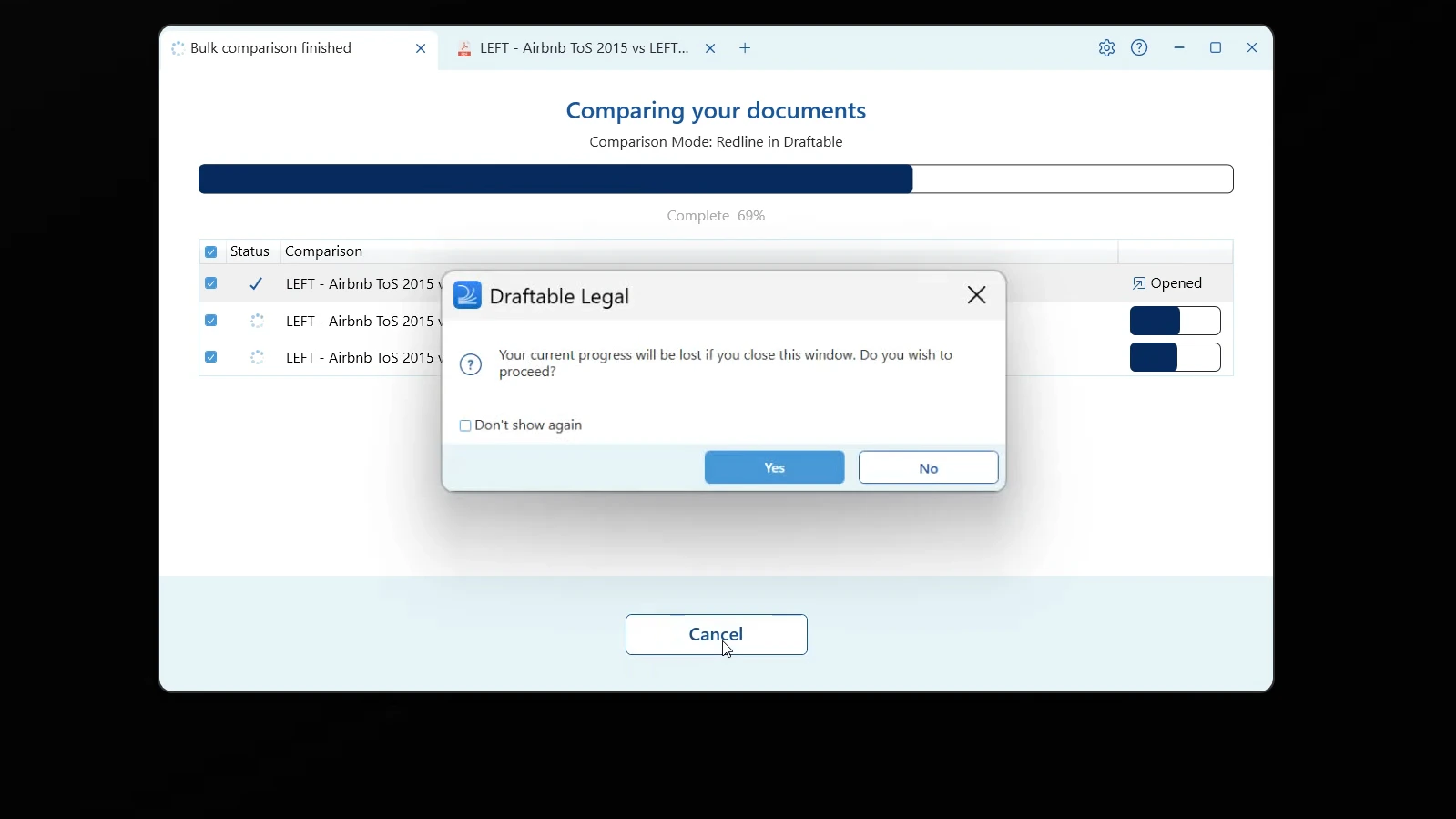
Timeline mode
Timeline mode compares a sequence of versions in order — each version against the next (v1 → v2, v2 → v3, and so on) — which is ideal for tracking how a document evolved across many drafts.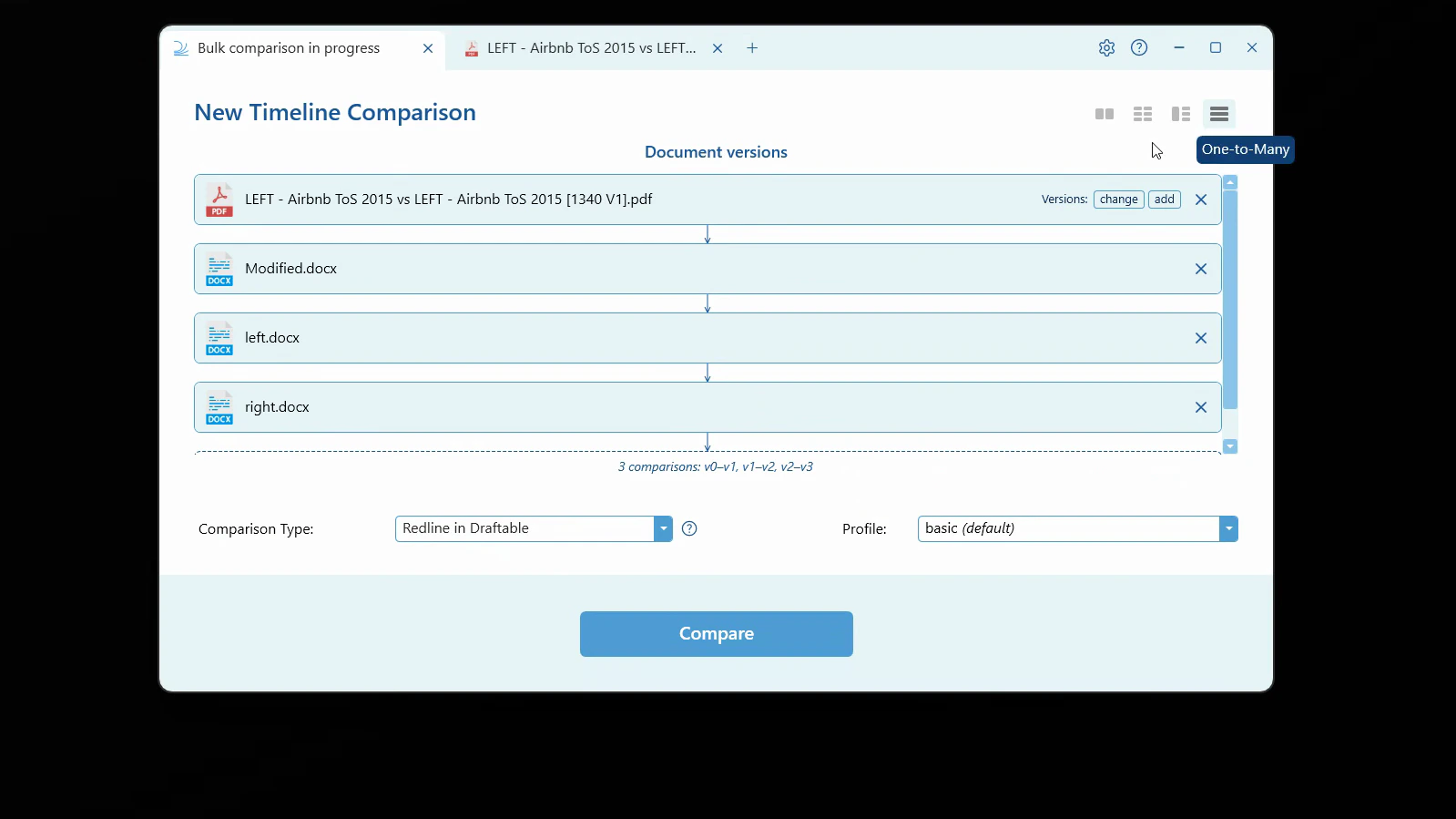
Saving and exporting your results
After a bulk run, you can open each comparison individually for review, or save and export them in bulk from the finished screen. For One-to-Many and Timeline comparisons, you can also export a Combined Departures Table — a single Word (.docx) or Excel (.xlsx) file summarising the changes across the whole run.
When you email the results, Draftable gives attachments with the same file name distinct names so you can tell them apart.
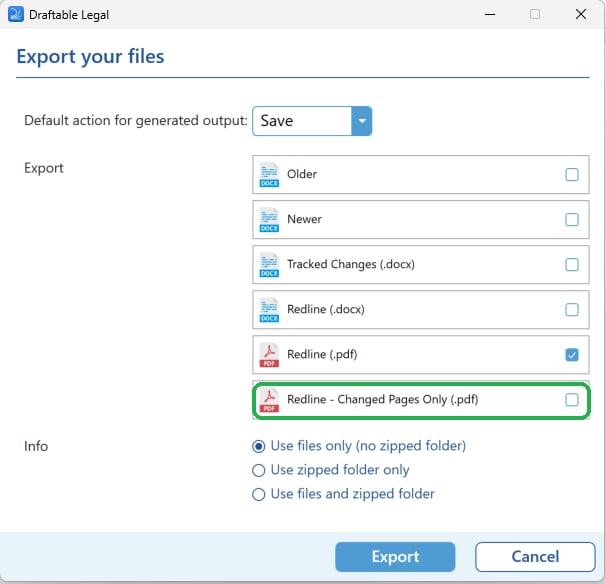
The Export your files dialog also offers Redline - Changed Pages Only (.pdf), so you can produce changed pages output for a whole batch without running the comparisons again. Tick it alongside the other outputs you want, such as Tracked Changes or the full Redline.