

The settings menu was reorganised in Draftable Legal 26.6. If you are on 26.6 or later, follow the “26.6 and later” tabs below. On earlier versions, follow “Before 26.6”. To check your version, open Settings. The version number shows at the bottom-left (for example, v26.6.0).
Note:Please note, to use this feature in your DMS, Administrators will need to update the relevant Draftable DMS Application.
Video Resource
This topic is included in our specially crafted explainer video.
What is 1-Click Compare?
1-Click Compare gets you to your preferred next action in “1-Click”. Users can launch a comparison of two files and generate their chosen ‘next action’ without any further steps. For example, you can use 1-Click Compare to go straight from selecting your files to:- Creating an email with redline outputs and input files attached.
- Copying input files and comparison outputs to your clipboard .
- Immediately printing your preferred comparison output.
- Saving your your preferred comparison output to your DMS
- Opening your Redline in Word
How to set up your default comparison workflow
1
Open Draftable Desktop and go to the Settings Menu (in the top right corner of the New Comparison window)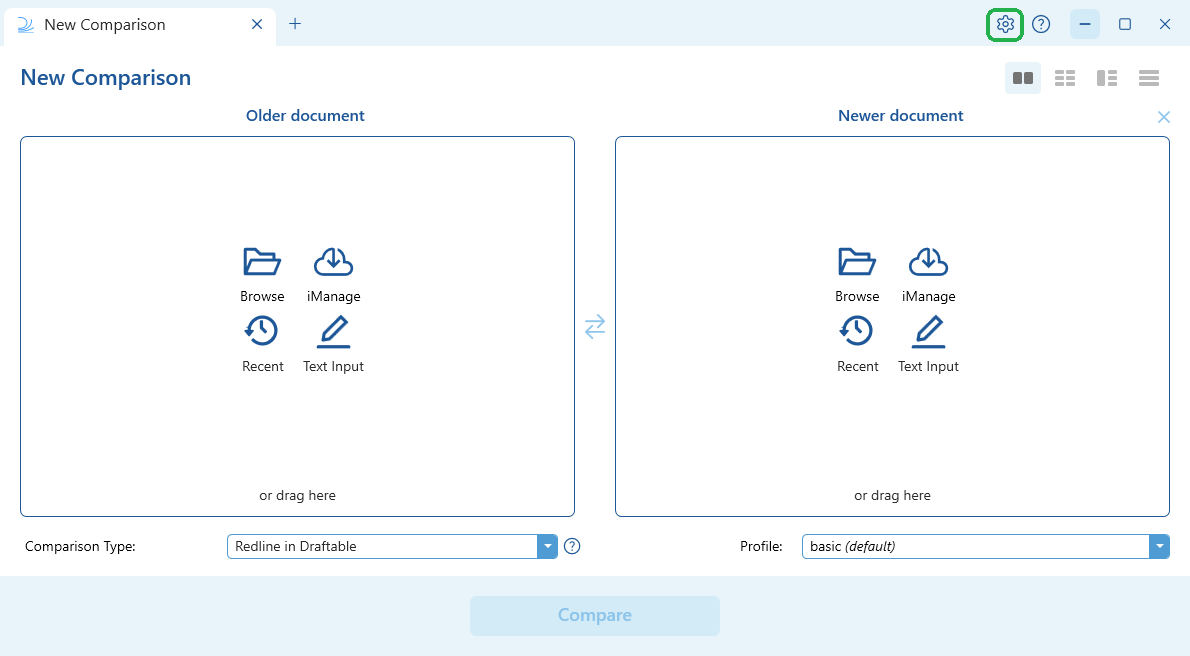
- 26.6 and later
- Before 26.6
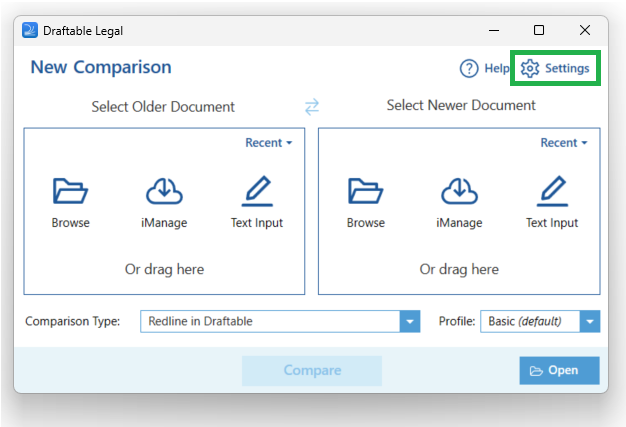
2
Navigate to the 1-Click Compare tab on the left hand side of the settings menu, then under Comparison Type, select your preference.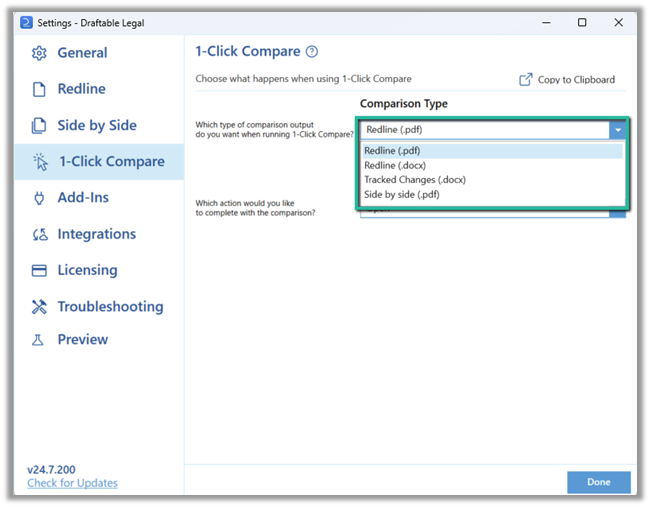
- Redline (.pdf) - generates a redline output as a PDF
- Redline (.docx) - generates a redline output as docx
- Tracked Changes (.docx) - generates a redline as a docx file with Tracked Changes
- Side-by-Side (.pdf) - generates a side by side comparison as a PDF
3
Then select the Next Action you want to perform with your comparison result from the list of options (note, depending on your organizational settings, some DMS-related options in the screenshot below may not be available).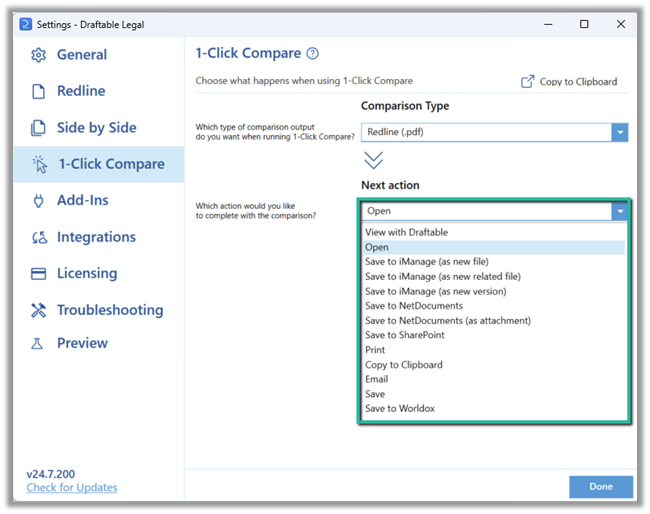
4
For certain Next Actions (e.g. Email, Copy to Clipboard), you may need to choose which files you would like included in the action.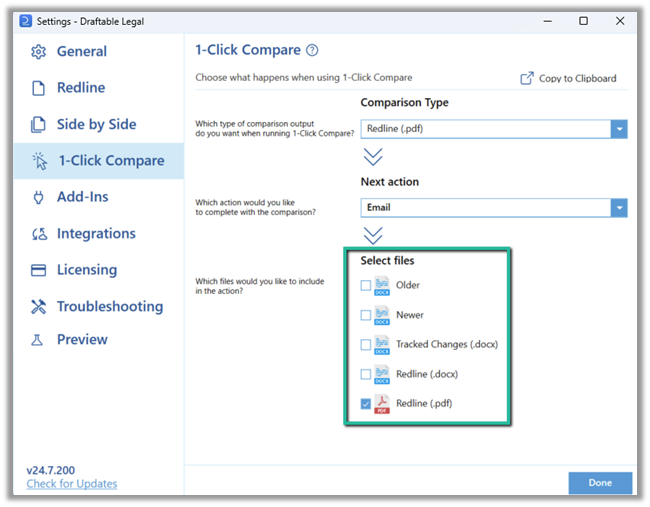
5
Once you have selected your preferred workflow, it will automatically save. Select Done to close the settings menu.
Running 1-Click Compares
1
To run the-using-1-click from your windows browser (i.e. for local files), simply navigate to the files you wish to compare,
2
Select the files you wish to compare while holding the ‘Ctrl’ button (to allow multi-select).
Note:You must select the input files in the order you wish to compare them** (i.e. select the ‘newer’ document first and the ‘older’ document second).
3
Once the files are selected, right click one of the files to show the Windows Context Menu.
Note:In Windows 11 you will need to hit ‘See more options” at the bottom of the right click menu.
4
Select 1-Click-Compare in Draftable to start your default workflow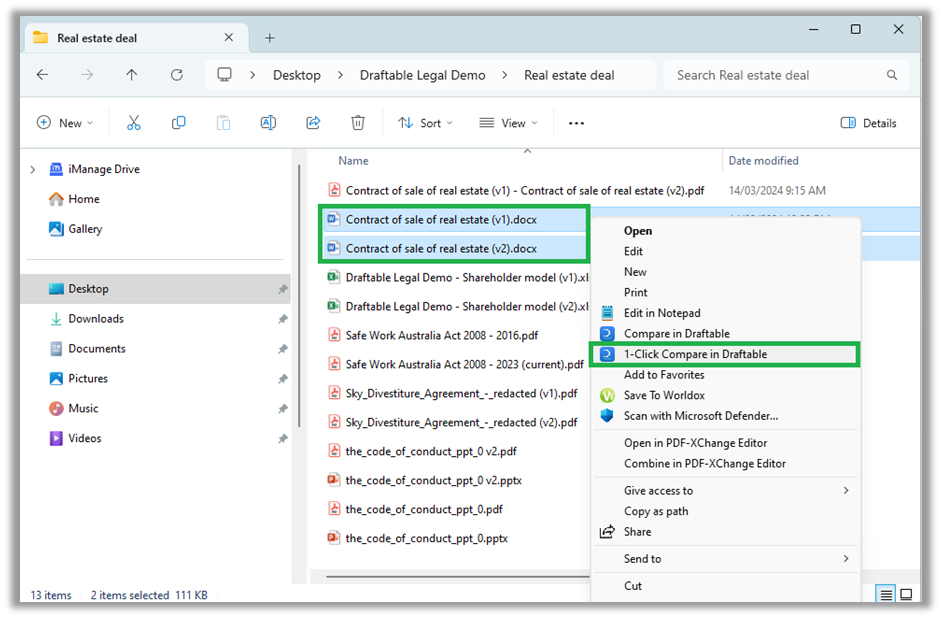
5
Your comparison will run automatically without any further action. You will see the comparison progress bar as it is performed.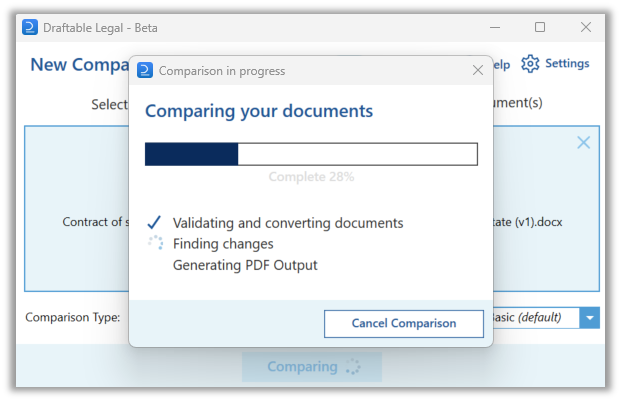
6
Once the comparison is completed, your nominated next action will be actioned (example below shows an email being generated). 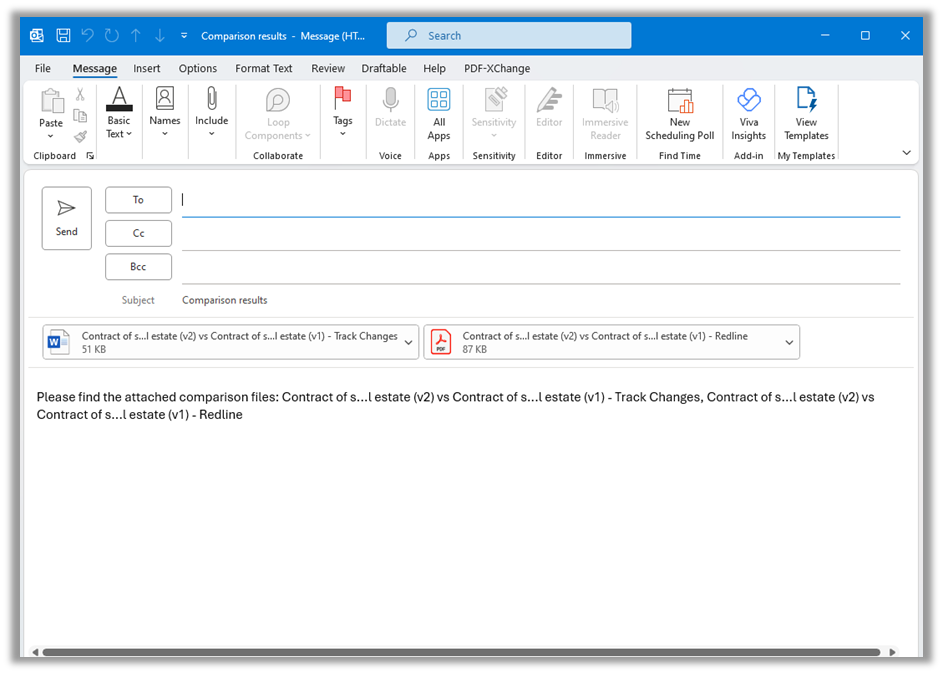
Running 1-Click Compare from iManage
Important notes:To use 1-Click Compare in iManage, your Administrator will need to update the Draftable Universal Application for iManage and add the new 1-Click Compare command to your context menus (see here for details).
1
Open iManage
2
Navigate to the folder where your input files are located
3
Select the two file(s) you wish to compare using 1-click compare, If choosing two separate files (as opposed to two versions of the same file) remember to select them in the correct order you wish to compare them (i.e. select the ‘older’ file first and the ‘newer’ file second).
4
Once the files are selected, Right Click a file and choose 1-Click Compare from the drop down menu.
Or alternatively, you can use the icon in the ribbon (top) menu.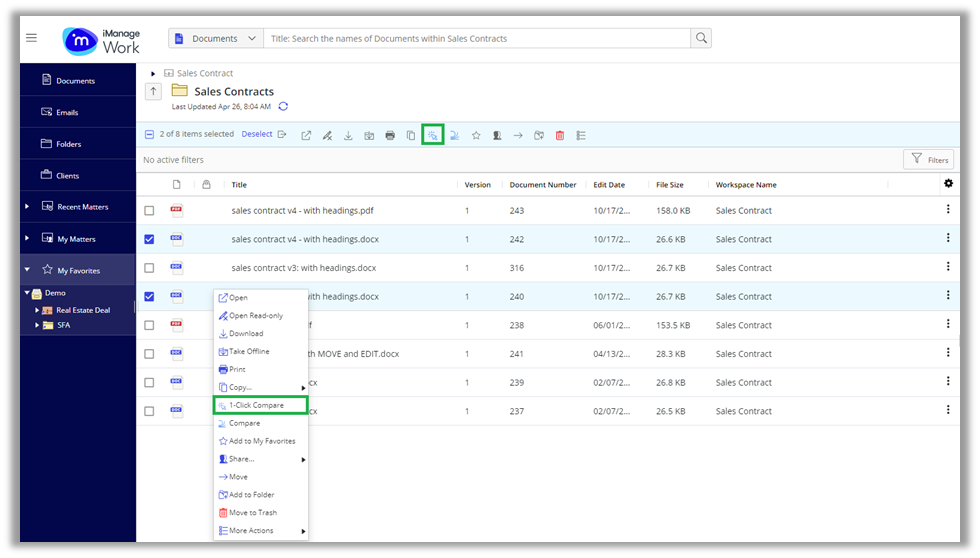
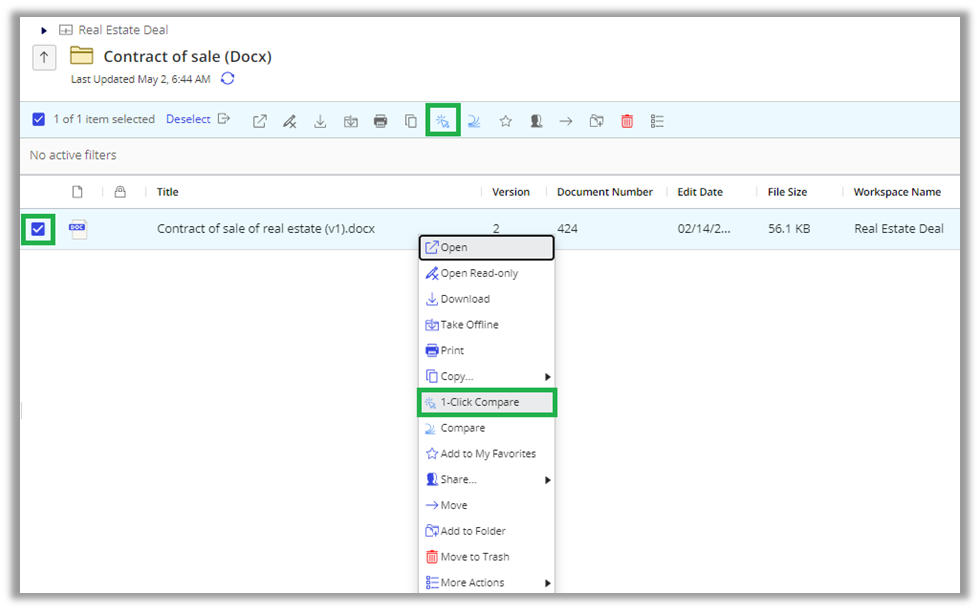
Or alternatively, you can use the icon in the ribbon (top) menu.
 icon in the ribbon (top) menu.
5
Your 1-Click Compare should now run with the selected files
Running 1-Click Compare from NetDocuments
Important notes:To use 1-Click Compare in NetDocuments, users must first have their cabinet settings updated by their administrator to add the command in the ‘send to application’ options (see here for details).
1
Open NetDocuments
2
Navigate to the folder where your input files are located
3
Select the two file(s) you wish to compare using 1-click compare. Note: In NetDocuments, you must load exactly two separate files (as opposed to one file with multiple versions) for 1-Click Compare to work.
4
Once your files are selected, right click and select ‘Send to application’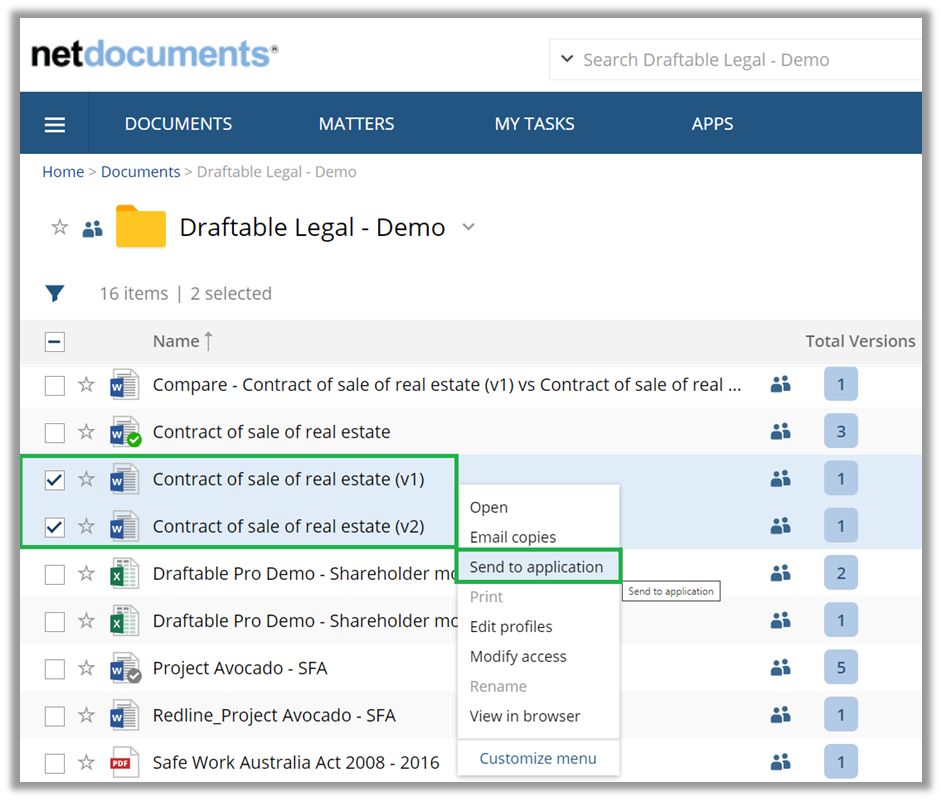
5
In the send to application window, make sure only the two files selected are in the ‘Marked Items’ list and select ‘Draftable 1-Click Compare’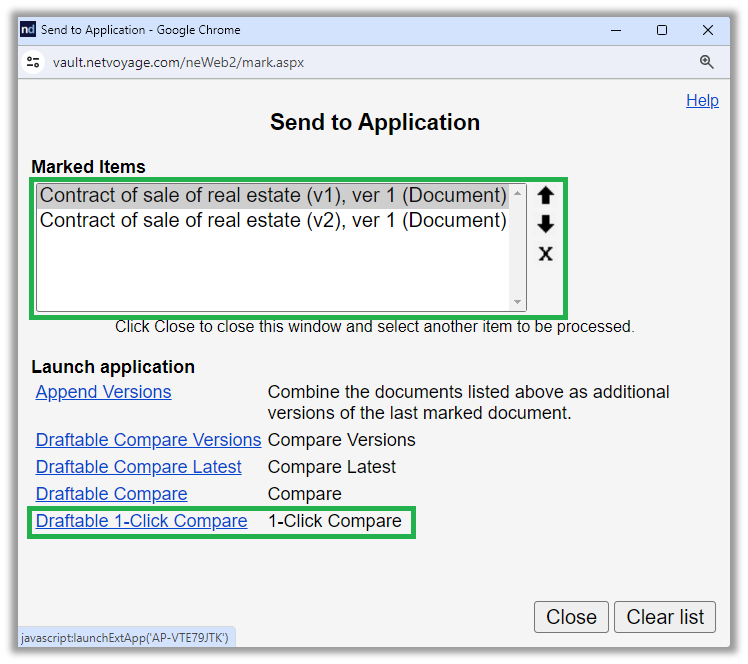
6
Your 1-Click Compare should now run with the selected files
Running 1-Click Compare from SharePoint
Important notes:To use 1-Click Compare in SharePoint your Administrator will need to update the Draftable SharePoint extension to add the new 1-Click Compare command to your context menus (see here for details).
1
Open SharePoint online in your web browser
2
Navigate to the Site and folder where your input files are located
3
Select the two files you wish to compare, remembering to select the files in the correct order you wish to compare them (i.e. select the ‘older’ file first and the ‘newer’ file second).
4
Once the files are selected, select 1-Click Compare from the ribbon menu OR Right Click a selected file and choose 1-Click Compare from the drop down menu.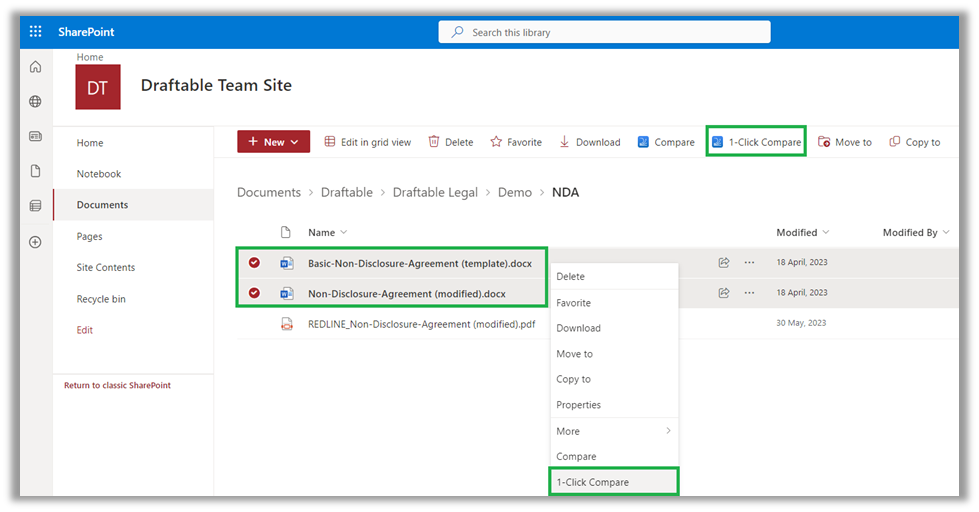
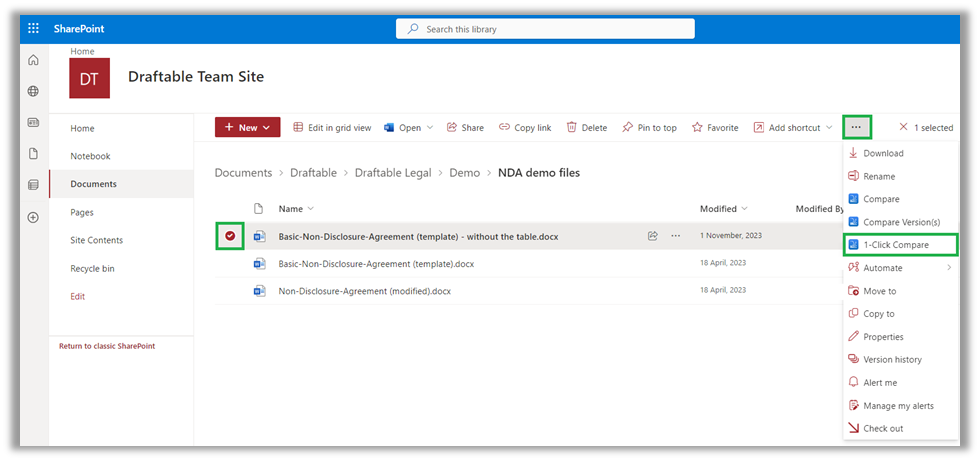
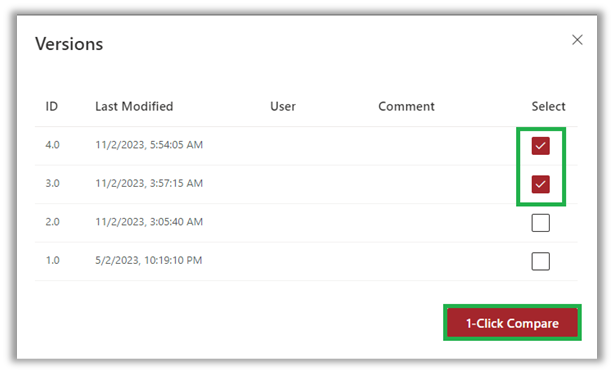
5
Your 1-Click Compare should now run with the selected files