

Timeline mode is available from Draftable Legal v26.4.0 onwards. The Bulk Compare layout icons are always shown in the top-right of the New Comparison window — if you don’t see them, you may be on an older version.
Comparing versions with Timeline mode
1
Open the New Comparison window
Start in the New Comparison window. In the top-right corner you’ll see a row of layout icons — these let you switch between the standard single comparison and the three Bulk Compare modes (Matched Pairs, One-to-Many, and Timeline).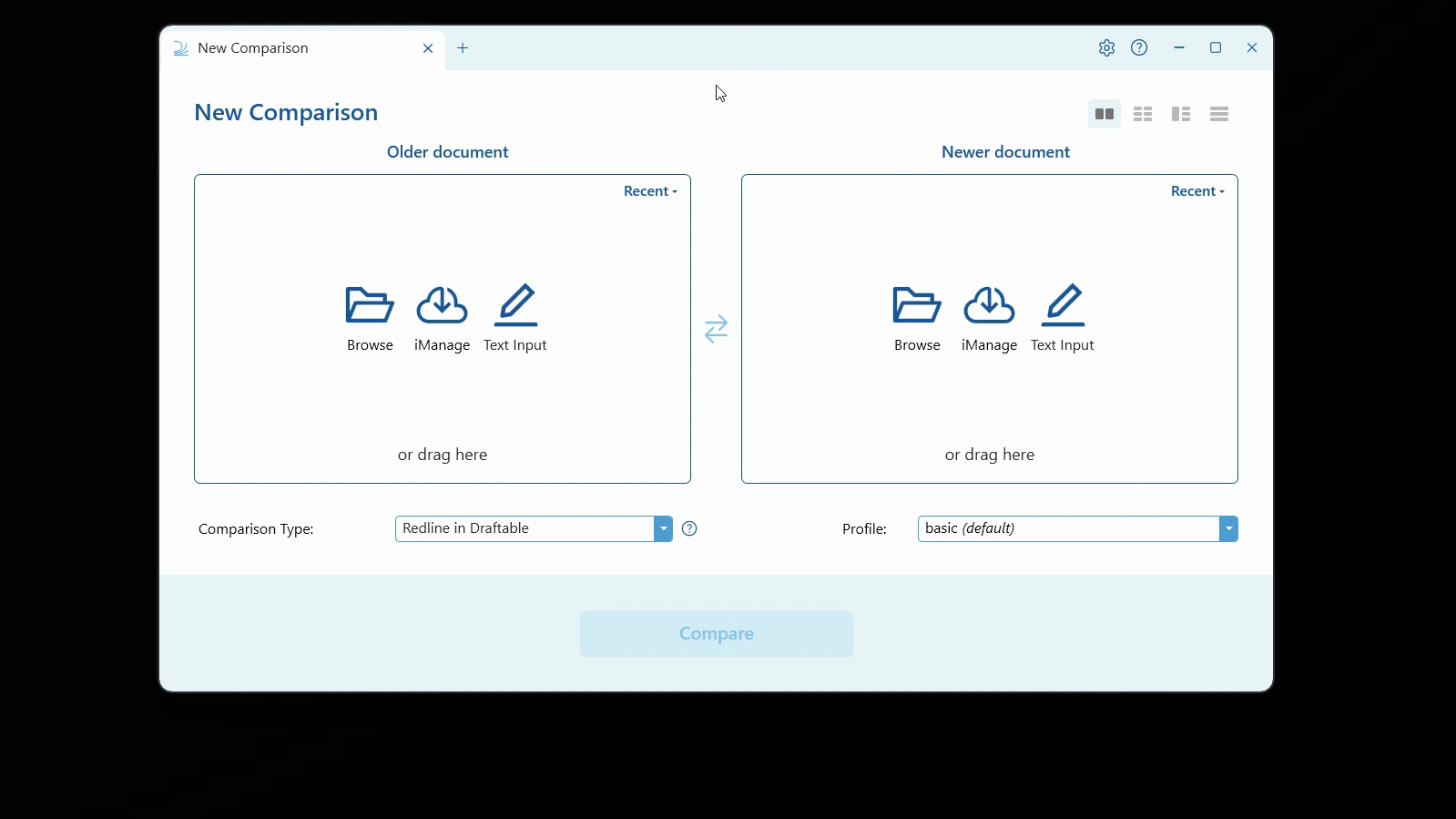
2
Switch to Timeline mode
Click the Timeline icon (the right-most layout icon). Hovering over it shows the “Timeline” tooltip.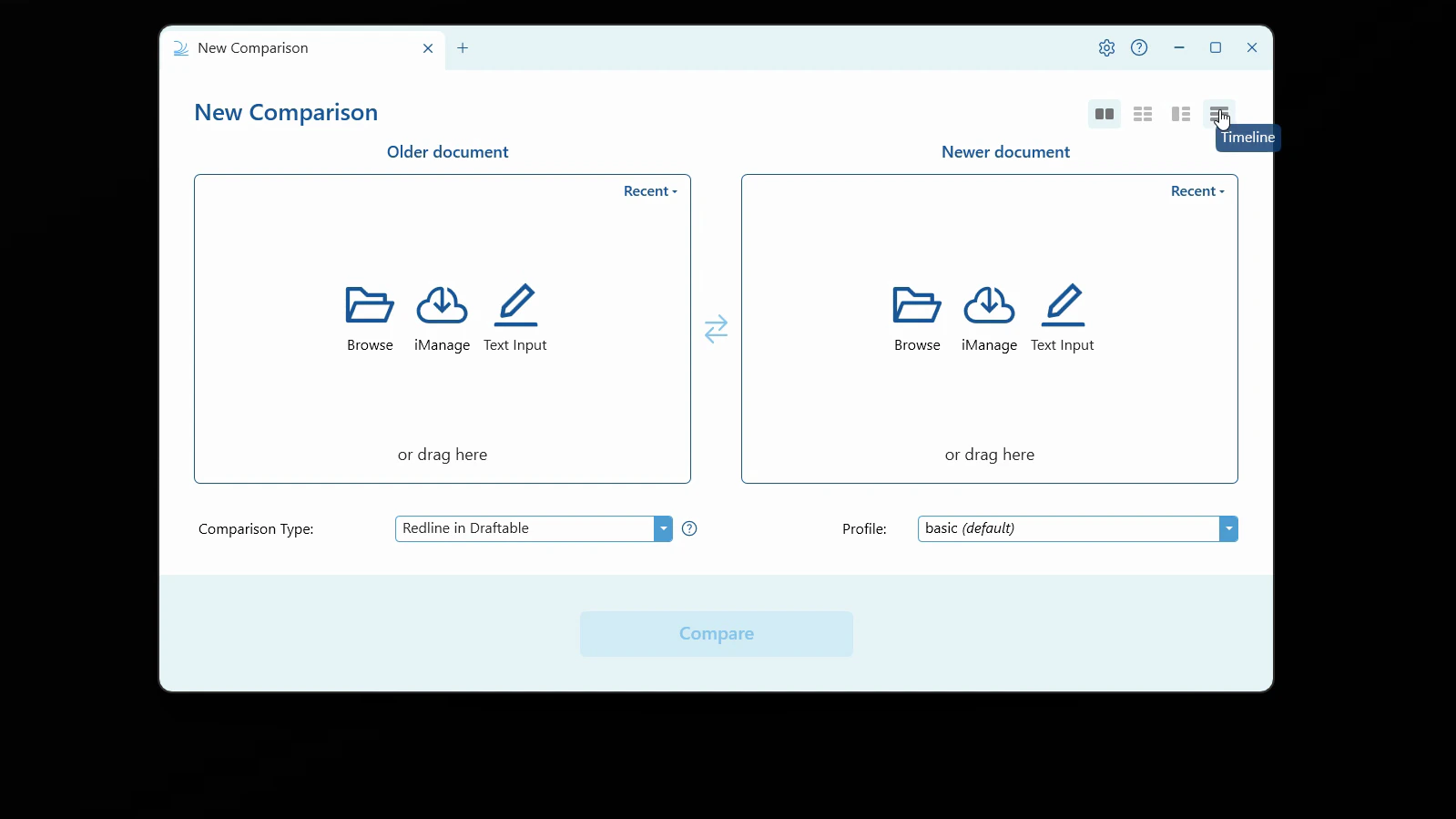
3
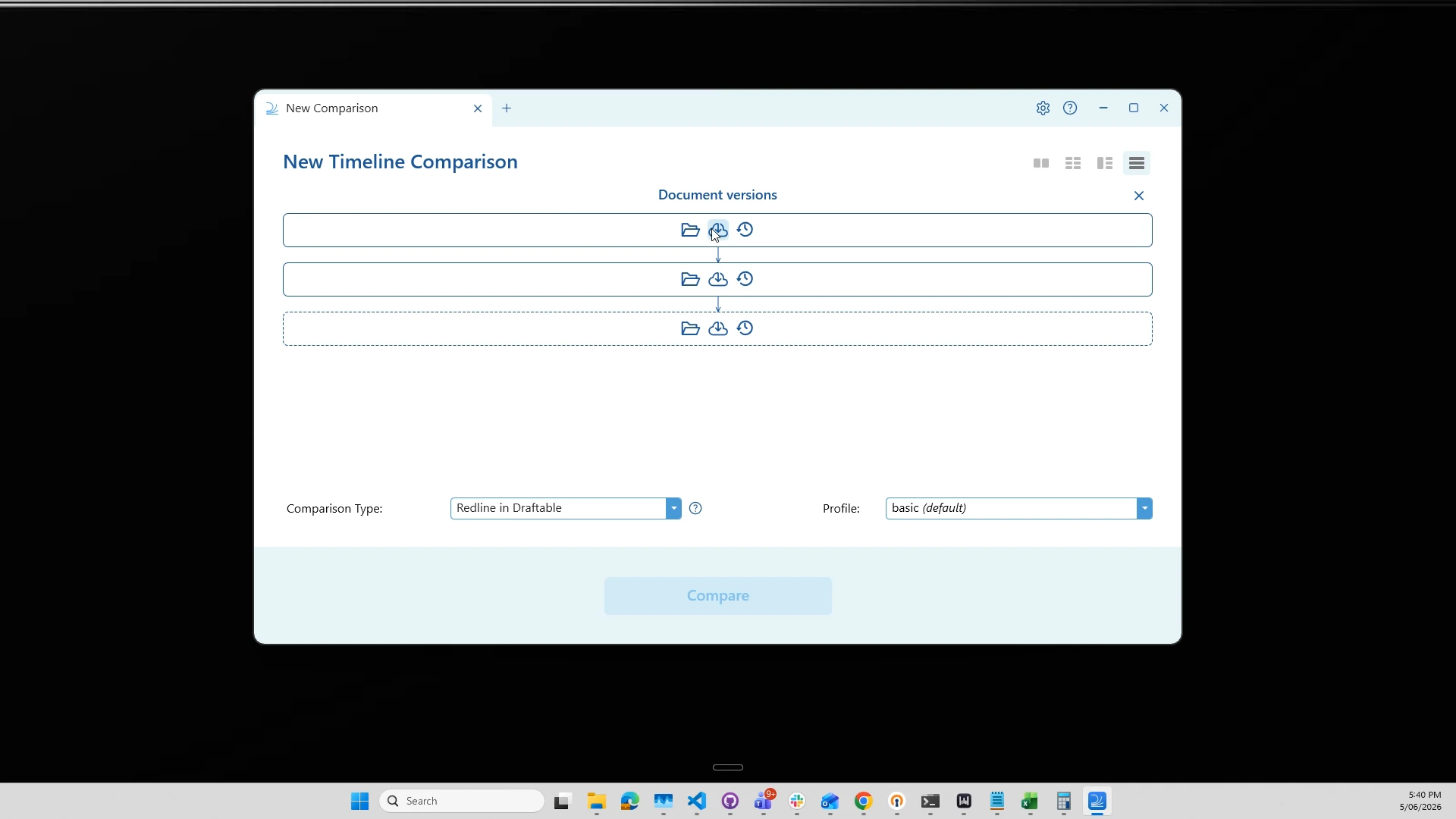
Add your document versions
Add your versions to the slots, oldest at the top, working down to the newest. You can add files via: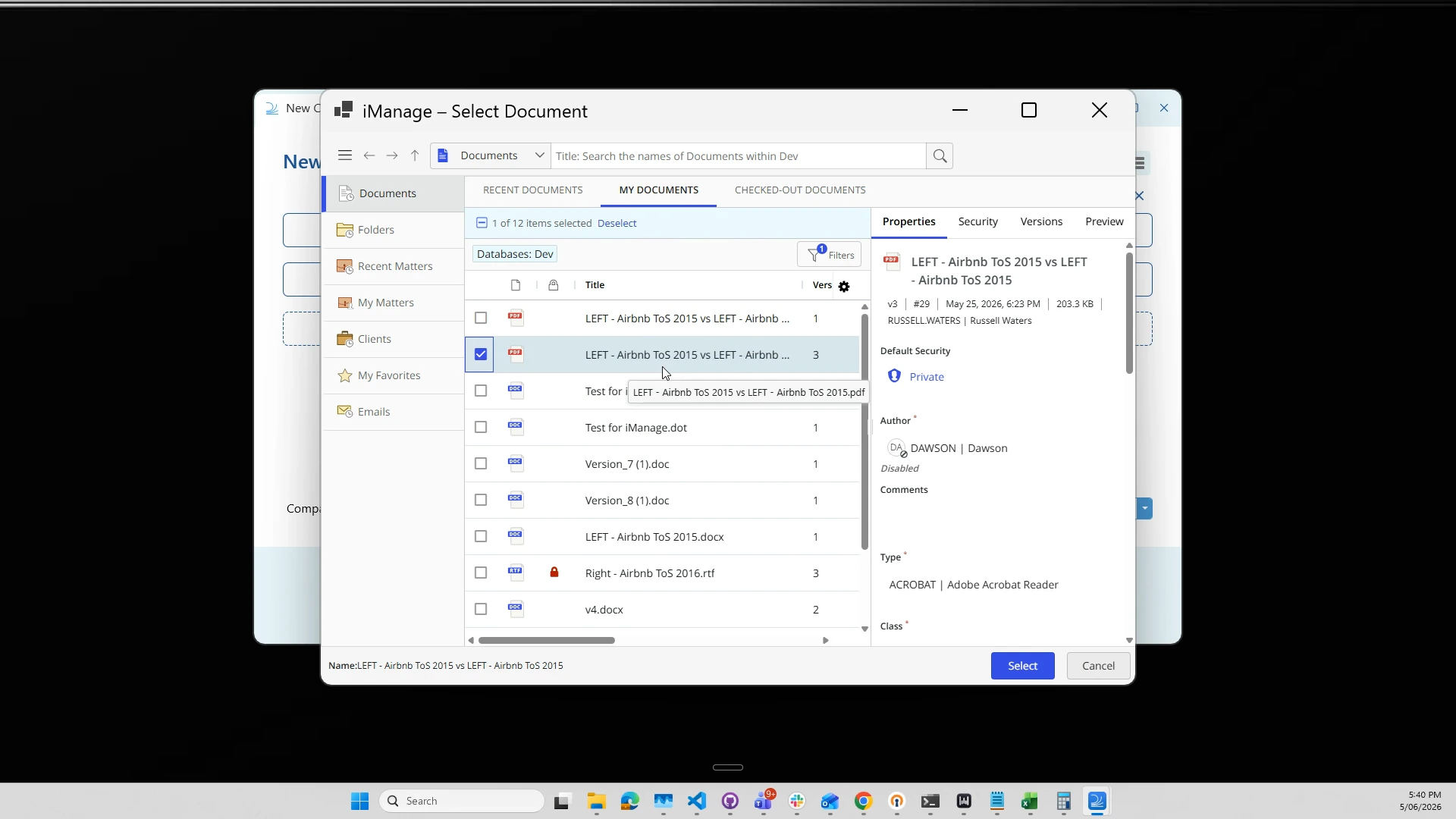
- Browse — select files from your computer
- DMS (e.g. iManage, NetDocuments, SharePoint) — select files and specific versions directly from your document management system
- Recent — pick from recently compared files
- Drag and drop — drop one or more files straight onto the slots
1.10 follows 1.9. Selecting versions of several different documents uses Matched Pairs instead, keeping each document’s versions together.4
Check the order and the comparison summary
Once your versions are loaded, Draftable shows a summary of the comparisons it will run — for example, “2 comparisons: v0–v1, v1–v2” for three versions. The downward arrows confirm that each version will be compared against the next one in the sequence.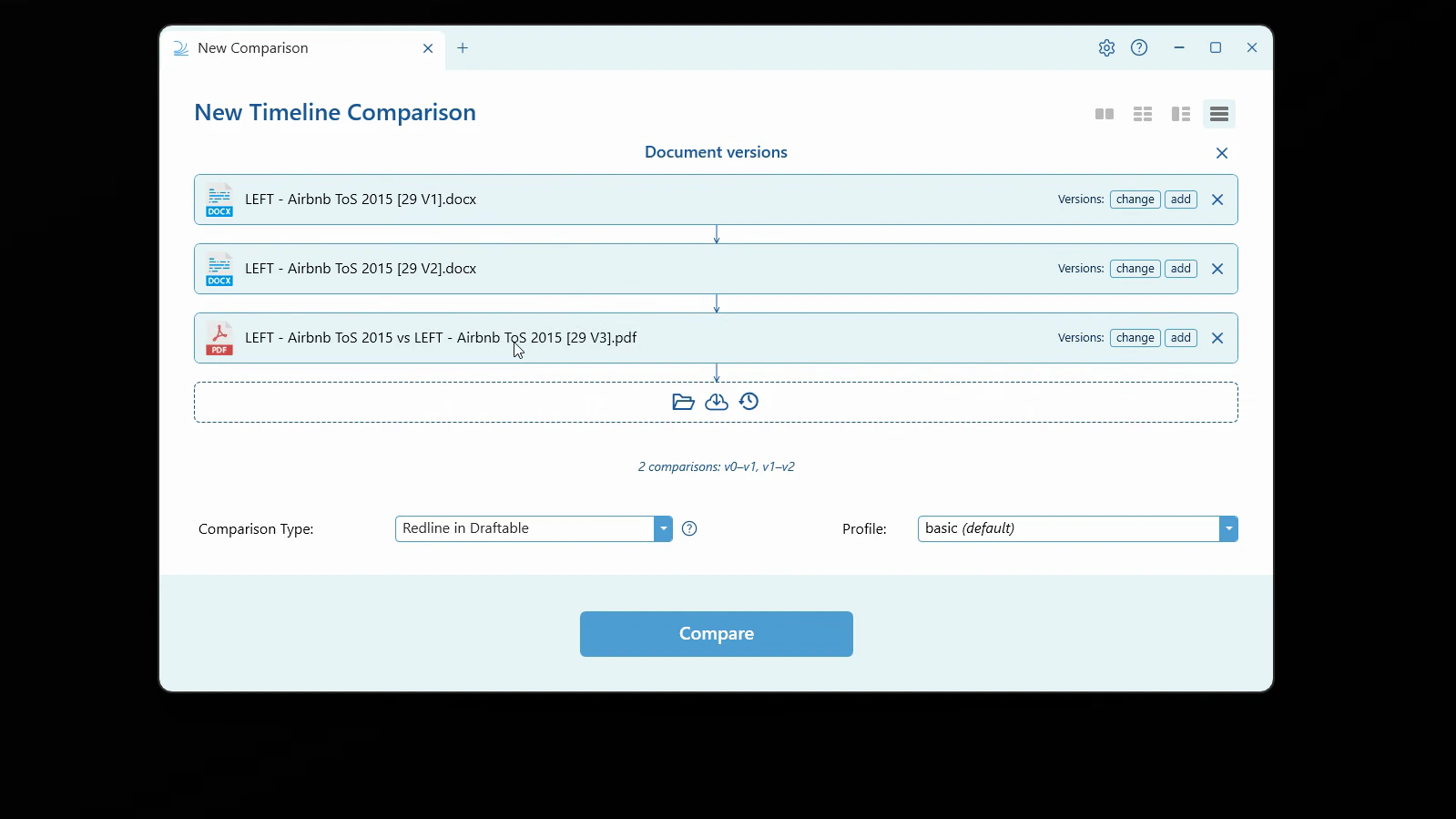
You can mix file types in a timeline (for example,
.docx versions followed by a .pdf). Draftable checks that each consecutive pair is a compatible comparison and will warn you if a step can’t be compared.5
Choose your comparison type and profile
Select your preferred Comparison Type — for example, Redline in Draftable, Tracked Changes in Word, Side by Side in Draftable, or Departures Table — and a settings Profile. Options that don’t apply to your selected files (such as Redline in Excel or PowerPoint) are greyed out.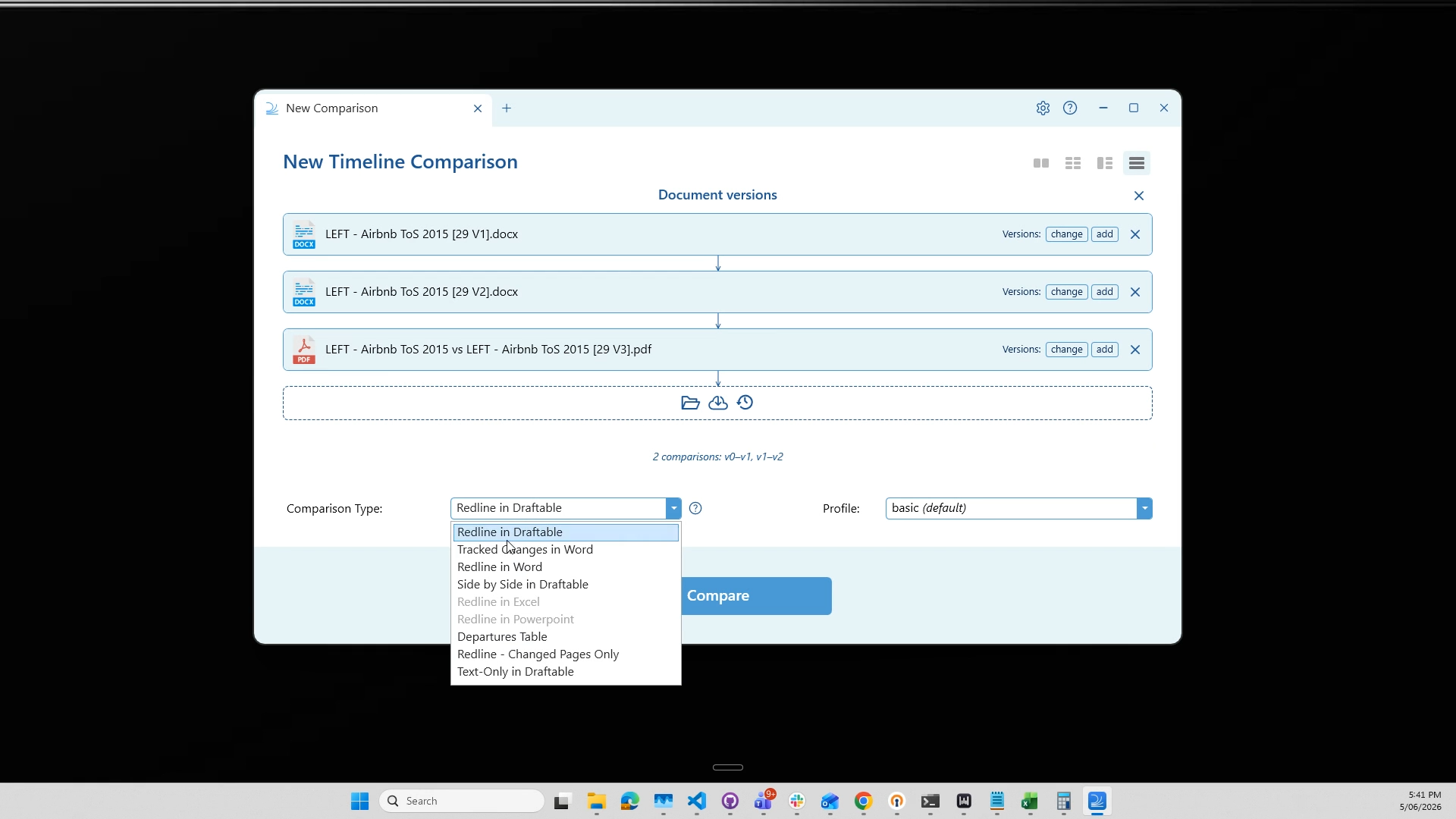
6
Run the comparison
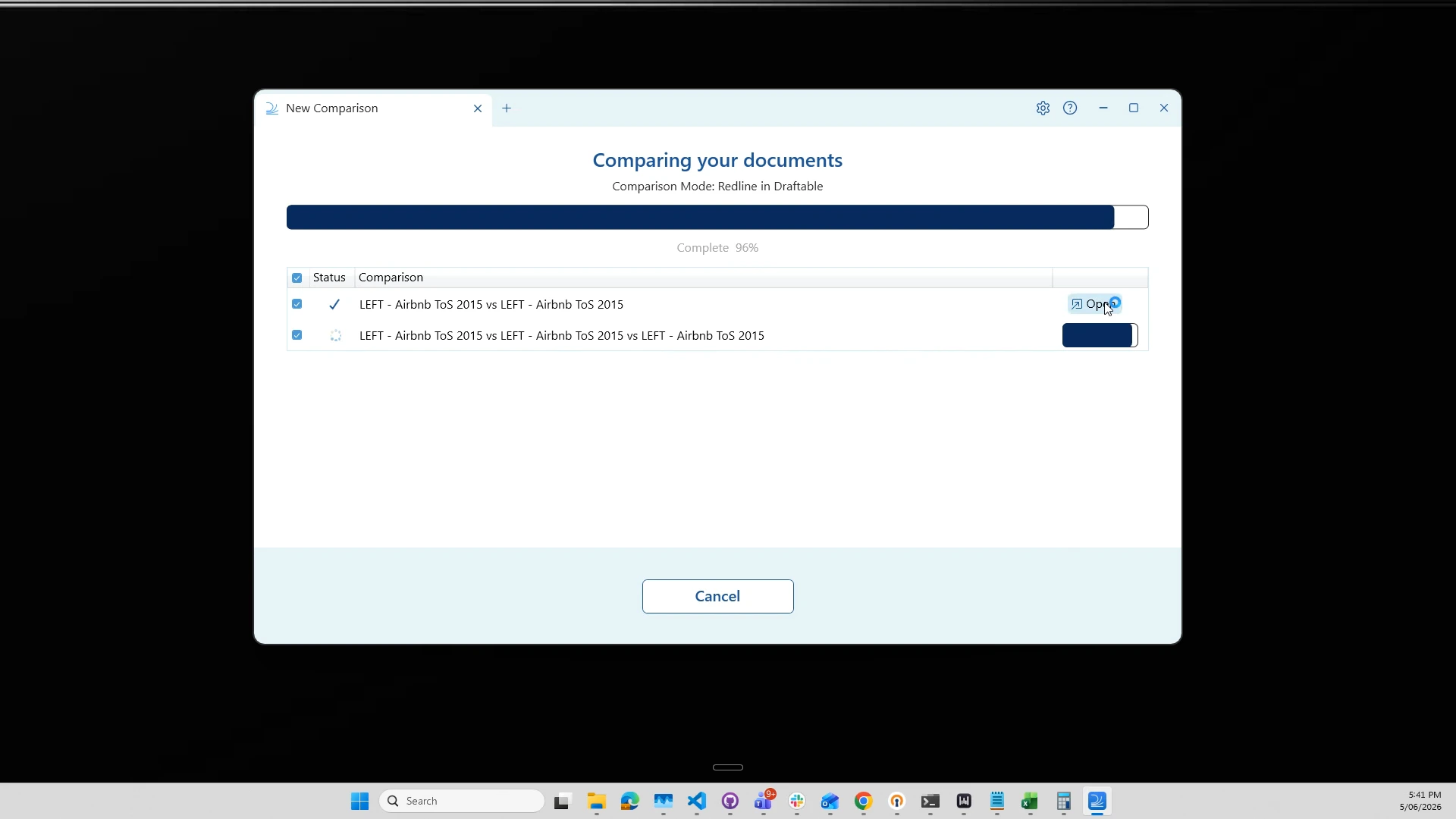
Click Compare. Draftable runs a separate comparison for each step in the sequence. A progress screen shows the status of each comparison as it completes.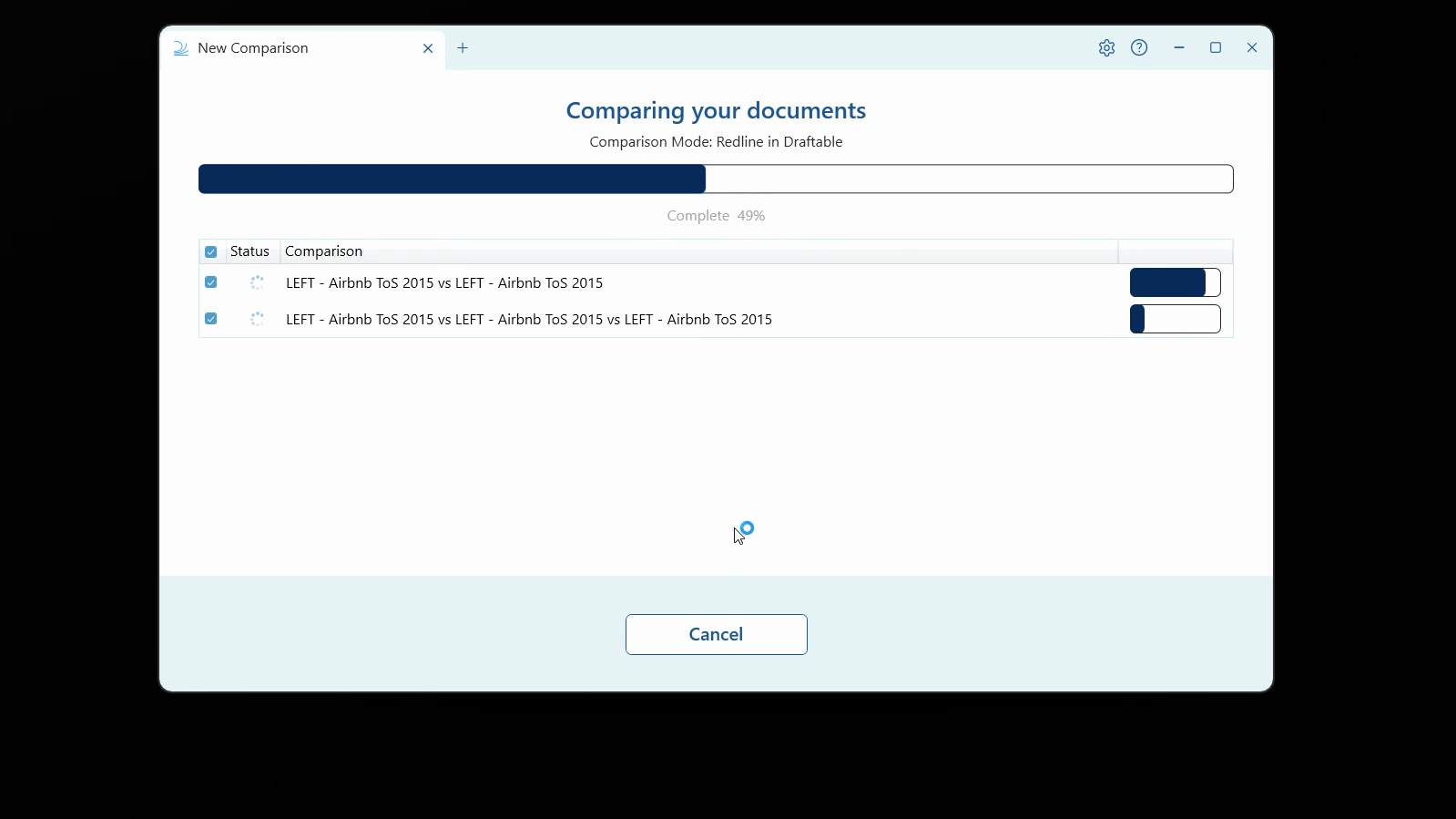
7
Review each comparison
Open any completed comparison to review it in the viewer. Each step opens in its own tab, showing the transition from one version to the next. From here you can use the viewer’s tools to filter, review, and take next actions such as Save, Print, Copy to Clipboard, or Email.
8
Export your results
When all comparisons are finished, the Comparison ready screen lets you select the comparisons you want and click Export. Use the format dropdown to choose how to export — including the new Combined Departures option, available as both a Word document (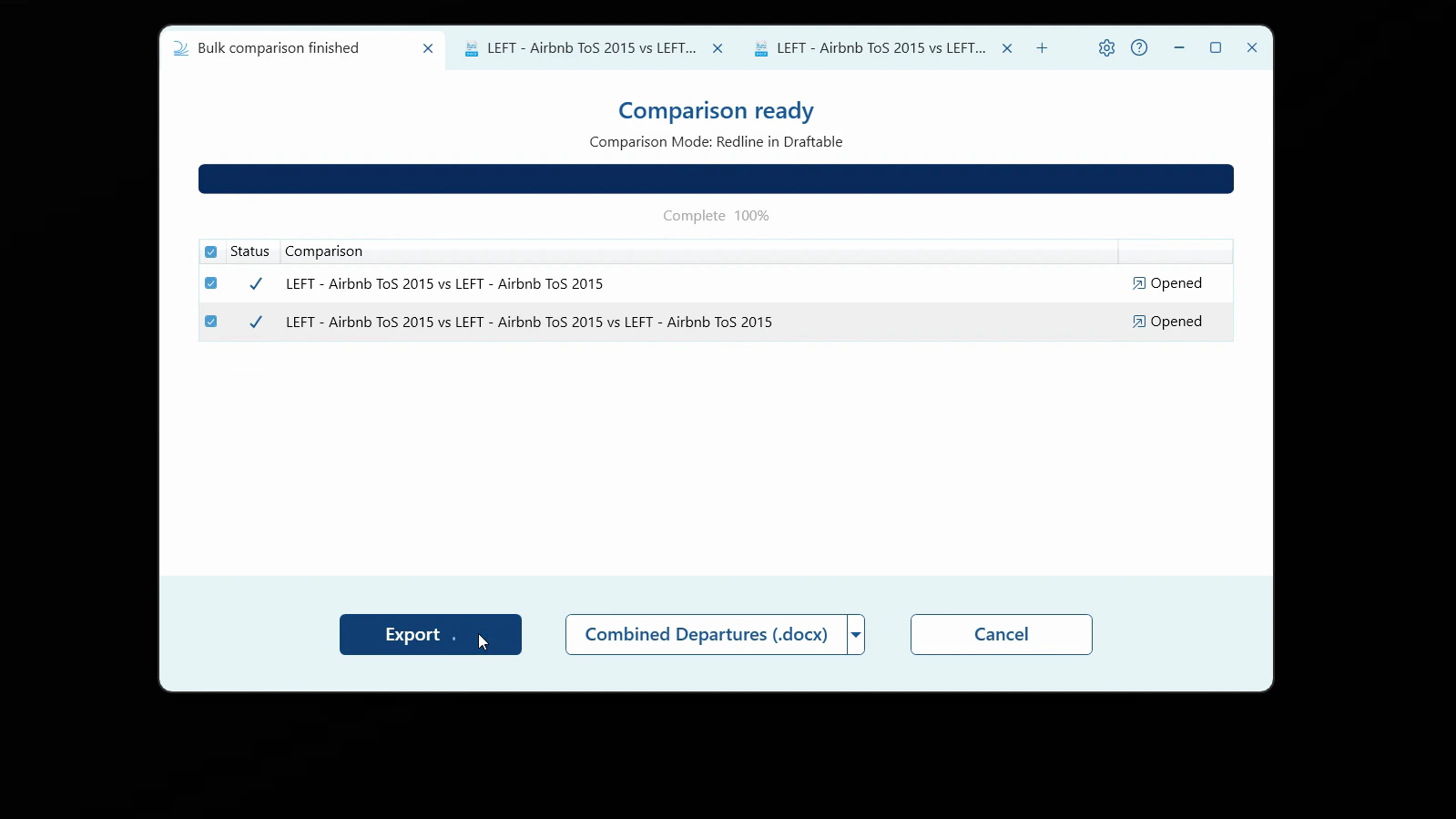
.docx) and an Excel spreadsheet (.xlsx), which summarises the changes across your entire timeline in a single file.The Combined Departures Table
For Timeline (and One-to-Many) comparisons, Draftable can produce a Combined Departures Table — a single file that brings the changes from every step of the sequence together in one table, available as either a Word document (.docx) or an Excel spreadsheet (.xlsx). This makes it easy to see how the document departed from its original version across all its drafts, without opening each comparison individually.
To learn more about reading and using departures tables, see Understanding and using the Departures Table.