

What is Text-Only Compare?
Text-Only Compare is a comparison type in Draftable Legal that extracts and compares only the text content (including comments) from DOCX and PDF files. All formatting, styles, numbering, and layout information is removed before the comparison runs. This produces a simplified redline output that highlights what has actually changed in the document’s content, without any formatting-related noise.When to use Text-Only Compare
Text-Only Compare is particularly useful in the following scenarios:- Files with complex formatting — Documents containing overlapping charts, tables, or other complex layout elements that produce cluttered or unexpected results in standard comparisons
- Troubleshooting comparison errors — When a standard comparison produces an error or fails to complete, Text-Only Compare acts as a reliable fallback by bypassing the formatting that may be causing the issue
- Focusing on substantive changes — When you only need to identify what text has changed and formatting differences are not relevant to your review
- Comparing documents with inconsistent styling — When two versions of a document use different templates, styles, or formatting conventions that would otherwise generate excessive markup
How to run a Text-Only Compare
1
Open the New Comparison window
Open the Draftable Legal New Comparison window.
2
Load your documents
Select the two DOCX or PDF documents you want to compare, either by browsing your files or dragging and dropping them into the comparison window.
3
Select Text-Only in Draftable
In the Comparison Type dropdown, select Text-Only in Draftable.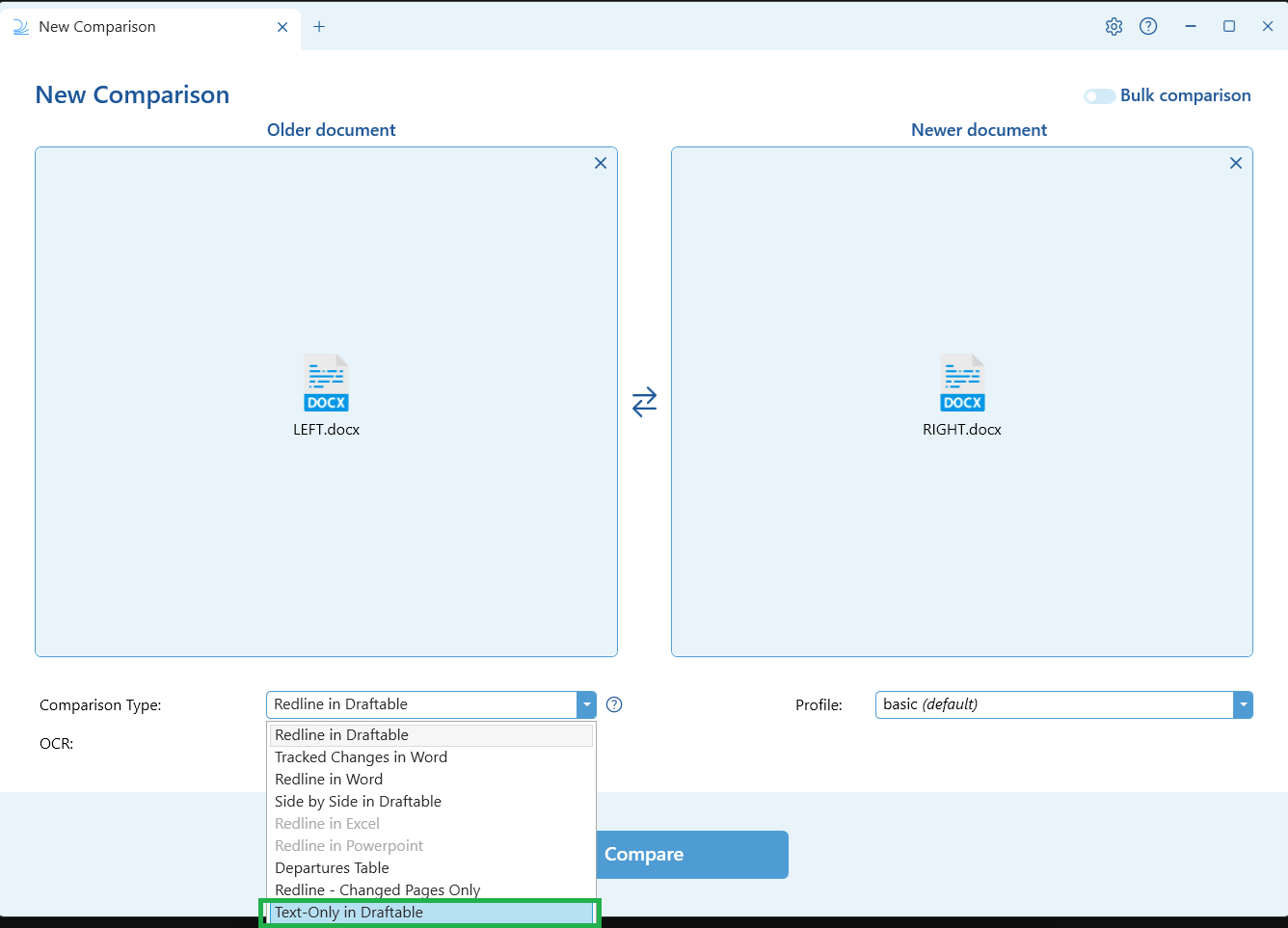
4
Run the comparison
Click the Compare button to run the comparison. Draftable will strip the formatting from both documents and compare the text content only.
5
Review the results
The text-only redline output will open in the Draftable Comparison Viewer. You can review the changes using the same viewer features available for standard redline comparisons, including the interactive Change List, tagging, filtering, and export options.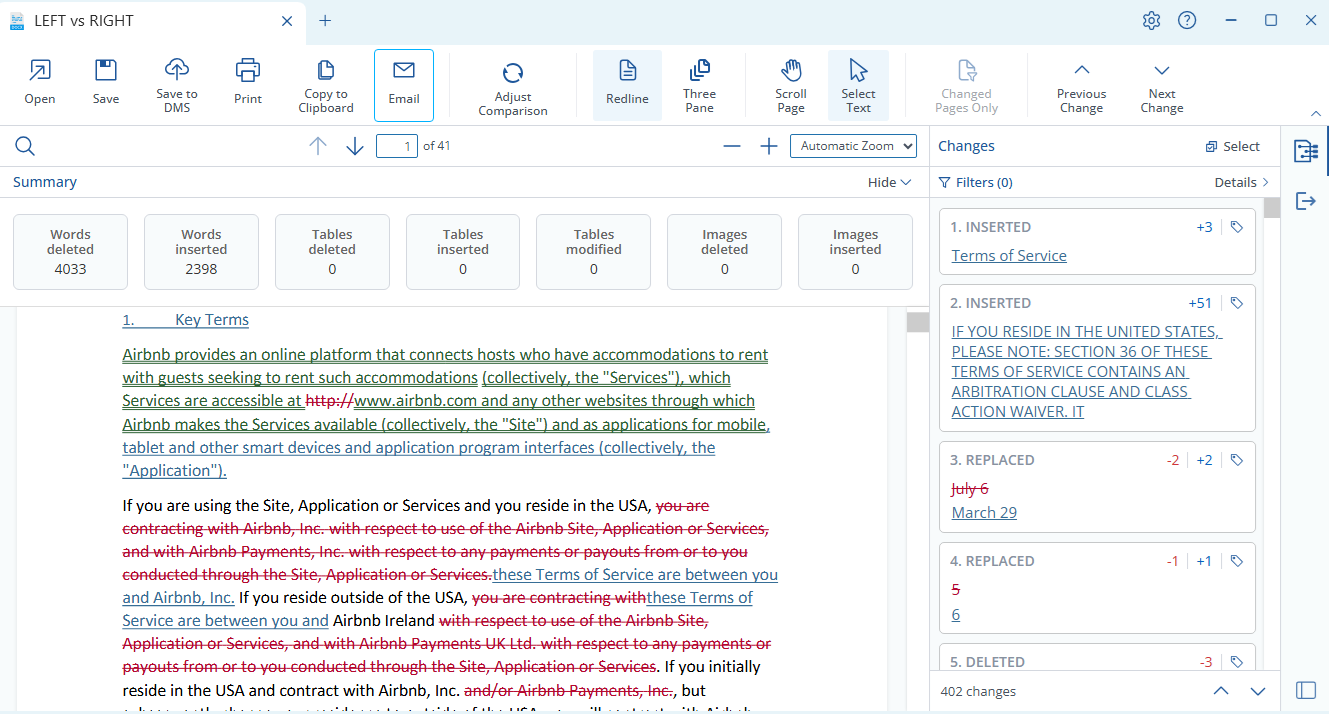
What is included and excluded
Output font
Available from version 26.9.1 Because Text-Only Compare strips the documents’ own formatting, the output is written in a single font. This is the Free text font, set in Settings under Compare Viewer in the Font section. It is Arial unless you or your administrator changes it. Before version 26.9.1 the setting applied only to plain text (.txt) comparisons.Administrator configuration
Administrators can enable or disable Text-Only Compare for their organisation using Group Policy.Text-Only Compare was introduced in the January 2026 (v26.1) release.