

This article includes information on the following topics:Documentation Index
Fetch the complete documentation index at: https://help.draftable.com/llms.txt
Use this file to discover all available pages before exploring further.
- How to access the side-by-side comparison options
- Comparison options
- Viewer options
Accessing side-by-side comparison options
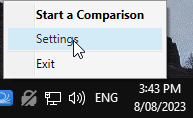
Open the settings menu via the taskbar
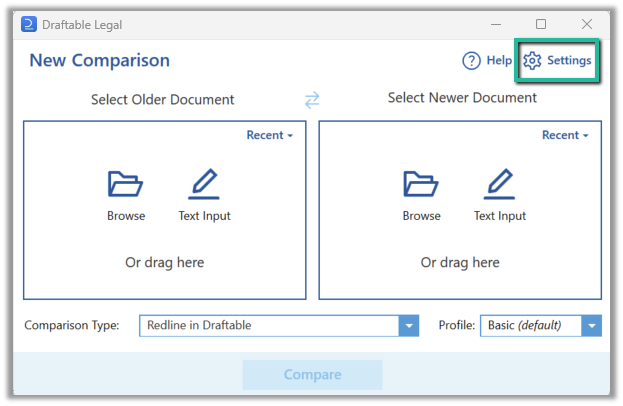
Open the settings menu via the new comparison window
Open the New Comparison window
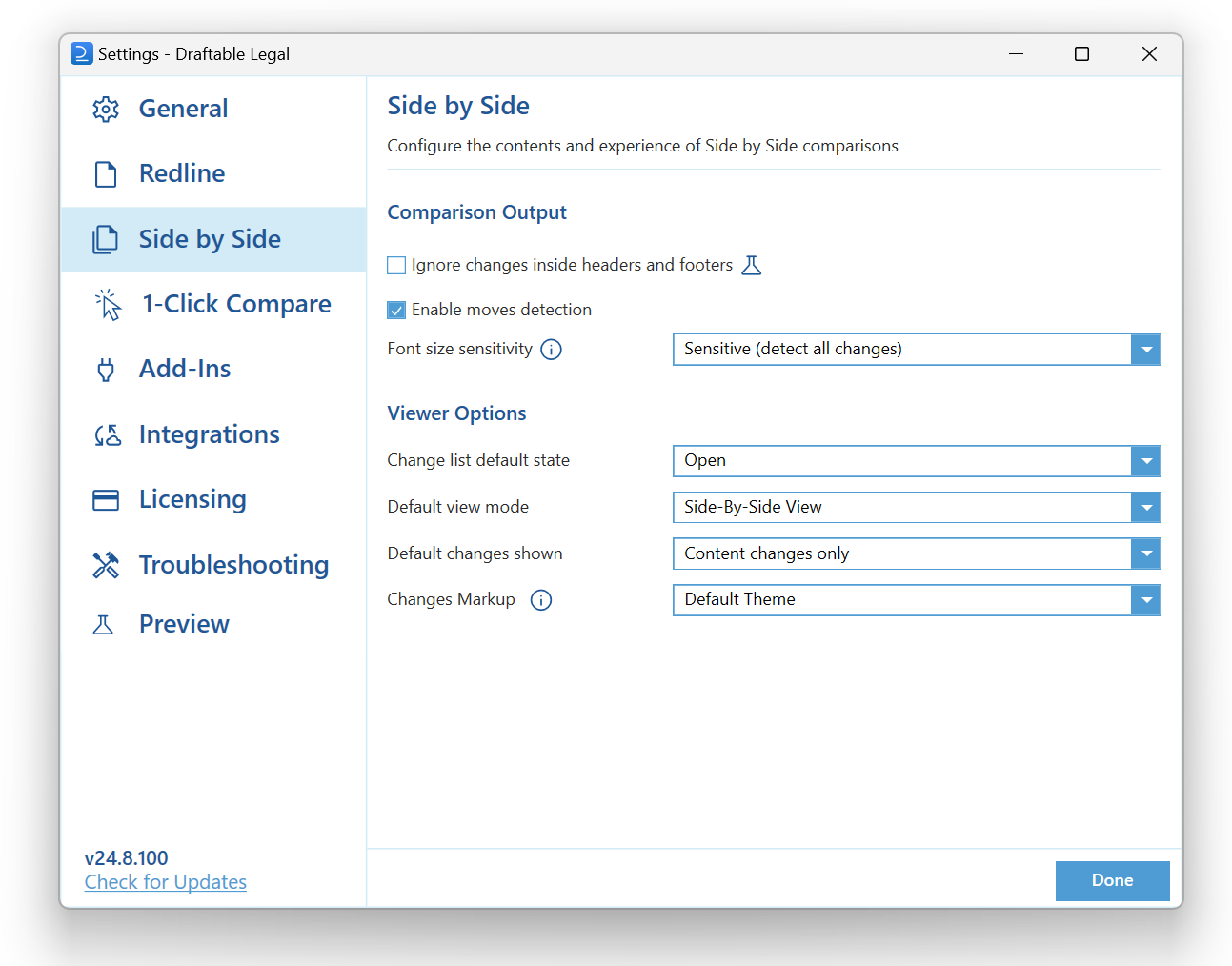
Comparison options
Comparison options can be controlled by the user to control how the comparison behaves and looks.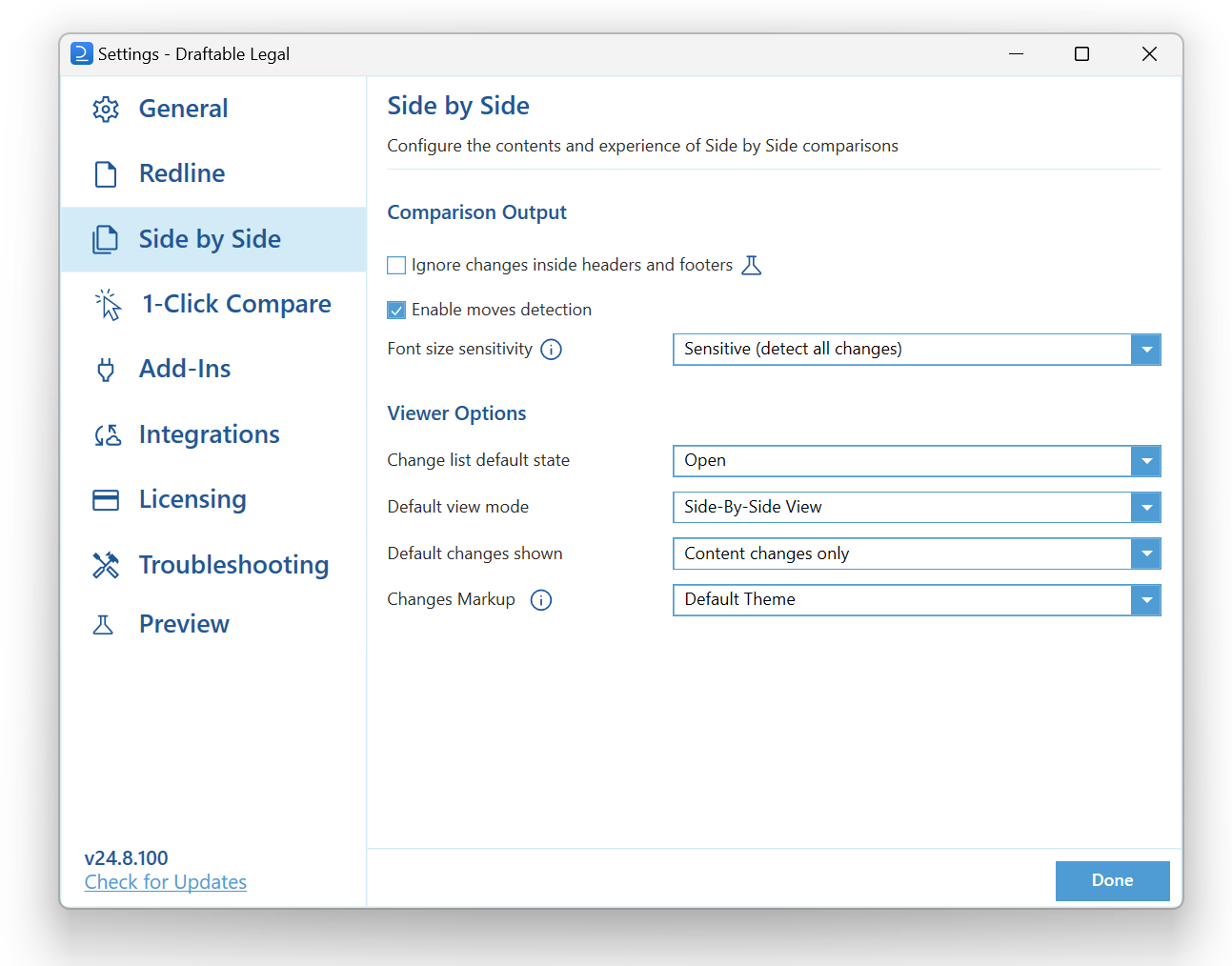
- Sensitive: Detects all changes in font size
- Somewhat sensitive: Detects only changes in font size that is at least 1pt greater
- Significant: Detects only changes in font size that is at least 2pt greater
Viewer options
There are specific options for the viewer itself for side-by-side comparisons. Change list default state: This sets the default state for the change list that is shown when viewing comparisons.
- Open: The change list is displayed within the viewer by default
- Closed: The change list is hidden within the viewer by default
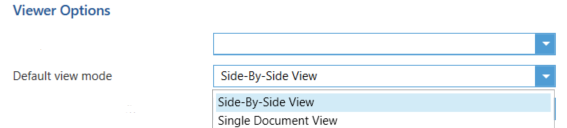
- Side-by-side view: The viewer shows both old and new documents side by side to each other, showing changes in each document compared to each other
- Single document view: The viewer combines both documents into a single document view showing changes within the single document
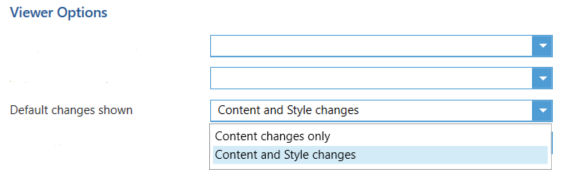
- Content changes only: This option lets you focus only on modifications in text or data, ignoring purely stylistic transformations like font changes.
- Content and Style changes: With this setting, Draftable will highlight both content changes as well as alterations in style, page layout, and font.
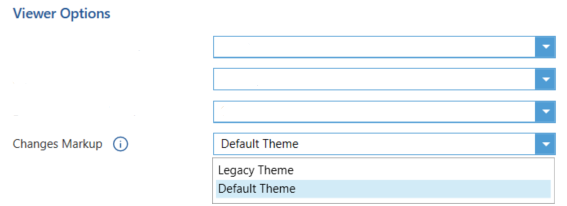
- Legacy theme: Where Deletions are Red, Insertions are Green and Moves are Blue.
- Default theme: Where Deletions are Red, Insertions are Blue, and Moves are Green.