

- Mark up an email without leaving Outlook using the new Redline in Email editor view, where everything you type, delete or move is tracked as you work.
- Run Changed Pages Only across a whole batch and keep the first page when recipients need a quick way to identify the document.
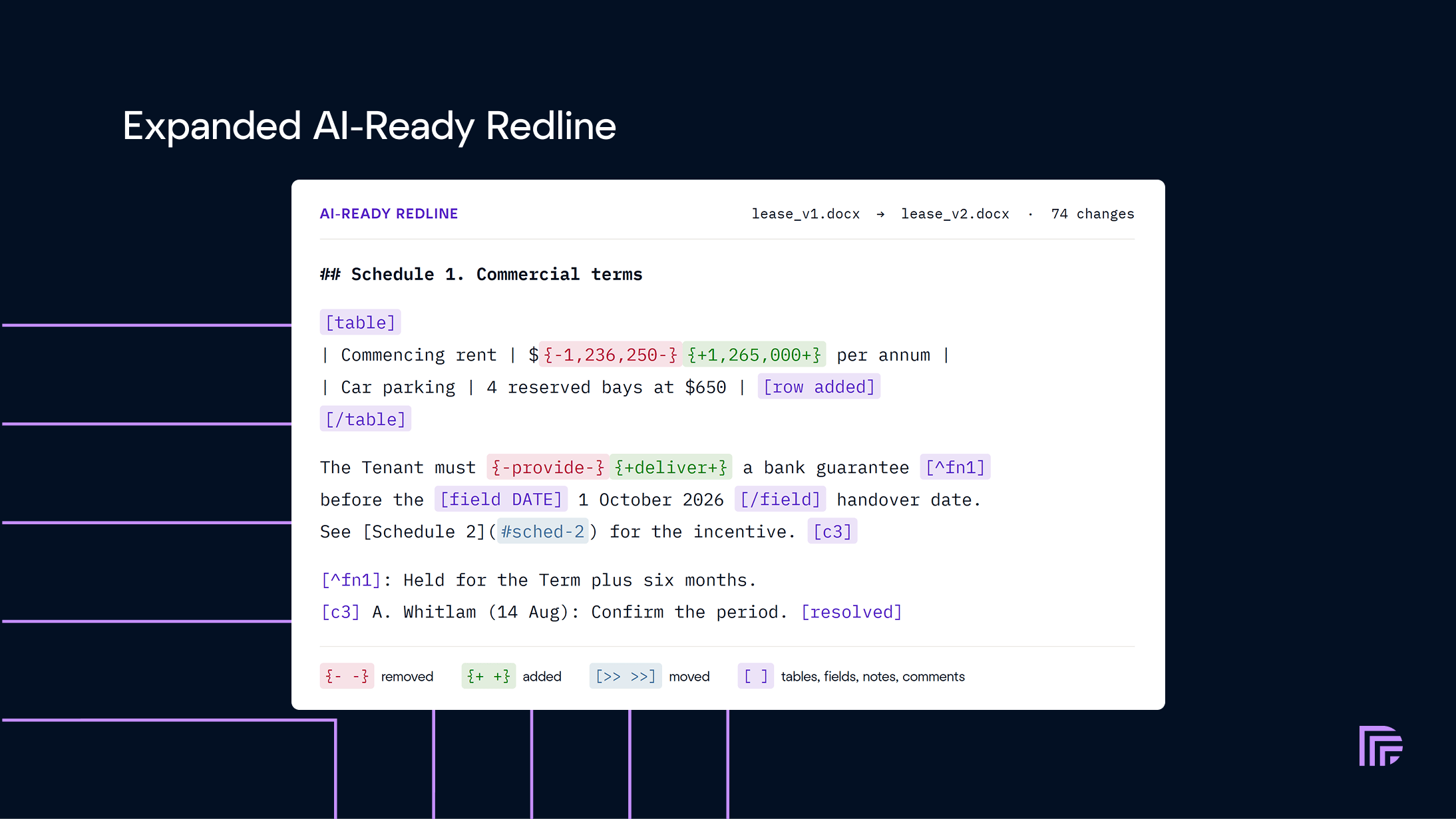
- Give AI tools a more complete redline with tables, footnotes, images, hyperlinks, tables of contents, content controls and comments now included in AI-Ready Redline.
- Get clearer results from spreadsheets and document sets with better Excel formatting and row matching.
- Make Draftable fit the way you work with four new interface languages, windows that can span multiple monitors, more time for long comparisons and smoother DMS workflows.
Redline in Email 3.0
Edit, review and send in one place
Redline in Email 3.0 brings the whole workflow into one editor inside the Outlook task pane. Open it and Draftable marks the differences already in the email, and from there, just start editing to see your changes marked up - turn off ‘Track Changes’, and they’ll appear as standard text. You can also format text, work with lists, update links and edit tables without leaving the pane. Draftable normally compares your draft with the email you’re replying to. If you need a different starting point, use Compare with an email… to pick another message, or Start without a comparison to simply edit with tracking turned on.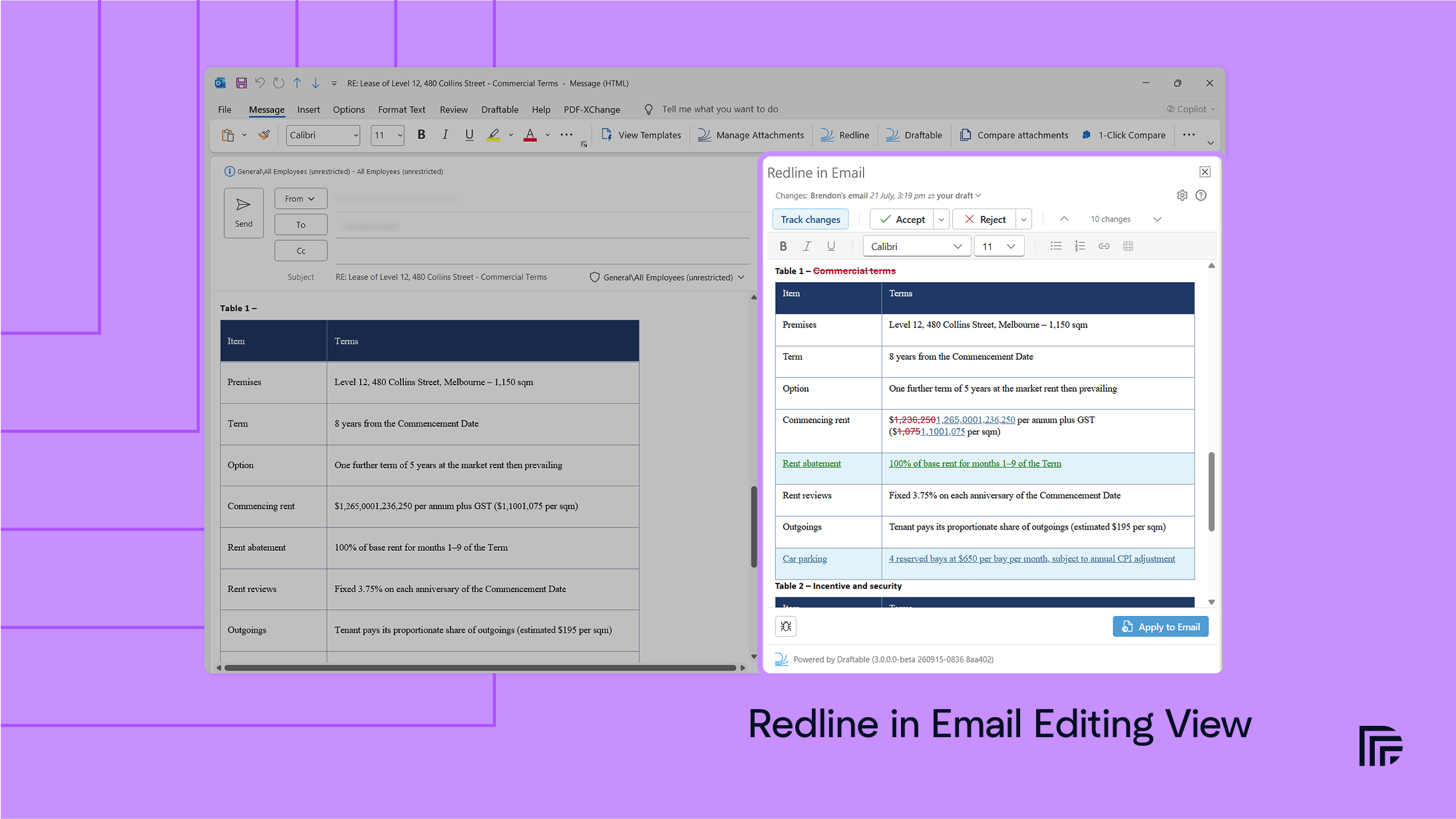
Changed Pages Only across more workflows
Changed Pages Only is now available directly from Bulk Compare, so you can produce a focused PDF redline for every matched pair in one go. You can also include the first page when recipients need an easy way to identify the document, either for one export or as your default under Settings > Opening & Saving Files > Output content. Administrators can set the same default through Group Policy, while users can still change it for an individual viewer export.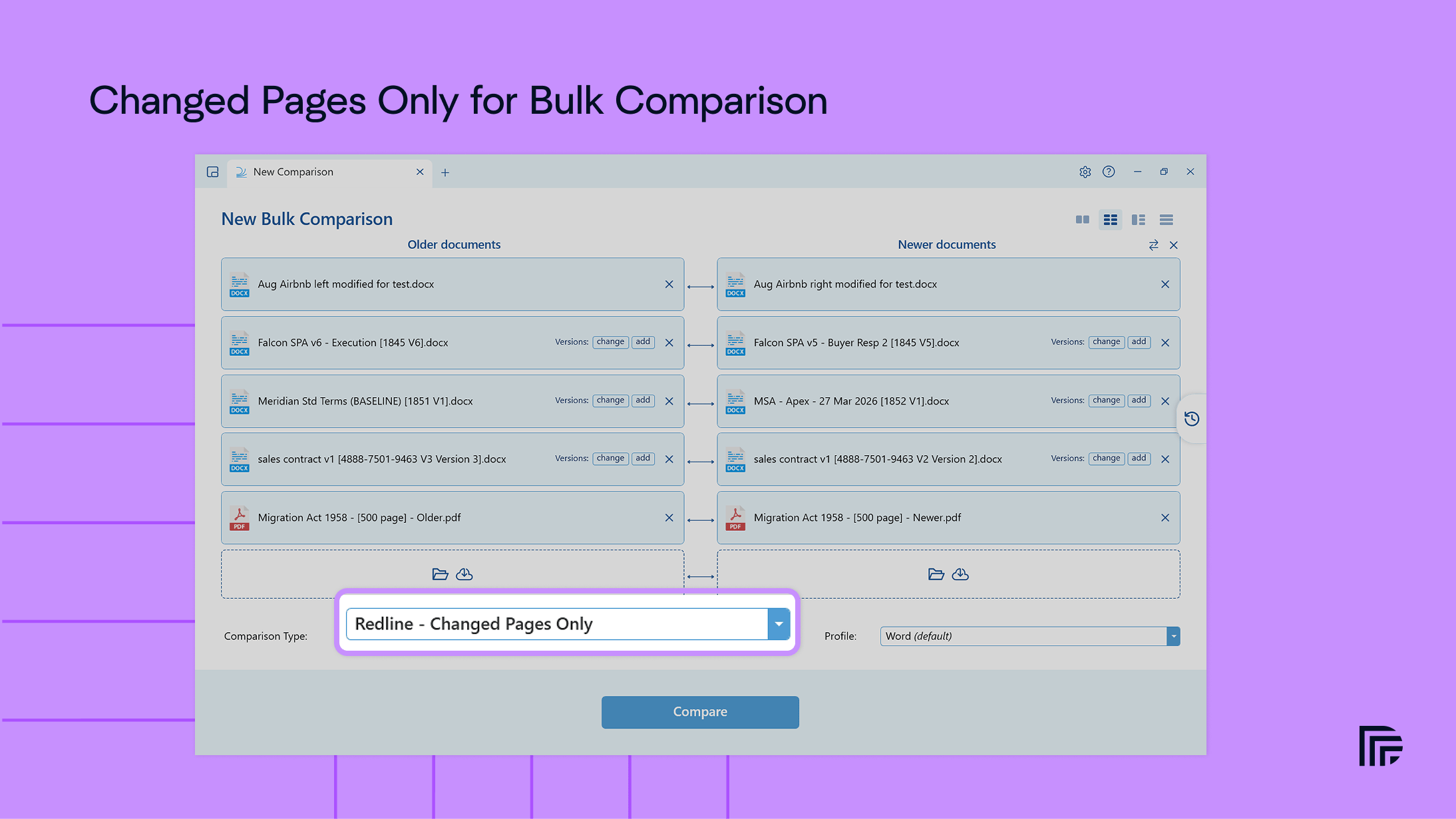
More document structure in AI-Ready Redline
AI-Ready Redline already gave generative AI tools the document text with insertions, deletions and moves clearly marked. Version 26.9.1 now pulls through much more of the structure around that content, helping fine-grained changes in tables, footnotes, links and comments reach the AI tool in the right context. The expanded output includes:- Tables retain row and cell boundaries, including added or removed rows, columns, cells and complete tables.
- Footnotes and endnotes include a reference at their position in the document and the note content after the relevant paragraph.
- Images are marked as added, removed or replaced, with alt text where it is available.
- Hyperlinks retain their targets, making URL changes visible even when the displayed link text is unchanged.
- Tables of contents, fields and content controls receive explicit markers so an AI tool can distinguish them from ordinary text.
- Comments include their anchors, threads, authors, dates, replies and resolved state.
- Bookmarks and moved text retain markers that connect them to the surrounding change.
Excel formatting and large-sheet handling
Draftable now respects most Excel number formats in the Redline Viewer, so dates and formatted numbers look much closer to the source workbook. They also follow Excel’s default right alignment unless the cell has its own alignment setting. We’ve also improved two awkward cases in large worksheets:- If a sheet has more than approximately 1,000 rows but no reliable key column, such as an ID or reference, Draftable can now match rows by their content. This cuts down the false insertions and deletions you can otherwise get when rows have simply moved.
- If a sheet is too tall for a valid PDF page, Draftable now splits it across several pages instead of giving you a blank side-by-side view.
More flexibility in everyday work
Draftable now adapts more readily to the way you work. The interface is available in four more languages: English (UK), Cymraeg (Welsh), Dansk (Danish) and Italiano (Italian). Choose yours under Settings > Language, Startup & Privacy. Some parts of the interface update after you restart Draftable. The workspace is more flexible too. We’ve removed the maximum window width and height, so you can stretch a comparison across two monitors and Draftable will remember the size for your next session. Your configured free-text font also carries through to Text Only output as well as plain-text comparisons.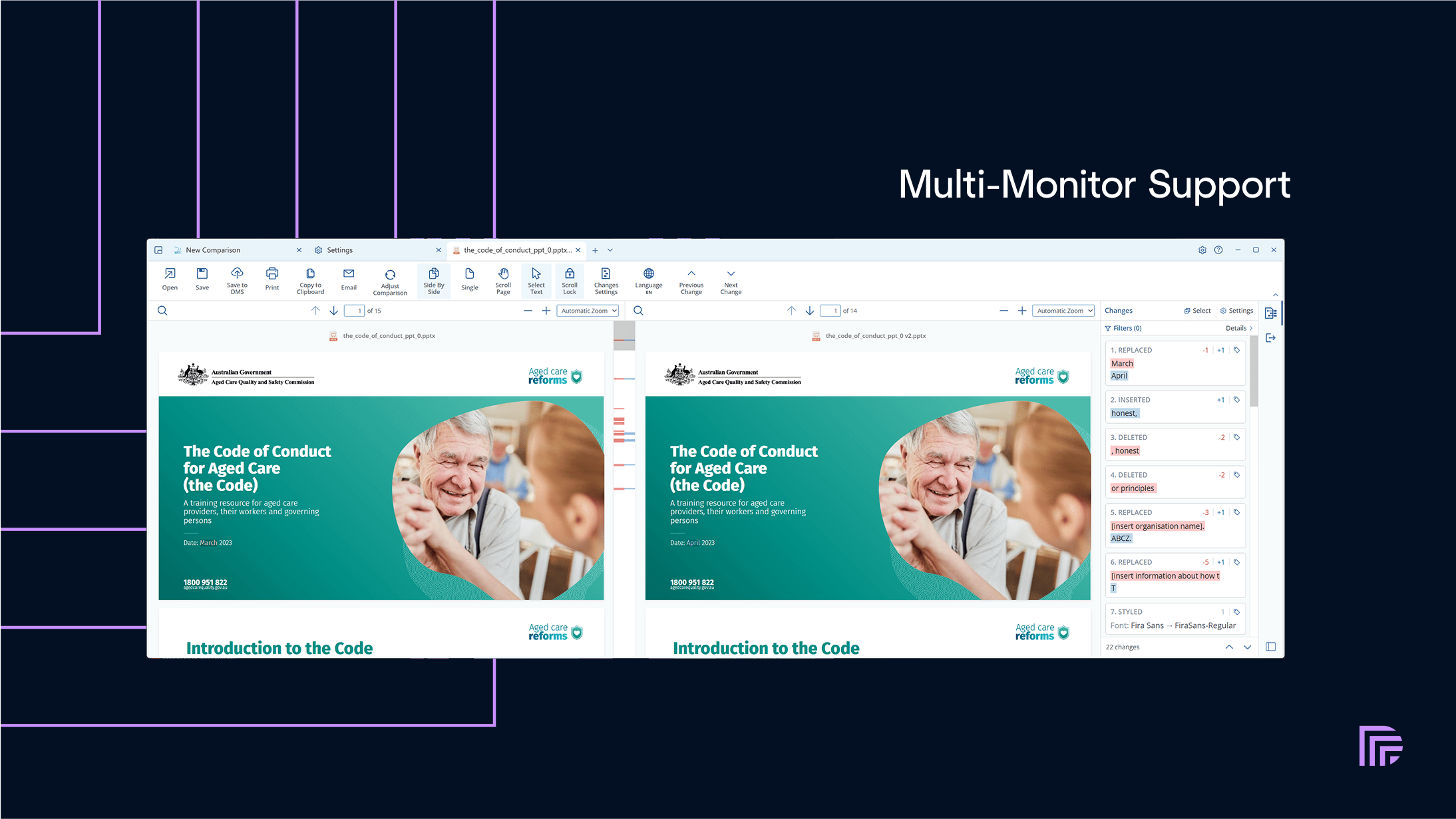
Office workflow improvements
There are a few smaller Office improvements in this release:- Comparisons started from Draftable in Office use your default comparison profile.
- Local PowerPoint and Excel comparisons return more helpful errors.
- The Outlook COM add-in sends only attachments Draftable can compare and excludes inline images such as email signatures.
Bug fixes
As with every release, September includes fixes across Draftable Desktop and its integrations. Application fixes- Fix for identical-document Changed Pages Only comparisons reporting a failure instead of explaining that there were no changed pages
- Fix for a conversion error appearing after swapping the older and newer sides while conversion was still running
- Fix for comparison-ready Open and Save dialogs flashing briefly or ignoring the configured When a comparison is ready action
- Fix for the Compare Selector holding on to old redline settings after a profile was saved
- Improved license refresh checks, including the expiry display on the final day of a license
- Fix for the Windows 11 Compare in Draftable and 1-Click in Draftable entries disappearing after uninstalling and reinstalling Draftable
- Fix for Word LISTNUM fields being split into separate paragraphs and producing incorrect numbering markup
- Fix for Tracked Changes output appearing blank when a Word document has a page background
- Fix for Word tables running beyond the edge of the page in redline output
- Fix for move detection failing on an empty inserted or deleted run
- Fix for PowerPoint comparisons failing on slides containing empty mathematical runs
- Fix for corrupted Word-format exports on regional formats that use a comma as the decimal separator
- Fix for non-DOCX files incorrectly requiring Microsoft Word when the selected conversion engine doesn’t depend on Word
- Improved PDF-to-Word conversion when text is hidden behind an image
- Updated the Apryse PDF conversion engine to version 12.1
- [iManage] Fix for locally cached documents not being associated with their server versions
- [iManage] Fix for the add-in comparing a local working copy instead of the selected server version
- [NetDocuments] Fix for Compare Versions ending before the DMS version lookup completed
- [DMS] Fix for Microsoft 365 sign-in dialogs opening behind Draftable
- [Excel Add-in] Fix for Excel becoming unresponsive while a comparison ran
- [Office Add-in] Fix for local PowerPoint and Excel comparisons returning Comparison Failed
- [Outlook] Fix for unsupported attachments and inline images being sent to Draftable for comparison