

- Where to look in the Registry for both per-user and machine-wide installs.
- What each value means (activated vs not-yet-activated).
- A ready-to-run PowerShell script that can audit one PC, or many PCs by reading those keys remotely.
How Draftable decides which key to read
When Draftable starts, it first checks the current user hive (HKCU).If the required value is not present, it falls back to the machine-wide hive (HKLM).
Machine-wide note: all system-scope keys live under
HKLM\Software\Policies\Draftable rather than HKLM\Software\Draftable.Registry locations and meanings
Example screenshot of a user who has Draftable activated
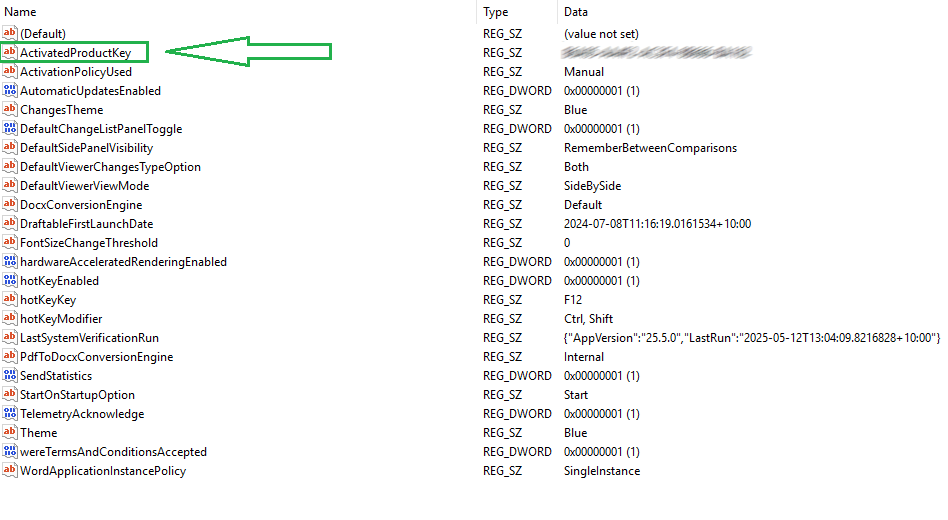
ProductKey entry is also where administrators can pre-set a licence before first launch.
Manual, one-off check
1
Win + R →
regedit2
Browse to the relevant path from the table above.
3
Look for
ActivatedProductKey (activated) or only ProductKey (not yet activated).Automated audit with PowerShell
Save this asCheck-DraftableActivation.ps1 and run it in an elevated PowerShell window.It defaults to the local machine; add
-ComputerName to scan remote PCs (requires the Remote Registry service).
- Enumerates each profile under HKU.
- Reports
Activated = TrueifActivatedProductKeyexists; otherwiseFalse. - Works locally or remotely (requires network connectivity and permissions).
- Pipe the last line to
Export-Csvfor a spreadsheet-friendly report:
Troubleshooting
Next steps or further questions?
- Use the PowerShell script to audit your users’ activation status, and make changes to the code for easier automation where required.
- Pair this check with Draftable’s Group Policy templates to automate licence rollout and other settings.
- Still have questions? Contact support@draftable.com — centralised usage telemetry is on our roadmap and feedback is welcome.