

What is an Organisation Identifier?
By default, the usage statistics Draftable Legal sends back are anonymous and cannot be traced to any particular organisation. That means Draftable cannot tell you how your own users are getting on with the product. The Organisation Identifier solves this. It is a single text value (a GUID, or any label you choose) that you deploy to every Draftable Legal installation in your organisation. From that point on, every usage event those installations send carries your identifier, so Draftable can group them together and produce a product usage report for your organisation on request.Why administrators set this
Without an identifier, a Draftable deployment is a black box after go-live. You know the software installed, and you know how many licences you bought, but you have no way to see what happened next. Setting the identifier turns that into something you can actually manage. Prove the rollout worked. An install that succeeds is not the same as an install people use. Activations and active users against the licences you purchased tell you whether Draftable reached the desks it was meant to reach, and comparison volume week by week tells you whether it stuck. If adoption is flat in one part of the business, you find out from the report rather than from a complaint months later. Make the renewal conversation a factual one. Rather than arguing from impressions, you can go into a renewal or an internal budget review with real numbers: how many people used the product, how many comparisons they ran, and which features they relied on. The same applies in reverse. If the numbers show you are paying for more than you use, you have the evidence to right-size. Target training where it will change something. The report separates lightly active users from heavy users. That split usually maps neatly onto who has had proper training and who has not. Feature usage tells you the same story from another angle: if nobody in the firm has run a departures table or a changes report, that is a training gap, not a product limitation. Catch version drift before it causes tickets. The application version breakdown shows how many users are on which release. This matters most on machine-wide MSI deployments, which do not auto-update, where a handful of machines can quietly sit several releases behind and hit bugs that were fixed long ago. See problems while they are still small. The comparison failure rate is tracked week by week. A rise in failures is usually the first visible sign of something environmental, such as a change to a document template, an Office update, or a DMS configuration problem. Noticing a trend is far cheaper than working backwards from a queue of individual complaints. Understand how your firm actually works. The report shows which file type combinations your users compare and which output formats they export. If almost everyone exports a Word tracked-changes document, your default redline profile should reflect that. Configuration decisions become evidence-led rather than assumed. Get more out of a trial or pilot. During an evaluation the identifier gives you a defensible picture of usage across the pilot group, which is exactly what a business case needs. Because usage is not backdated, this only works if the identifier is in place from the start of the trial.What the report shows
Below is an example of the report Draftable produces. It covers your whole organisation in aggregate, and no individual user can be identified in it.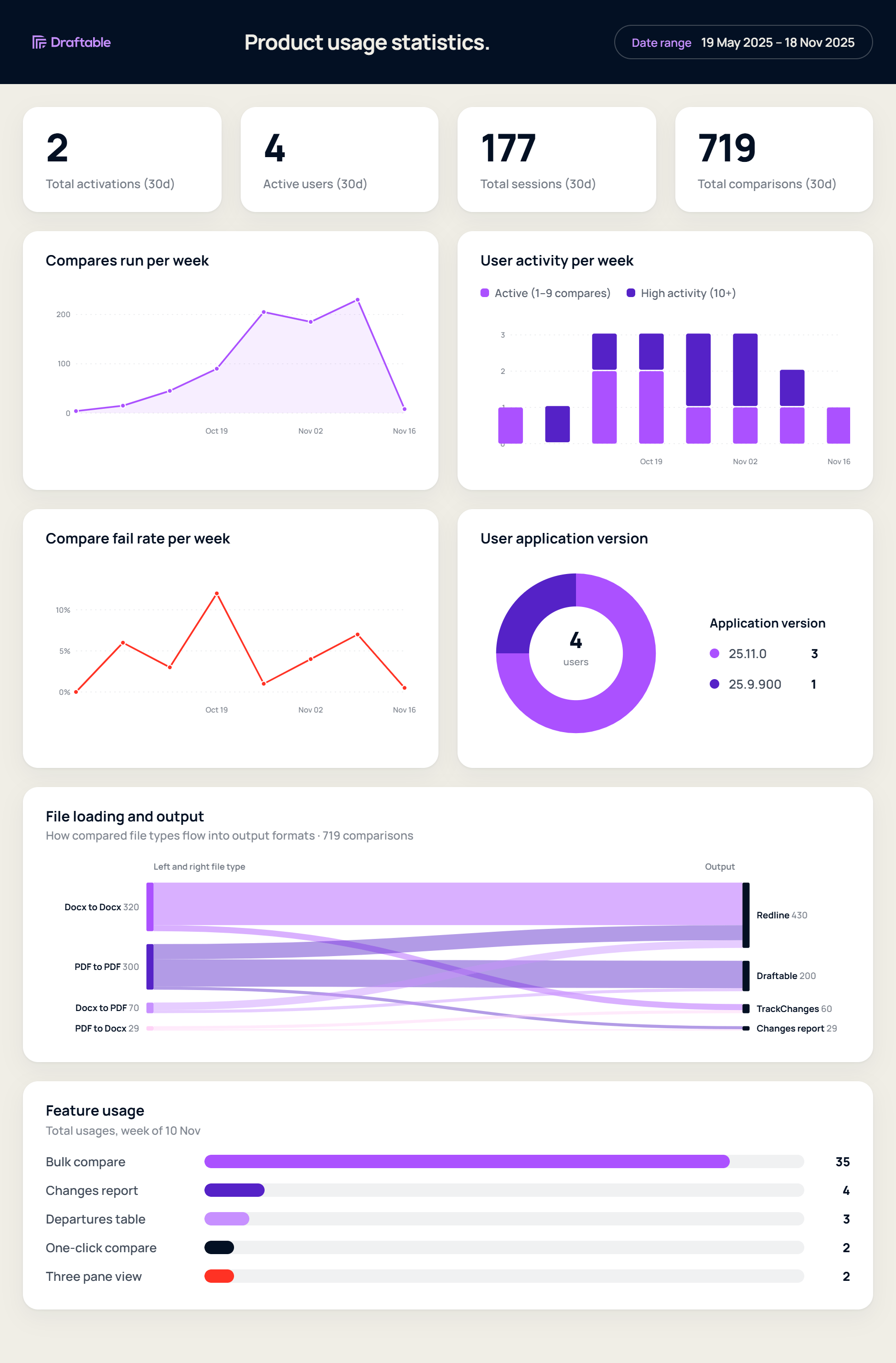
The exact contents of the report may change as the product develops. If there is a specific measure you need, mention it when you request the report and we will tell you whether it is available.
What is not collected
- No user-level personally identifiable information (PII) is collected or transmitted.
- No document content, file names, or comparison results are collected.
- The identifier is an opaque label for grouping only. It has no effect on product functionality, licensing, or activation.
How to request your report
Once the identifier has been deployed and users have had time to generate activity, email support@draftable.com from your account address and ask for a product usage report. Include the Organisation Identifier value you deployed and the date range you are interested in.Before you start
- The policy requires Draftable Legal 25.9.0 or later. Older versions ignore the setting.
- The latest Draftable Legal administrative templates must be installed if you are configuring this through Group Policy. See Draftable Legal Group Policy template files.
- Usage statistics must remain enabled for data to be sent at all. If Send usage statistics has been turned off by policy or by the user, that installation reports nothing regardless of the identifier. See Most common Draftable Legal registry configurations.
- Use the same identifier everywhere. Different values across your estate will split your organisation into separate groups in the report.
Group Policy configuration
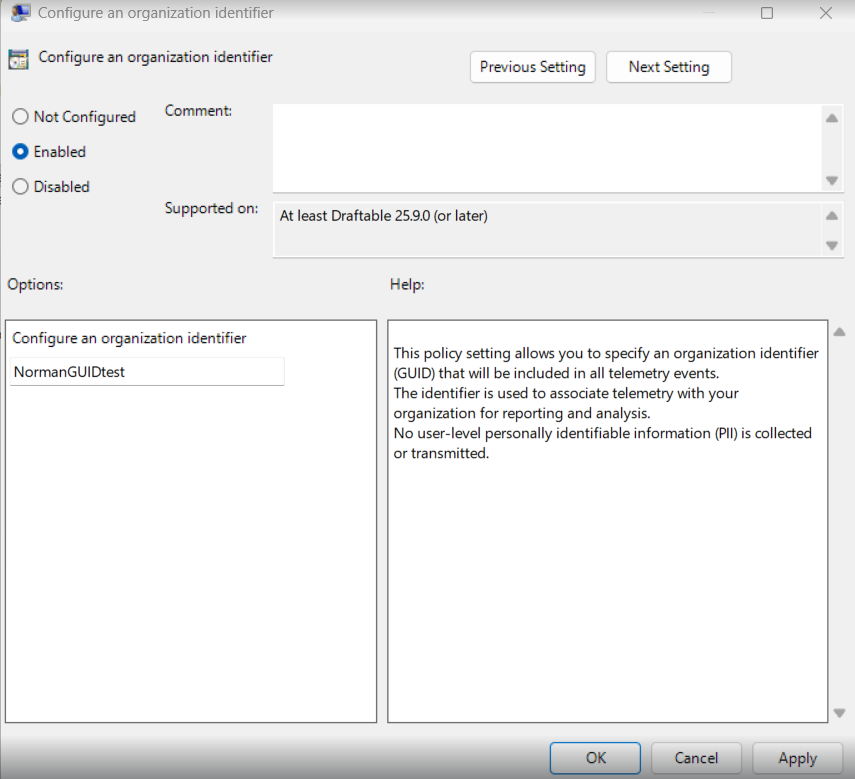
Once the Draftable Legal administrative templates are installed, the policy is available under either Computer Configuration or User Configuration:- Not Configured / Disabled – no organisation identifier is included, and usage from these machines stays anonymous.
- Enabled – enter your organisation’s identifier (a GUID or a text label) in the field provided.
Registry configuration
The same setting can be applied directly through the registry if you are not using Group Policy, for example through Intune, SCCM, or a deployment script. Per user:
Draftable Clean has its own identifier. If you also deploy Draftable Clean, set the equivalent policy there as well. It is a separate setting under
Software\Policies\Draftable\Clean\Reporting, value name OrganizationIdentifier, and it requires Draftable Clean 26.6.100 or later.