- Redline PowerPoint comparison, viewed in PowerPoint
- Redline PowerPoint comparison, viewed in Draftable
- Using the Side-by-Side comparison type
How to compare PowerPoint files in the Redline Comparison Type in PowerPoint
Open the Draftable Legal New Comparison window.\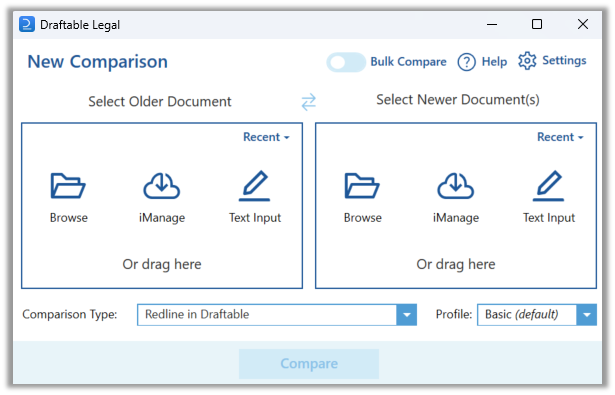
Select the two documents you want to compare, either by browsing your files or dragging and dropping them into the compare window.\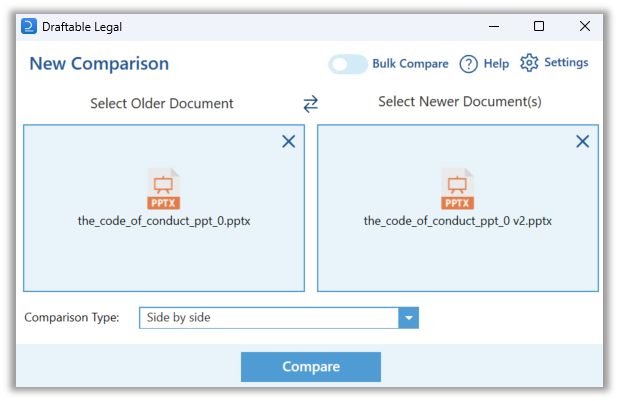
Ensure you have selected the Redline in PowerPoint option for comparison type. Then, hit Compare. \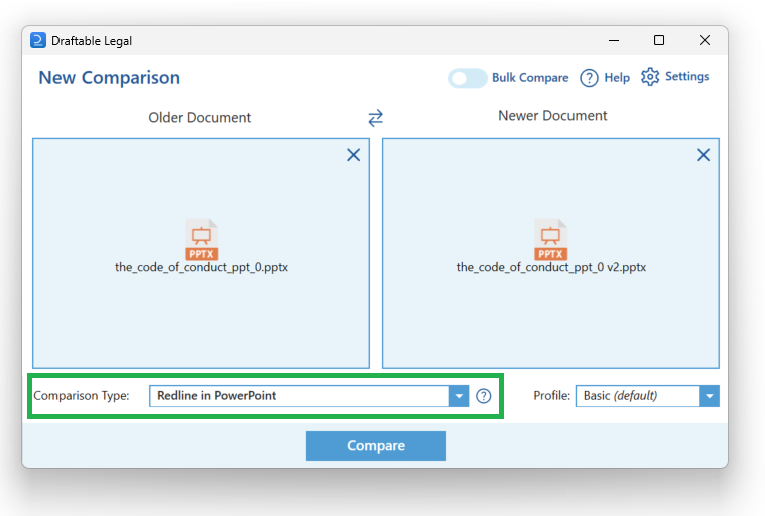
You will be asked whether you prefer to save the comparison as an export or open it directly in PowerPoint. For the sake of example, we will open this comparison directly into PowerPoint. \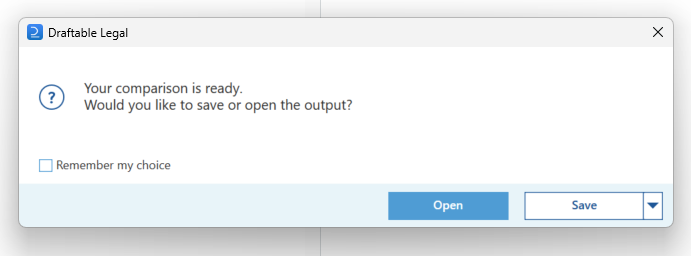

Reviewing your comparison in PowerPoint
Viewing your Redline PowerPoint comparison in PowerPoint, you will note many different formatting elements. Lets take the slide below as an example:\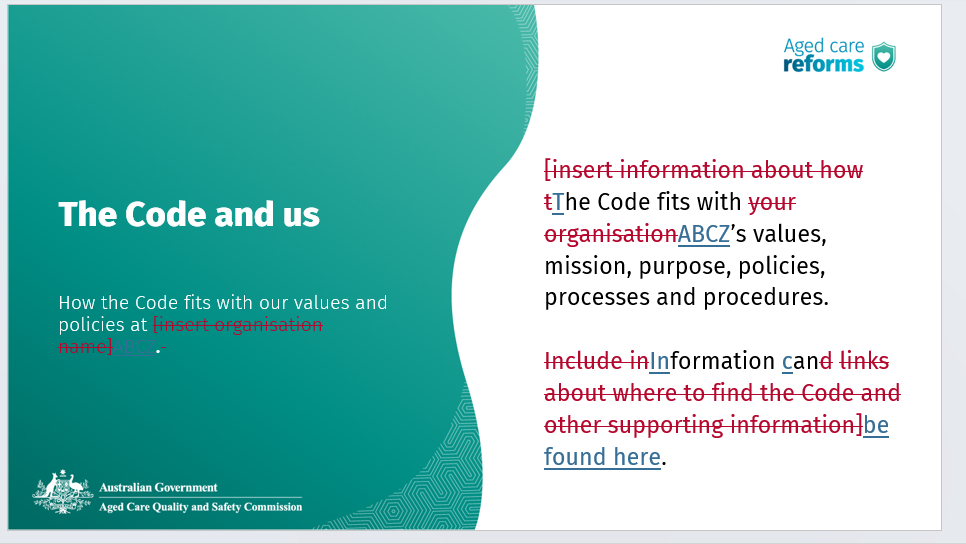

How to compare PowerPoint files in the Redline Comparison Type in Draftable
Open the Draftable Legal New Comparison window.\
Select the two documents you want to compare, either by browsing your files or dragging and dropping them into the compare window.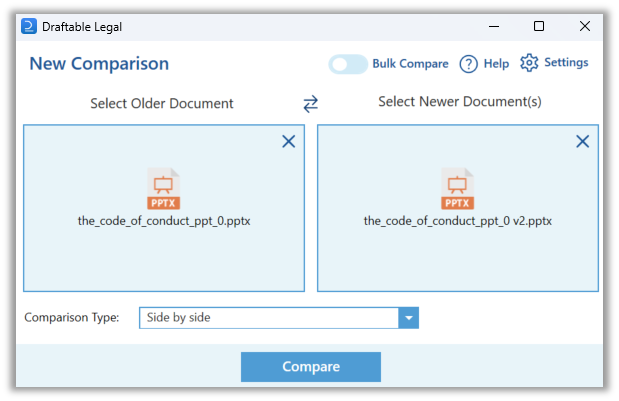
Ensure you have selected the Redline in Draftable option for the comparison type. Then, hit Compare. \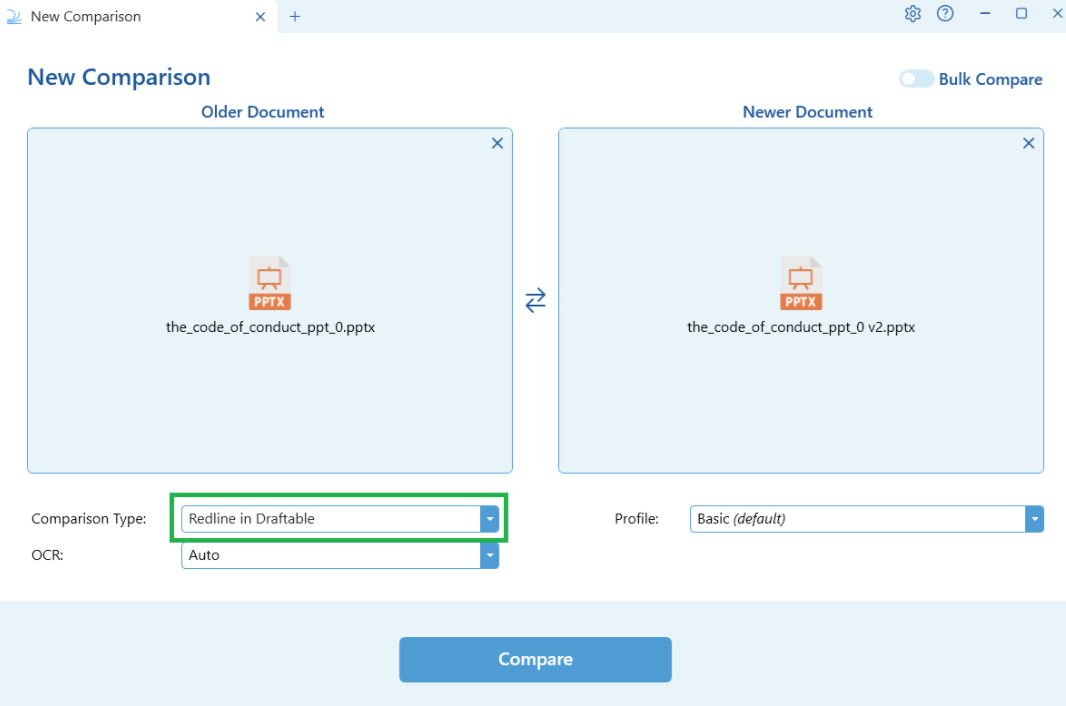
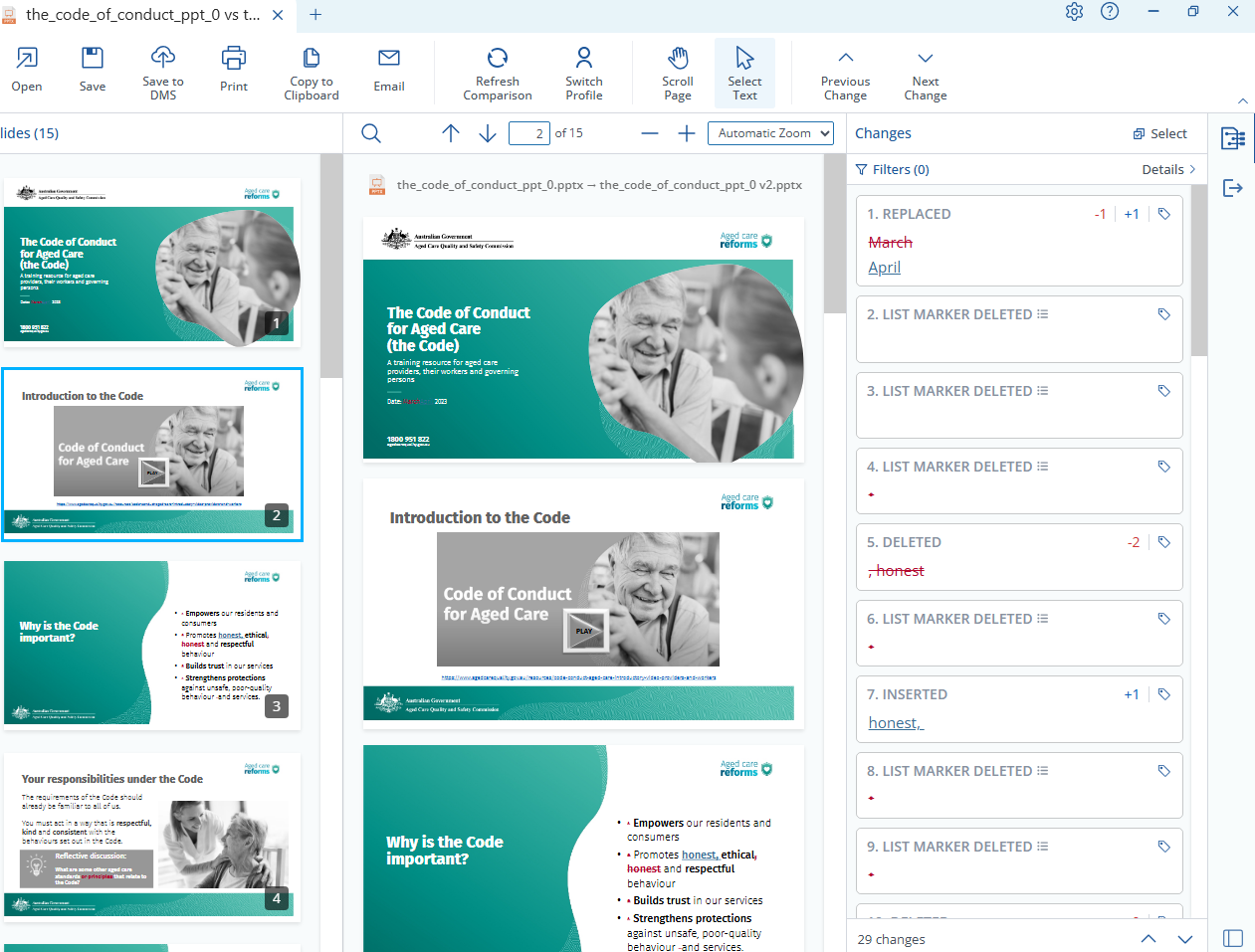
Reviewing your Redline comparison in Draftable
Viewing your Redline PowerPoint comparison in Draftable, you will note many different elements. Lets take the slide below as an example: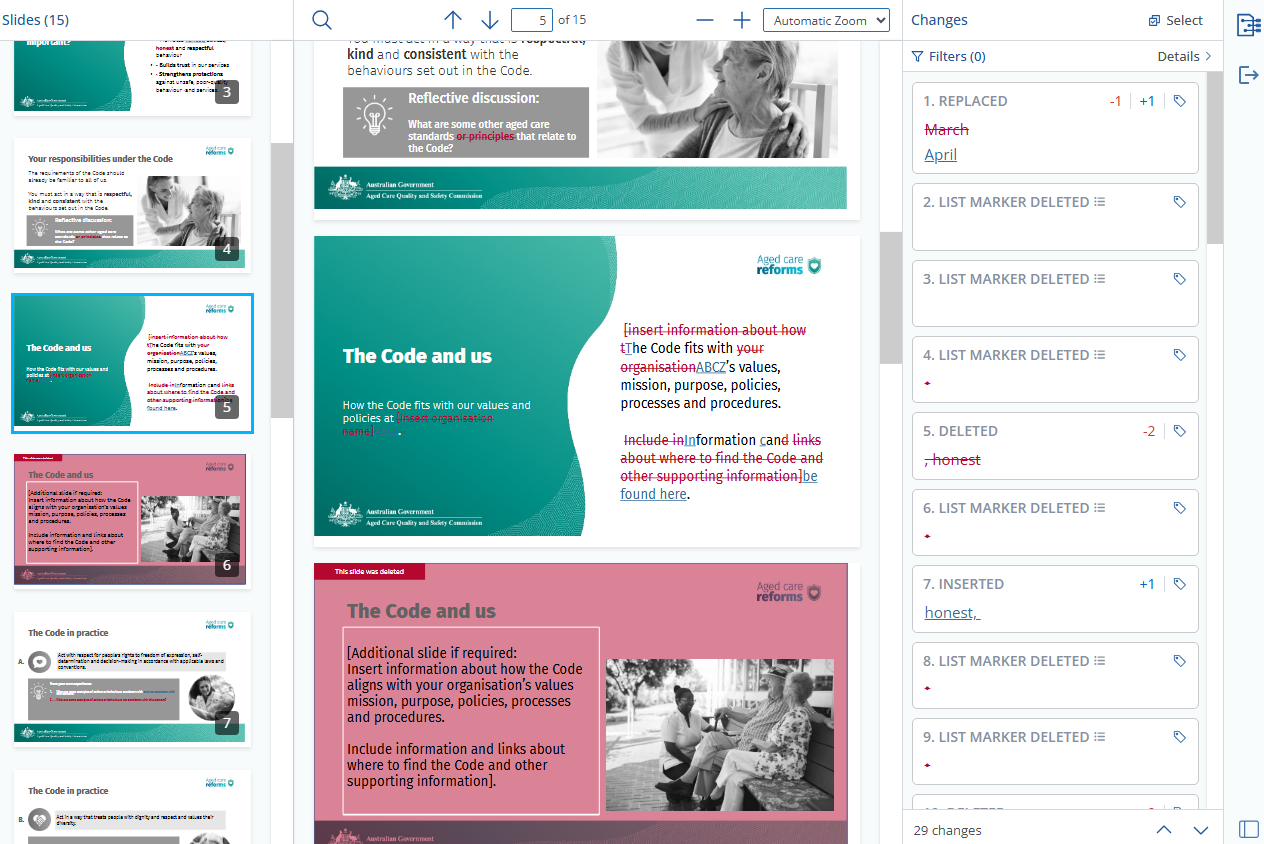
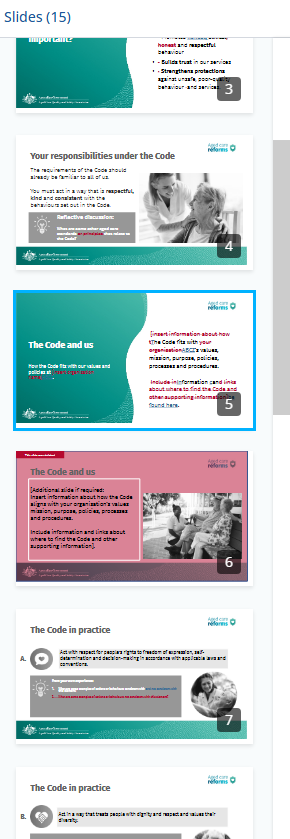
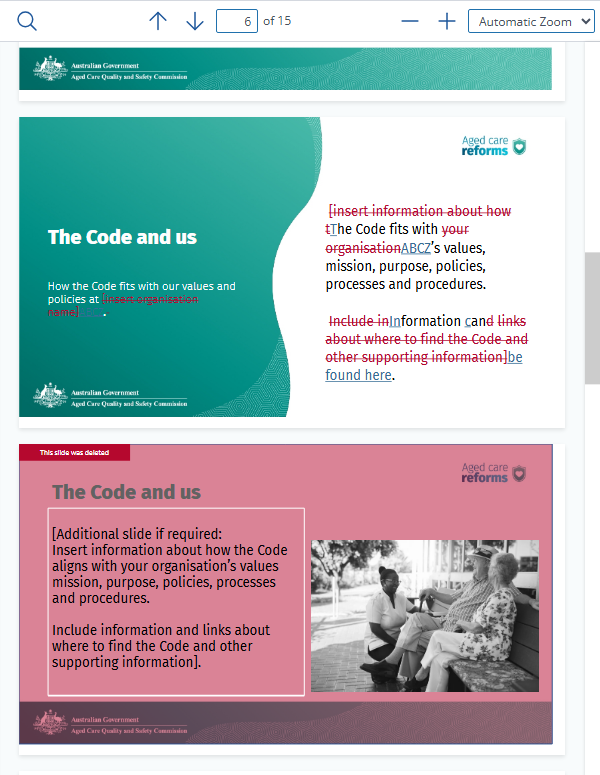

How to compare PowerPoint files in the Side-by-Side Comparison Type
Open the Draftable Legal New Comparison window.\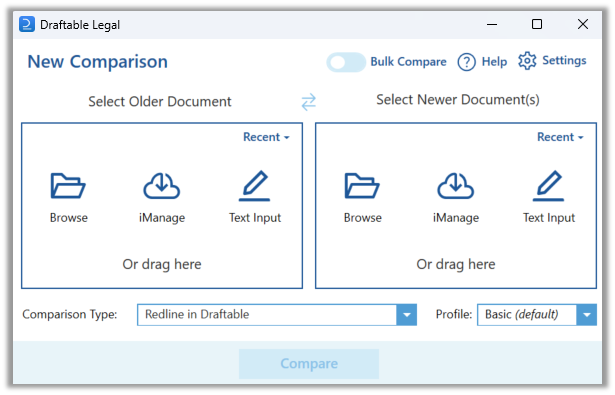
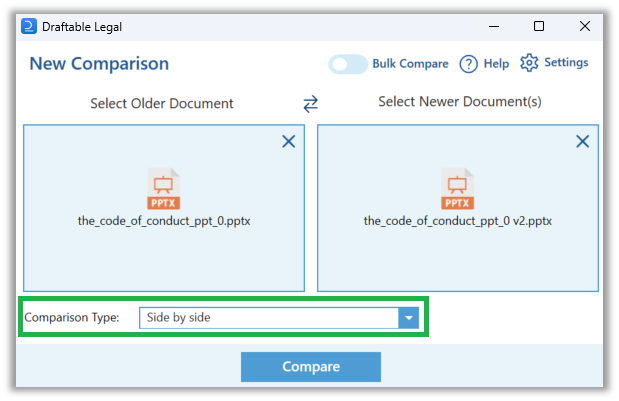
Select the two documents you want to compare, either by browsing your files or dragging and dropping them into the compare window.\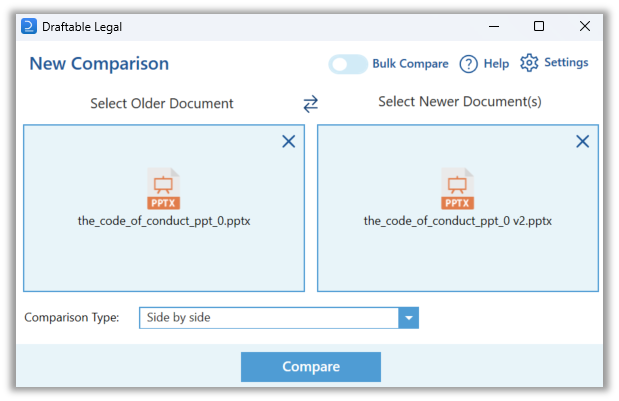
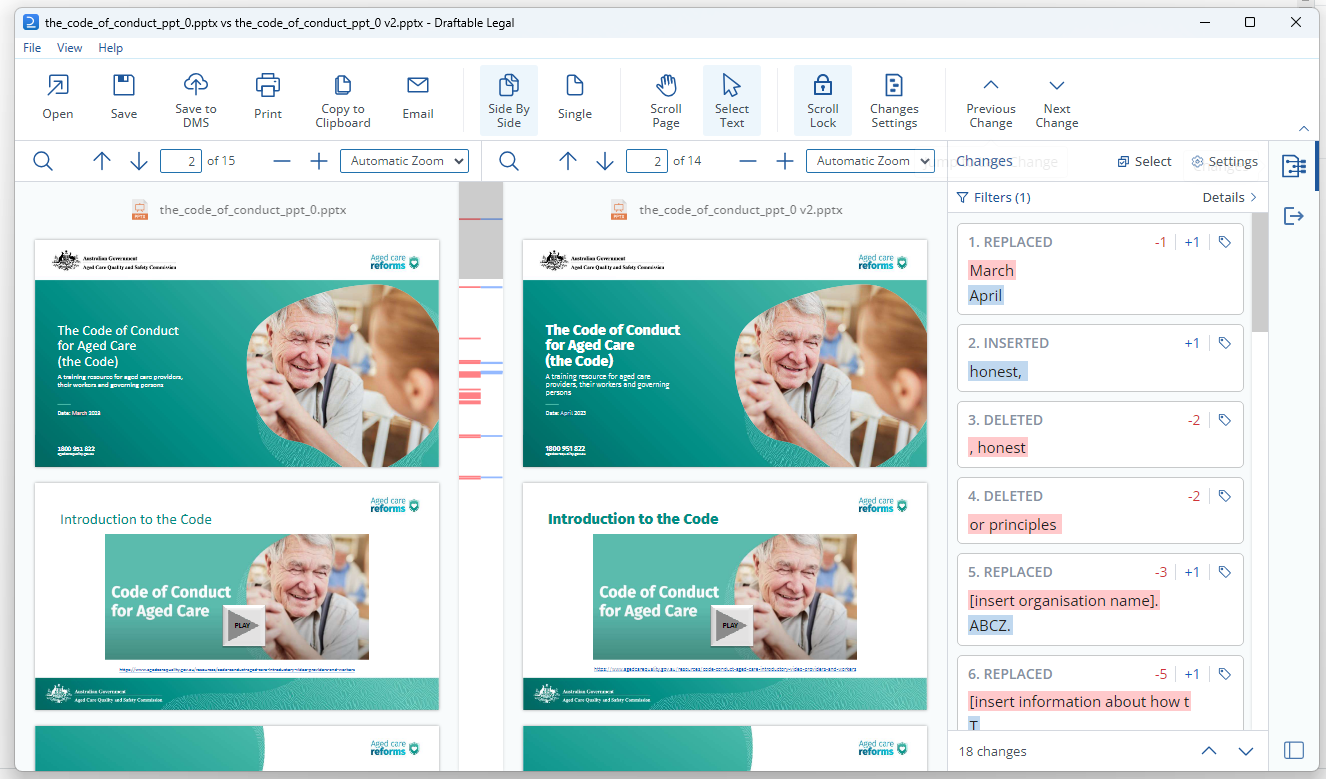
Reviewing your comparison in Draftable
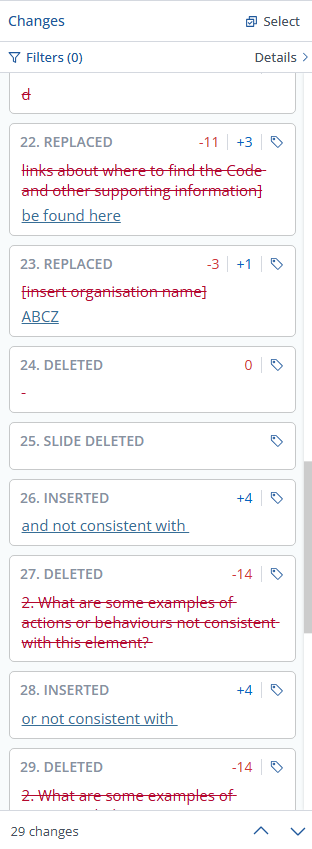
The Comparison Viewer shows all changes in a dynamic Change List on the right-hand side of the screen.\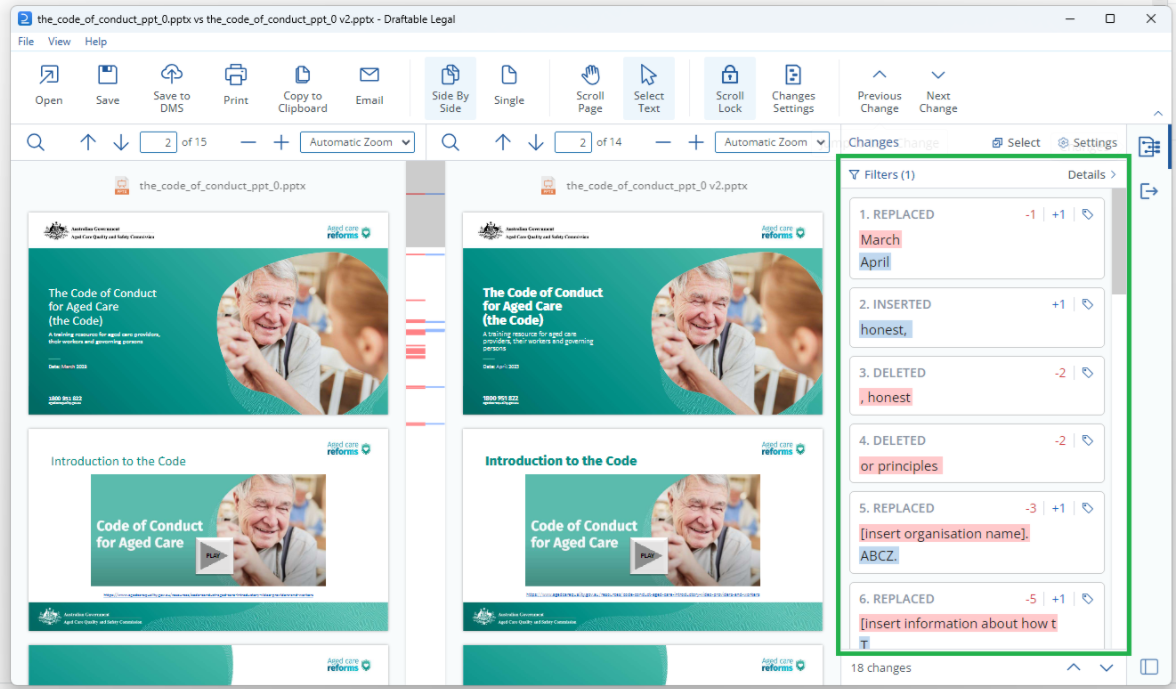
You can scroll through the Change List and click on any change to jump to its location and have the change highlighted with a blue box on both versions shown.\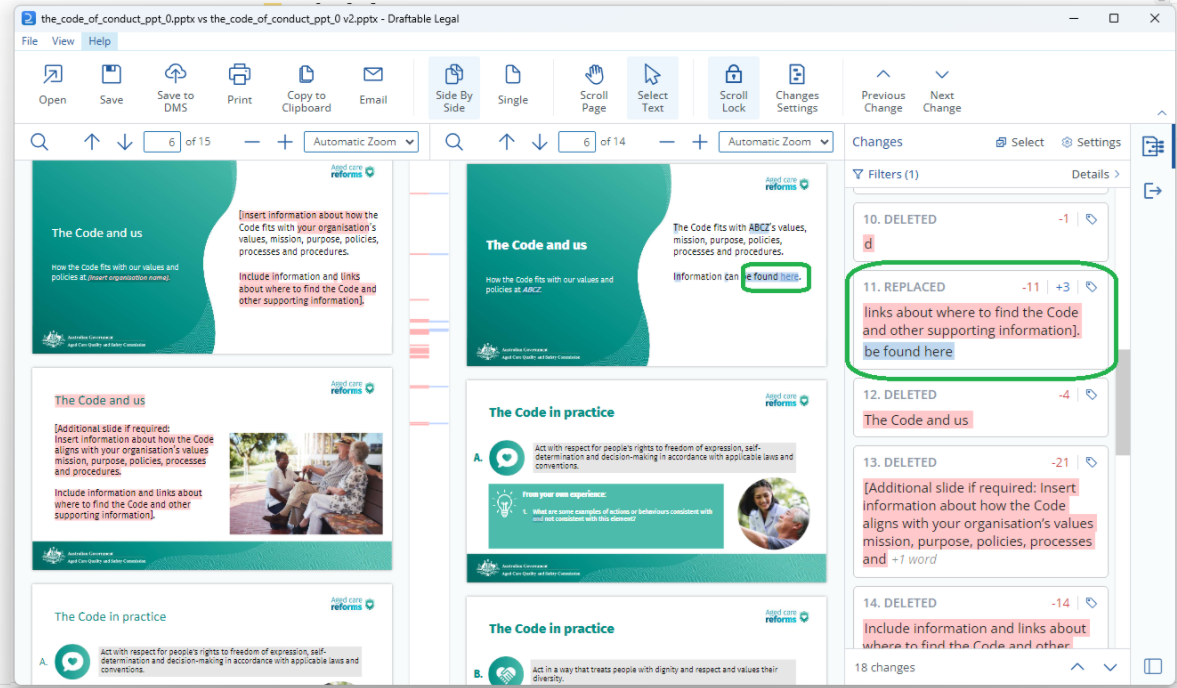
Users can tag changes by selecting the Tag Icon on the top right corner of the individual change card in the change list. This will display a list of 5 tagging options to choose from. Multi-tagging of changes is also possible.\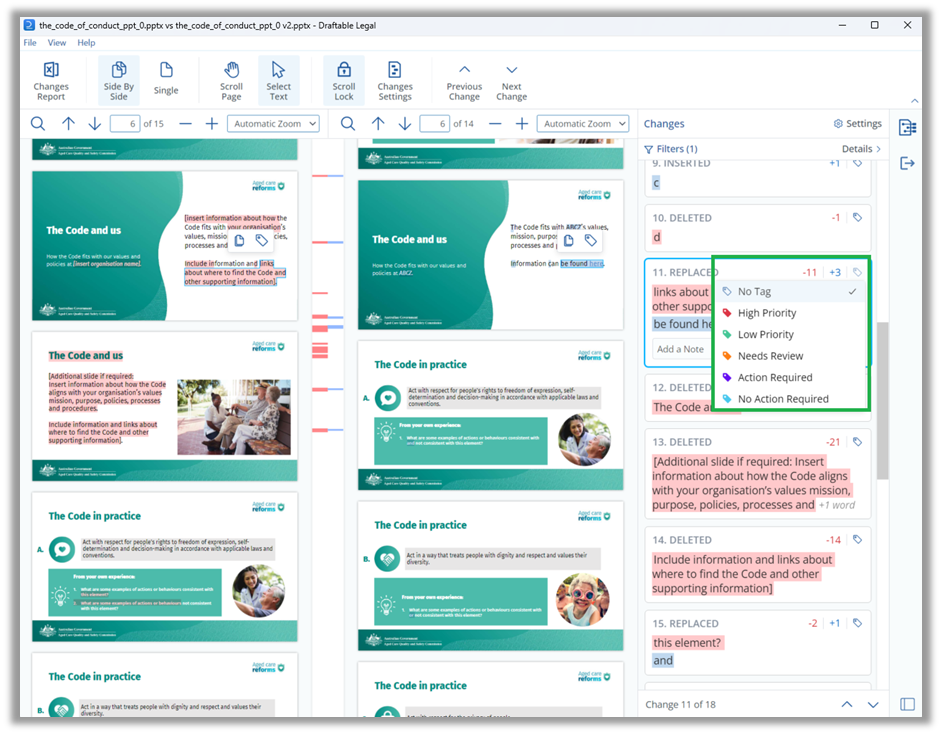
Users can also leave Notes on changes by selecting the Change Card, writing a note at the bottom of the card and hitting Enter to save the Note**. 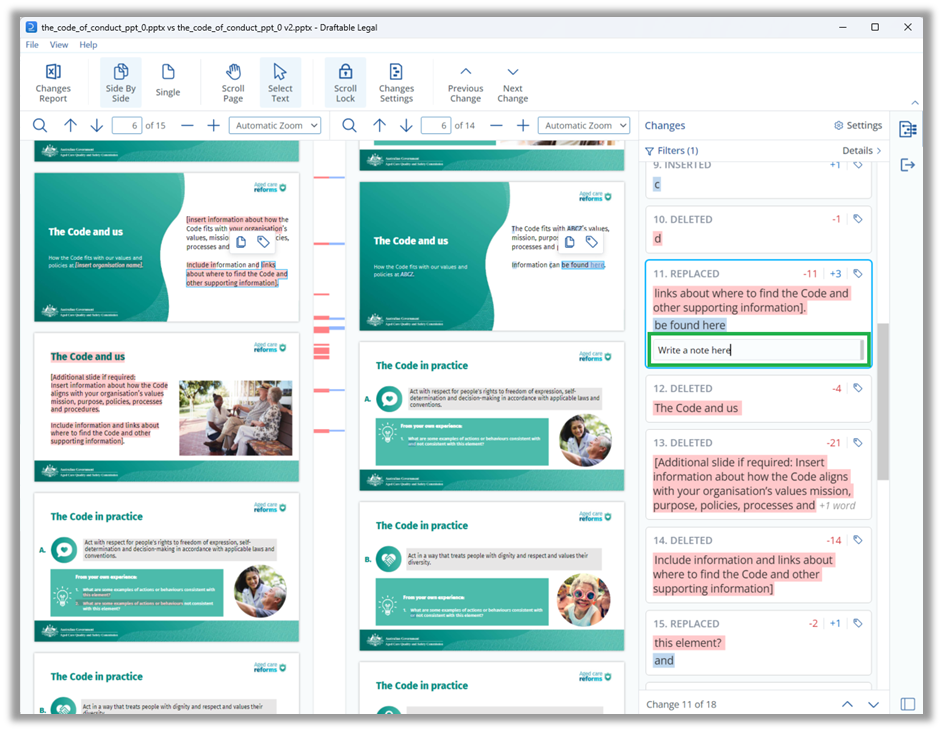
Users can filter changes by using the Interactive Filter Menu, available at the top of the change list. This can be opened by selecting the Details drop-down menu in the top right corner of the Change List.\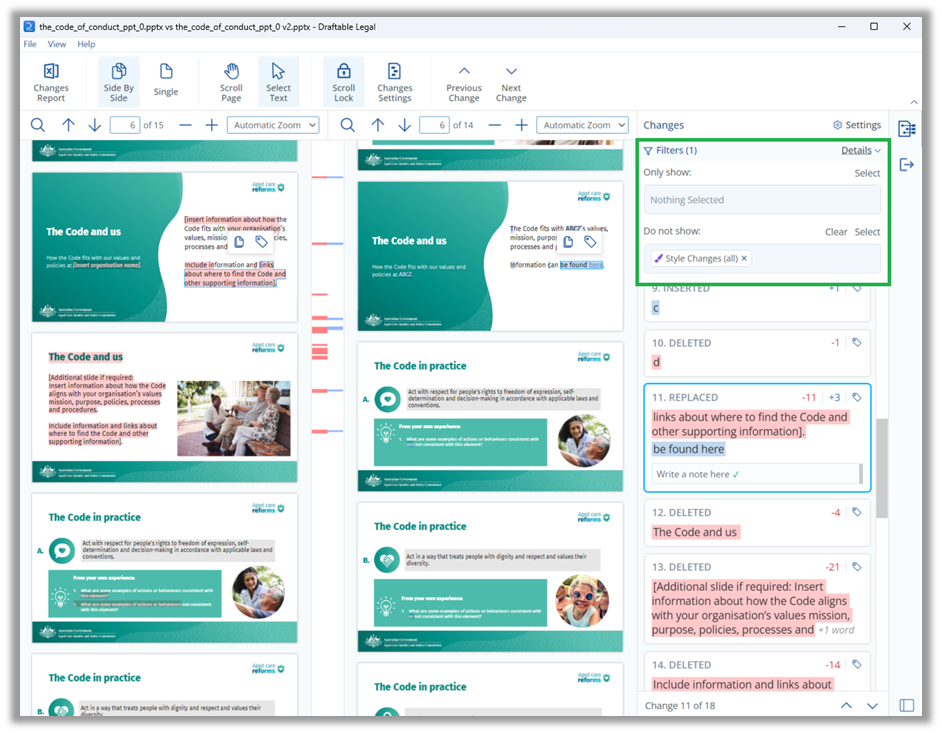
Users can see filtering options by selecting either the Only Show or Do Not Show entry forms. This will display a list of filtering options including Change Type, Style Changes, Tags and Notes. \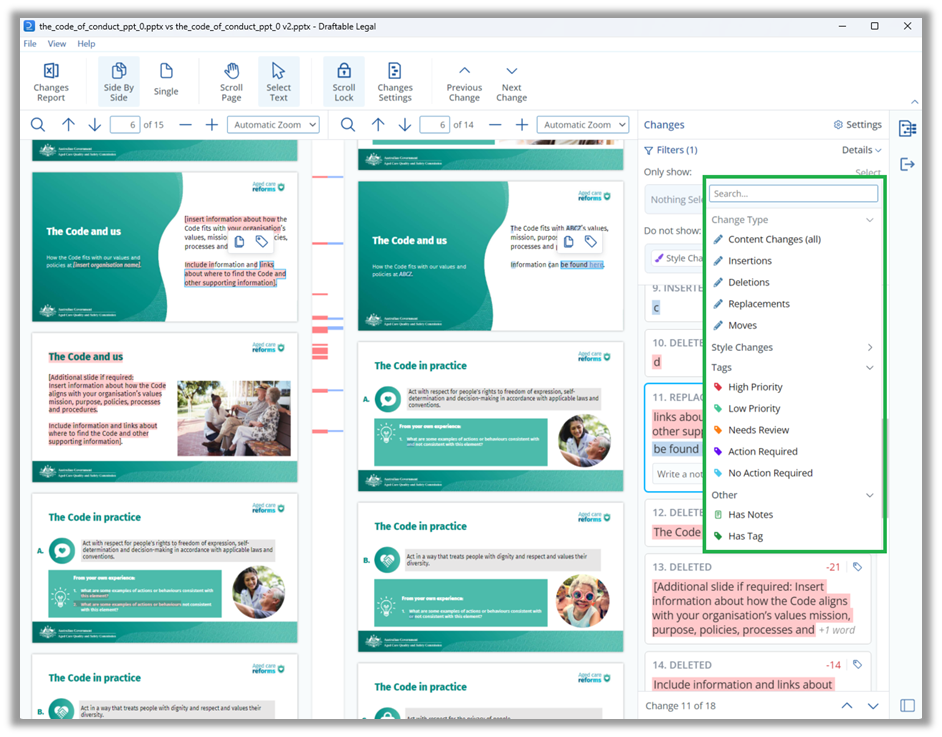
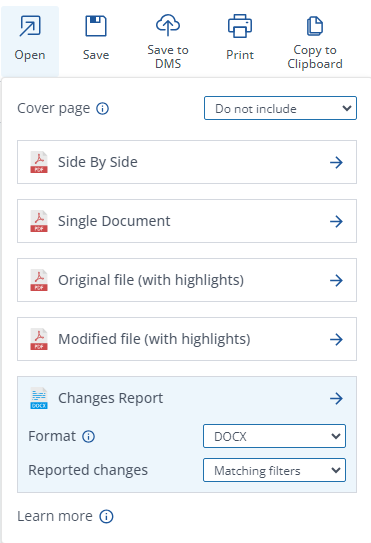
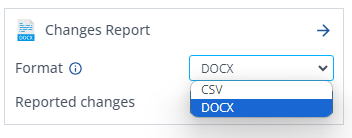
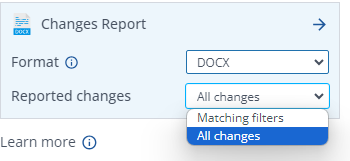
Once all changes have been reviewed, users can share the Change List, along with any Tags and Notes with colleagues or external parties via the output options, via the Changes Report export option.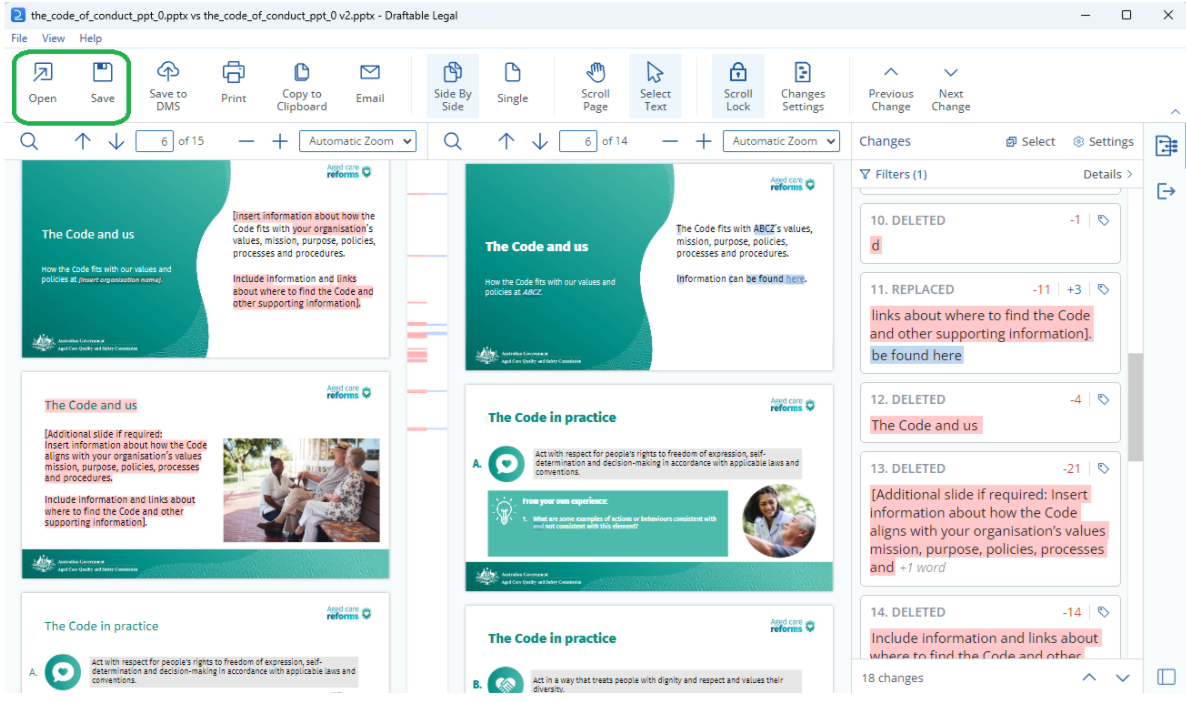
Saving / printing / sharing your PowerPoint comparison as a PDF
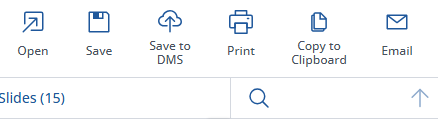
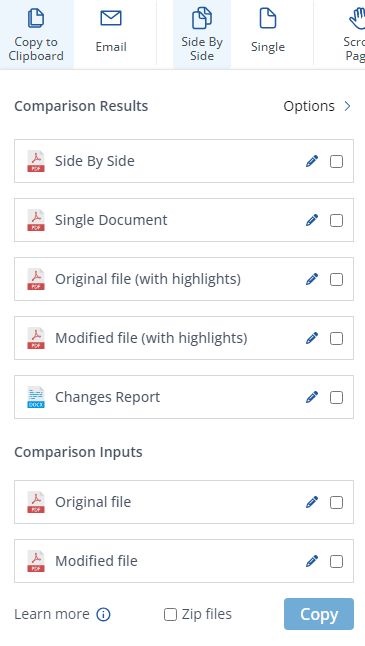
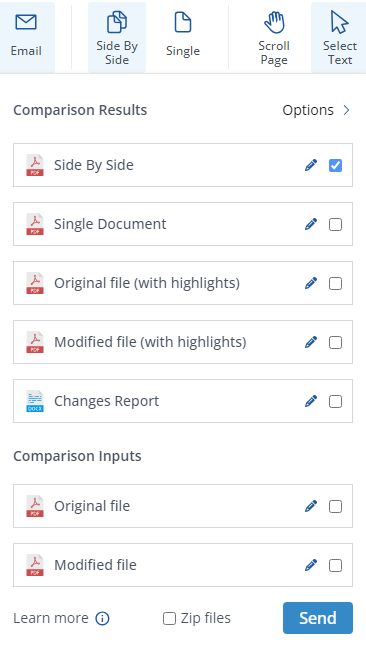
To save, print or email the Side by Side comparison, note all the export options at the top of the comparison viewer as a ribbon menu.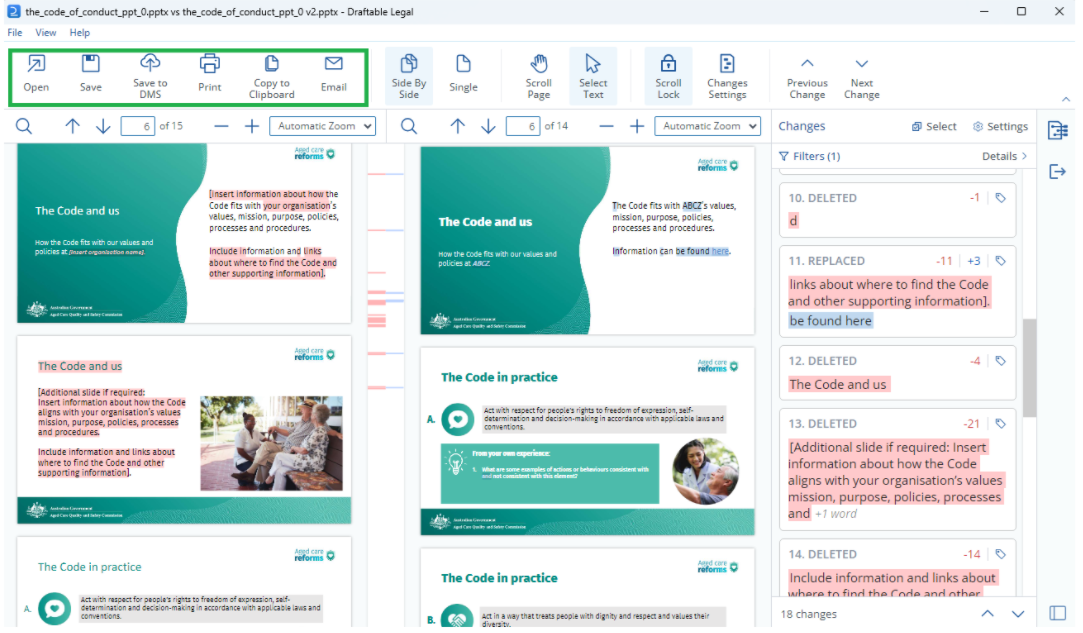
- Open the results directly in your preferred Word processor or PDF reader.
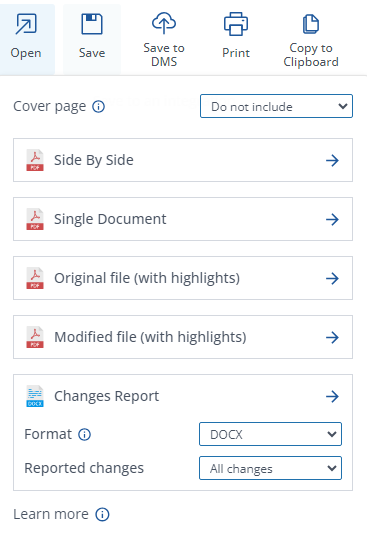
- Save the comparison result to your computer.
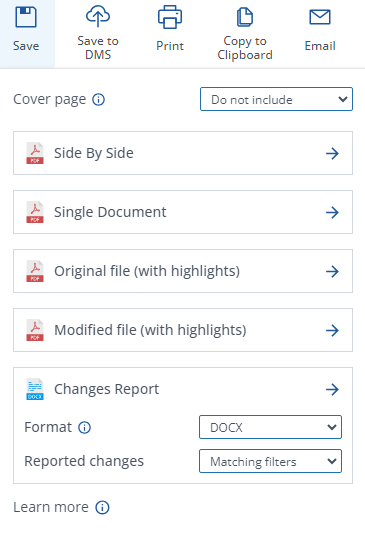
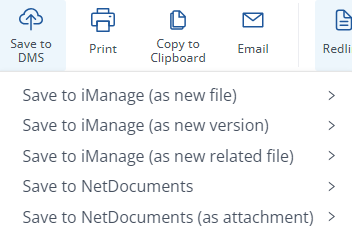
- Save to DMS, e.g. iManage, NetDocuments
- Print a hard copy of the comparison results.
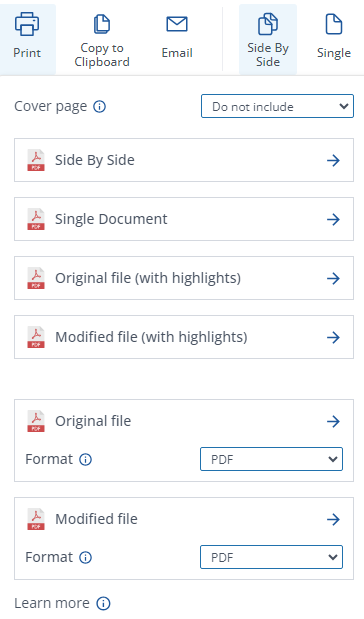
- Copy to Clipboard and save the comparison output to your clipboard.
- Email the comparison results and/or the input documents using Outlook.
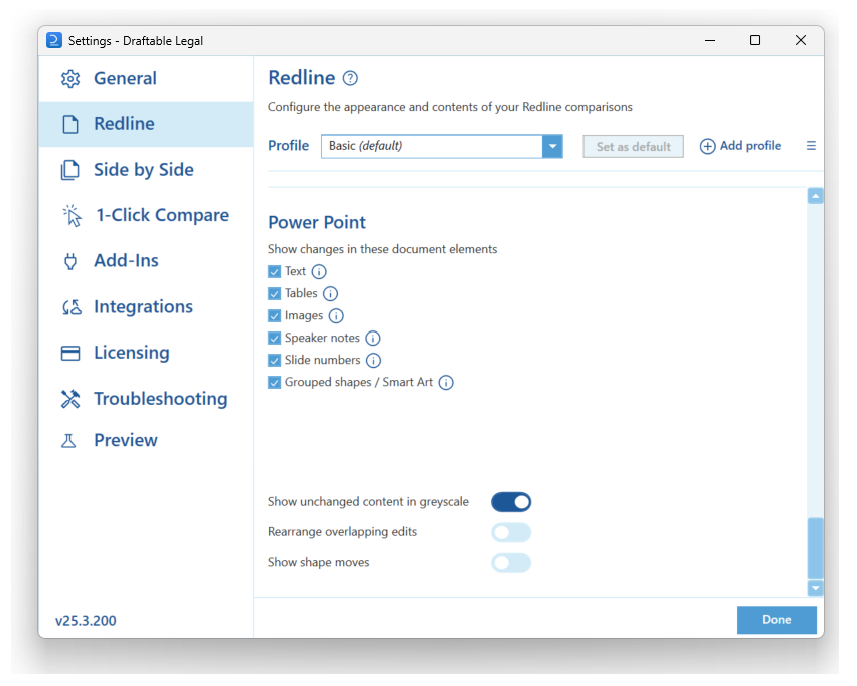
How to configure settings for PowerPoint Redline compare
Settings for the PowerPoint Redline comparisons can be found within the Redline tab of the settings menu. There are many options specific to Redline comparisons.