

Prerequisites
- You must have admin privileges for Microsoft 365 (you will need a Microsoft 365 Business account)
- Ensure your environment supports Office Add-ins via the Microsoft 365 admin center.
- You must have at least Draftable v25.10.000 for this Add-in to correctly function.
Step-by-Step Setup
1. Go to the Integrated Apps Portal
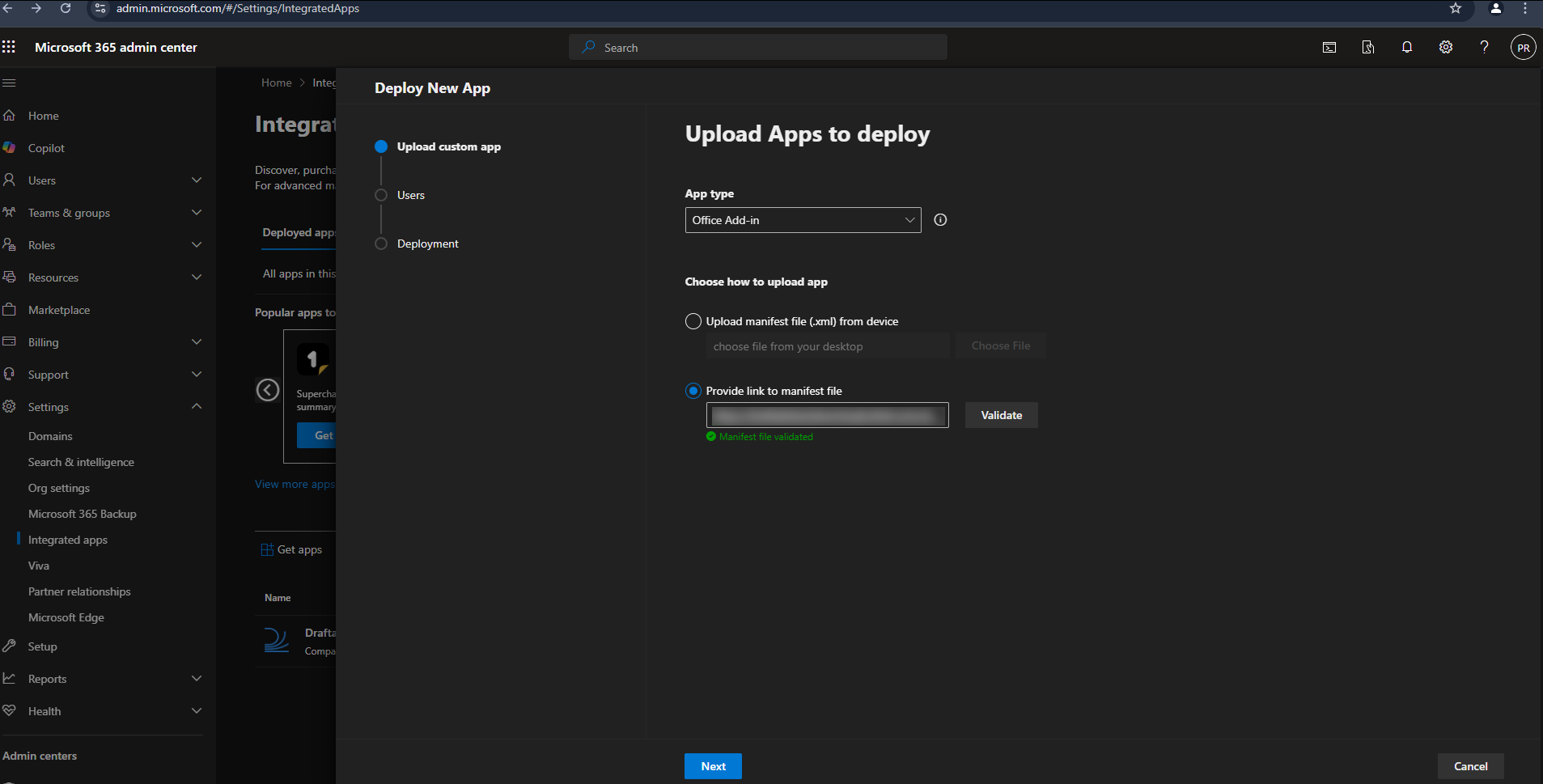
2. Upload the Draftable Outlook Add-in
Download the latest manifest file by following the below URL:
https://dl.draftable.com/addins/office-simple/2.59.0.1/manifest.xml
https://dl.draftable.com/addins/office-simple/2.59.0.1/manifest.xml
Note: The Draftable in Office Add-in does not auto-update. You will need to retrieve the latest manifest file when you wish to update your version of the Add-in.
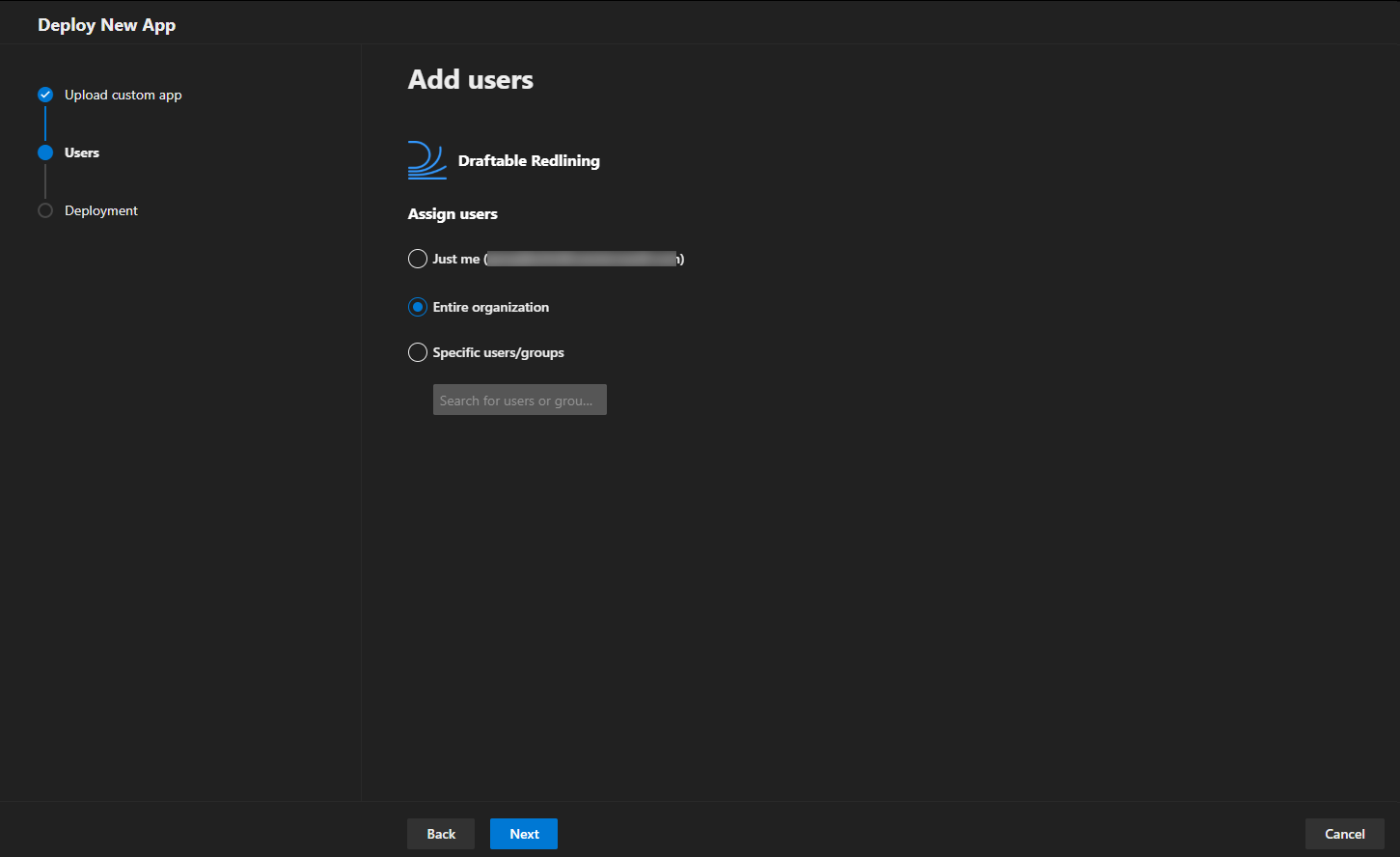
3. Configure Delivery to Users
You will be asked how the add-in should be deployed across your organization:- Assign to Entire organization, Specific users, or Groups depending on your use case.
- Choose whether the add-in should be automatically installed or available for users to install manually.
4. Accept Permissions
You will be prompted to accept and approve the required permissions on behalf of your users.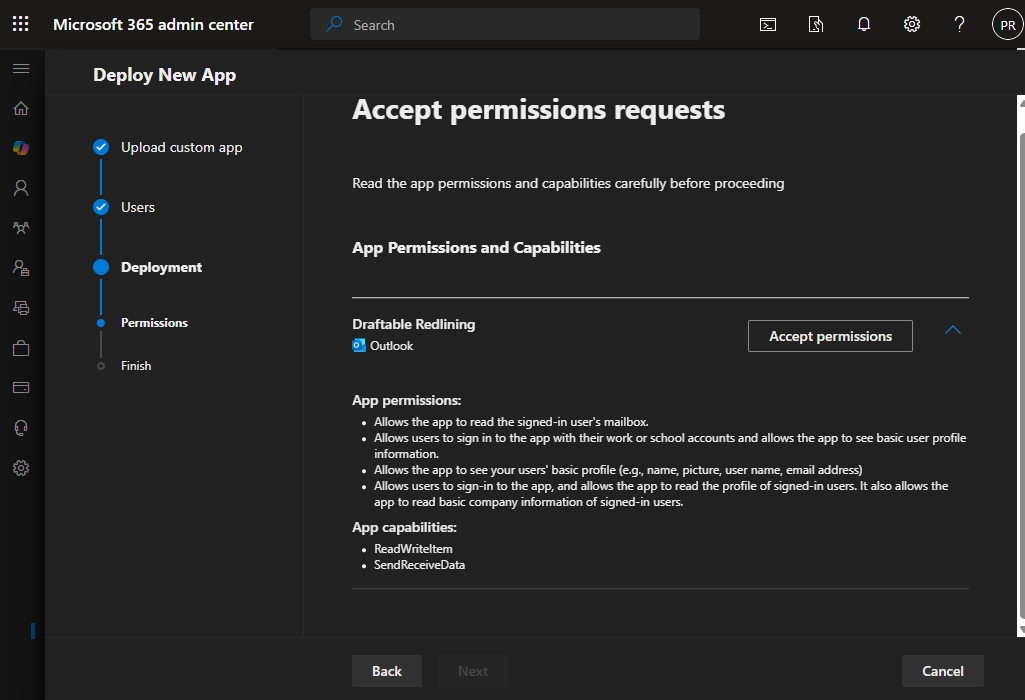
Required Permissions Overview
App Permissions:- Sign in and read users’ basic profile information.
- Access user profile details including name, picture, username, and email address.
- Read basic company information for signed-in users.
ReadWriteItem: Allows the app to read and write the contents of a document.SendReceiveData: Enables the app to communicate with the Draftable application for comparison processing.
5. Finish Setup
Once permissions are approved and the app is assigned to your selected users, the Draftable in Office Add-in will be available within Word.Please note: The Application installation and update can take up to 72 hours (and in some cases longer). For more information about it, please visit Microsoft Documentation - Deploy add-ins in the admin center - Microsoft 365 admin | Microsoft Learn