

Overview
Draftable for Outlook adds commands into Outlook for sending email attachments and text directly to Draftable Desktop for comparison. It allows comparison workflows to start from Outlook rather than requiring users to download attachments and open Draftable Desktop separately. Key Features:- 1-Click Compare: Sends all email attachments to Draftable Desktop with a single click
- Compare Attachments: Opens attachment selector to choose specific files to send to Draftable Desktop for comparison
- Compare Text: Extracts and sends selected text from email body to Draftable Desktop for comparison
- DMS link support: Automatically detects and handles DMS document links in emails (iManage, NetDocuments, etc.)
- Message read and compose modes: Works seamlessly in both reading and composing emails
- Desktop integration: All comparisons happen in Draftable Desktop, providing full access to advanced features, local files, and profiles
Prerequisites
- You must have admin privileges for Microsoft 365 (you will need a Microsoft 365 Business account)
- Ensure your environment supports Office Add-ins via the Microsoft 365 admin center.
- You must have at least Draftable v25.10.000 for this Add-in to correctly function.
Step-by-Step Setup
1. Go to the Integrated Apps Portal
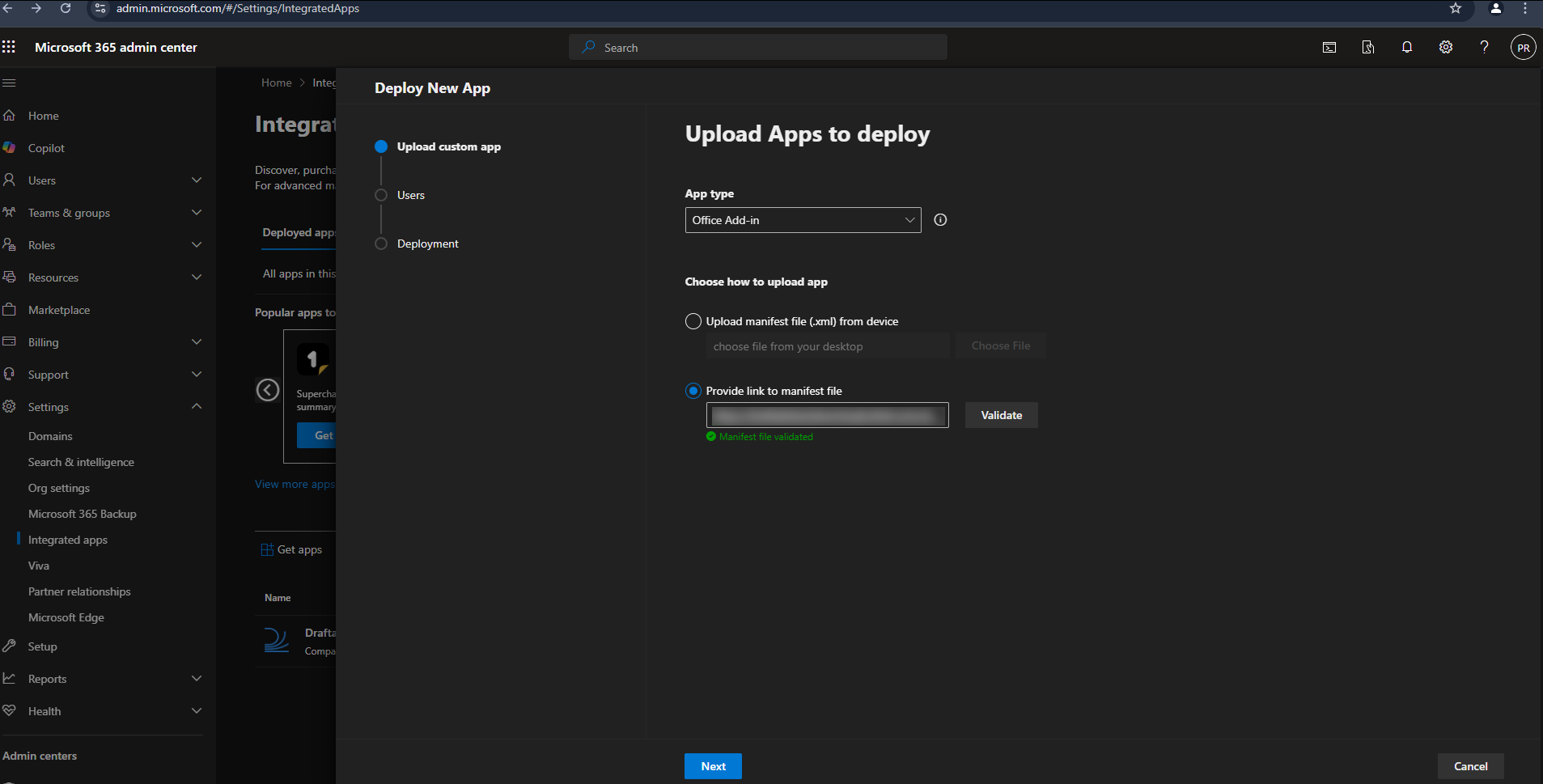
2. Upload the Draftable for Outlook Add-in
Download the latest manifest file by following the below URL:
https://dl.draftable.com/addins/outlook-simple/2.61.0.1/manifest.xml
https://dl.draftable.com/addins/outlook-simple/2.61.0.1/manifest.xml
Note: The Draftable for Outlook Add-in does not auto-update. You will need to retrieve the latest manifest file when you wish to update your version of the Add-in.
3. Configure Delivery to Users
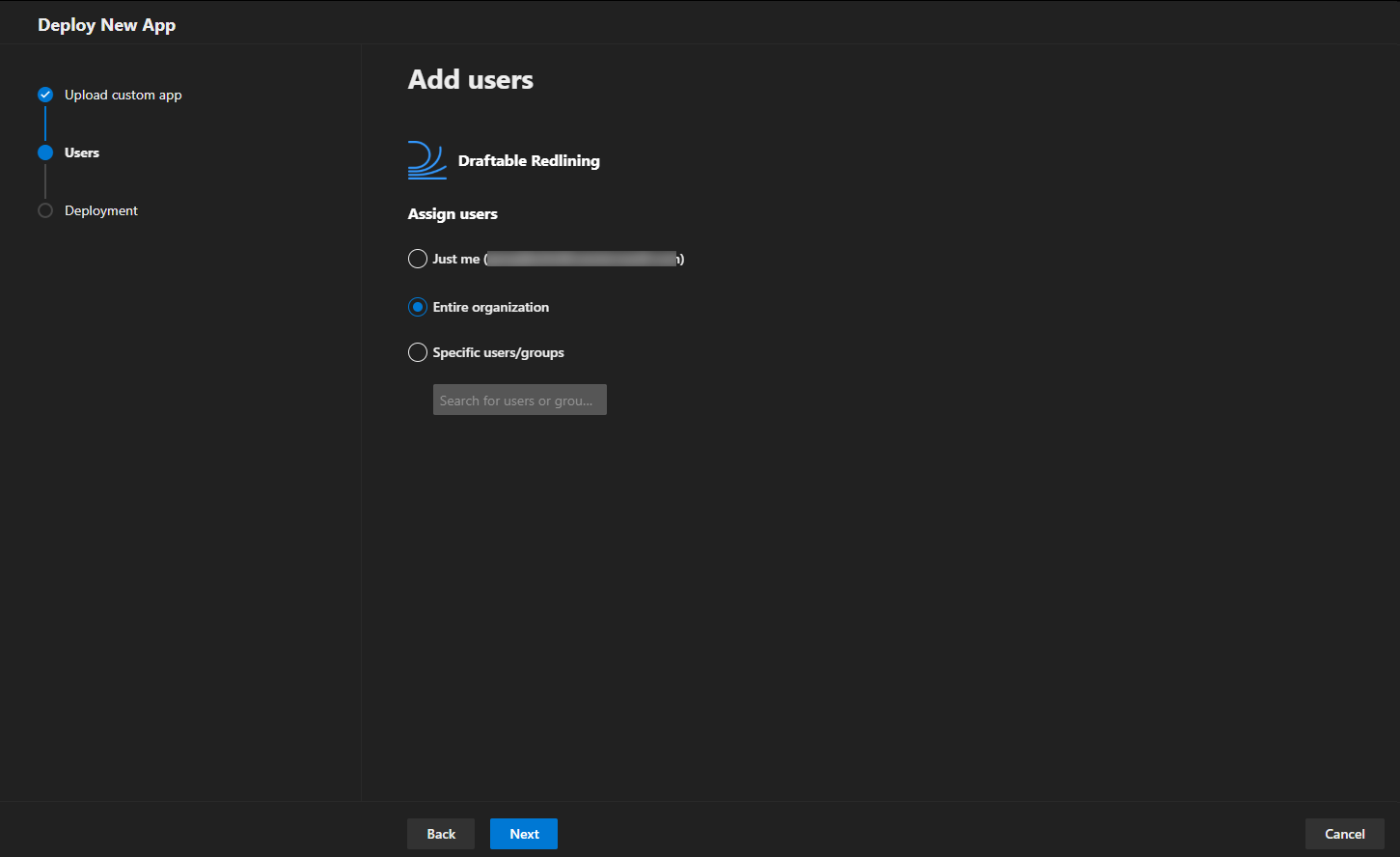
You will be asked how the add-in should be deployed across your organization:- Assign to Entire organization, Specific users, or Groups depending on your use case.
- Choose whether the add-in should be automatically installed or available for users to install manually.
- Fixed - Add-in is automatically installed and users cannot remove it
- Available - Add-in is available for users to install from their Office apps
- Optional - Add-in is automatically installed but users can remove it
4. Accept Permissions
You will be prompted to accept and approve the required permissions on behalf of your users.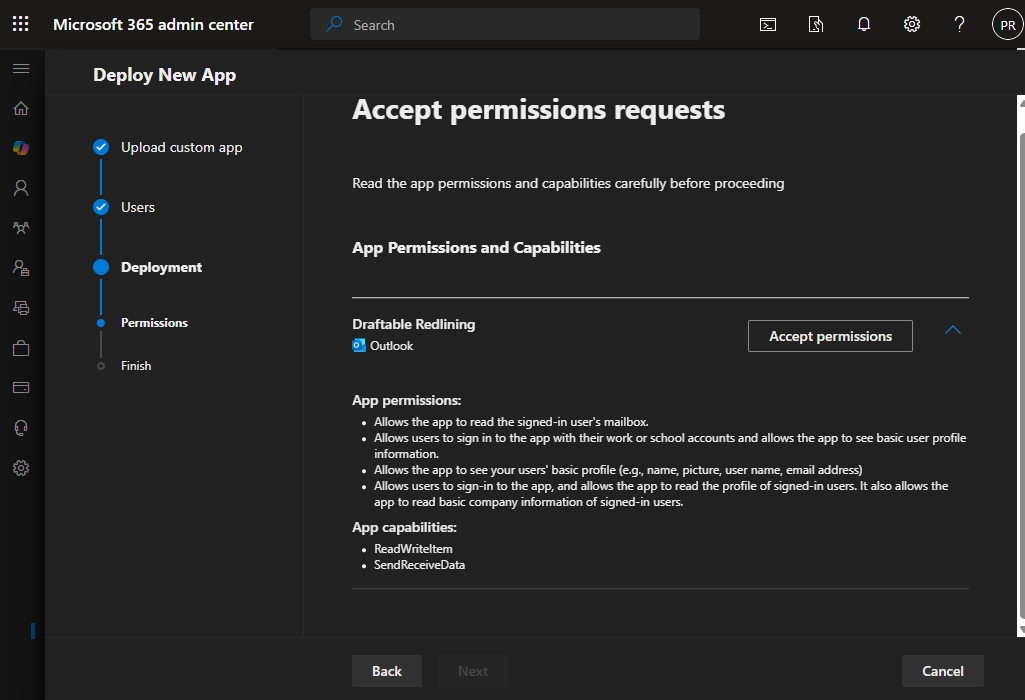
Required Permissions Overview
App Permissions:- Sign in and read users’ basic profile information.
- Access user profile details including name, picture, username, and email address.
- Read basic company information for signed-in users.
ReadWriteItem: Allows the app to read the contents of email messages and attachments.SendReceiveData: Enables the app to communicate with the Draftable Desktop application for comparison processing.
5. Finish Setup
Once permissions are approved and the app is assigned to your selected users, the Draftable for Outlook Add-in will be available within Outlook.Please note: The Application installation and update can take up to 24 hours. In most cases, it appears within minutes. For more information about it, please visit Microsoft Documentation - Deploy add-ins in the admin center - Microsoft 365 admin | Microsoft Learn
6. Verify Deployment
- Open Outlook
- Go to the Home tab
- Look for the Draftable section in the ribbon
- The add-in buttons should appear in the ribbon or under My Add-ins
Troubleshooting
Add-in not appearing for users?
Add-in not appearing for users?
- Wait up to 24 hours for deployment to fully propagate
- Verify users are in the correct security group (if using group-based deployment)
- Have users restart their Office applications
- Check that users have active Microsoft 365 subscriptions with Office apps
- Ensure users are signed in with their organizational account
Manifest validation failed?
Manifest validation failed?
- Ensure you copied the complete URL without extra spaces or line breaks
- Verify the URL is accessible from your network (not blocked by firewall or proxy)
- Check that
dl.draftable.comis not blocked by your organization’s web filter - Try accessing the URL directly in a browser to confirm it’s reachable
Need to update to a new version?
Need to update to a new version?
- Return to Integrated apps in the Admin Center
- Find the existing Draftable add-in in the list and click on it
- Look for an Update option and provide the new manifest URL
- The updated version will roll out to users automatically
- Users may need to restart Office apps to see the update
Remove or uninstall an add-in?
Remove or uninstall an add-in?
- Go to Integrated apps in the Admin Center
- Click on the Draftable add-in
- Select Remove or Delete
- Confirm the removal
- The add-in will be removed from users’ Office apps within 24 hours