Profiles are an easier way for you to switch between preset Redline comparison settings without having to manually setup the Redline settings menu for each different type of document.
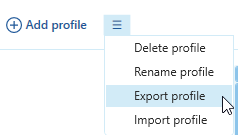
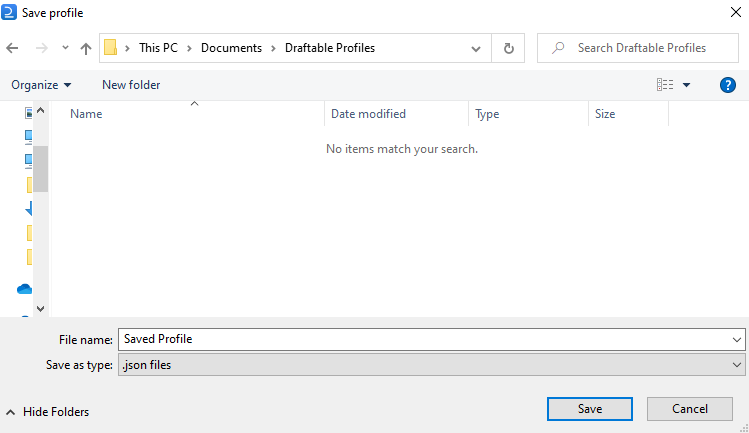
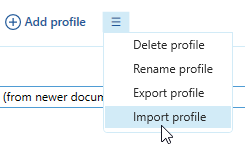
You can create multiple profiles for each document use case, and even export them and send profile files to your teammates so that they can import them into their local version of Draftable legal.
This article aims to provide end users a guide on how to create, import, export, rename and delete a profile from within the Redline settings section.
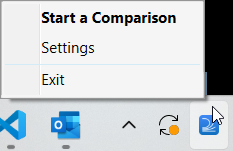
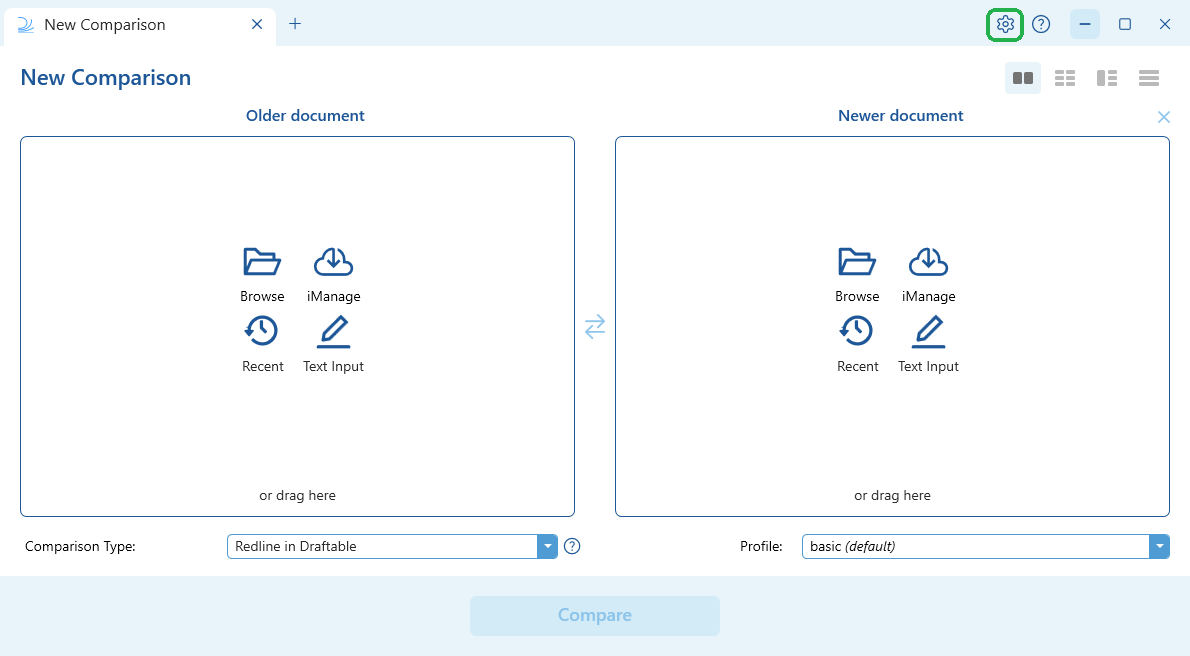
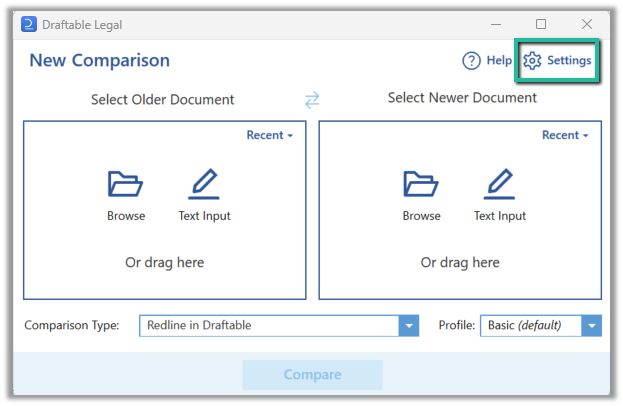
The settings menu was reorganised in Draftable Legal 26.6. If you are on 26.6 or later, follow the “26.6 and later” tabs below. On earlier versions, follow “Before 26.6”. To check your version, open Settings. The version number shows at the bottom-left (for example, v26.6.0).
New to Redline profiles and settings? If you don’t yet understand Redline profiles or Redline settings in Draftable Legal, we highly recommend reading the Redline Comparison Settings article first. Alternatively, perform pilot testing with Draftable to understand what the settings do before rolling this out. Once you and your team have decided what profiles you want to deliver to your users, come back to this article to proceed with deployment.
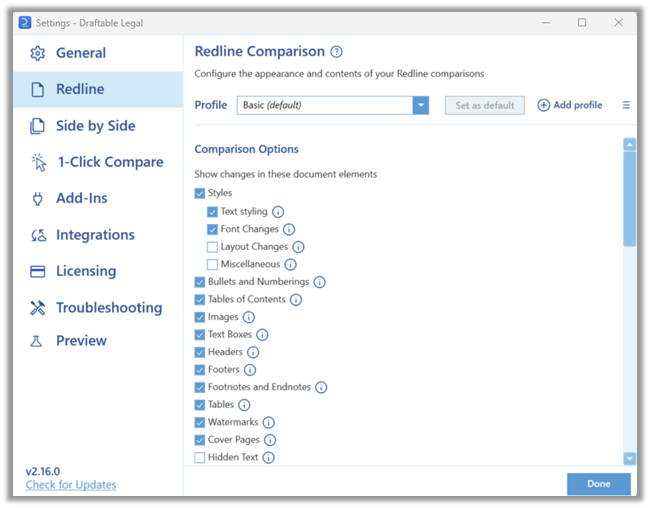
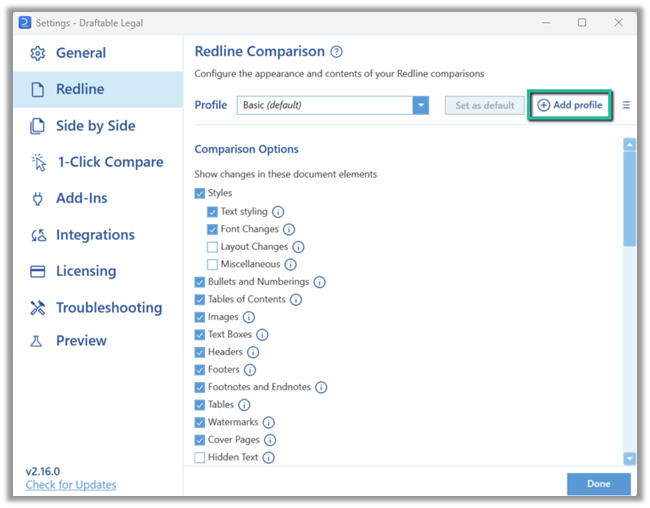
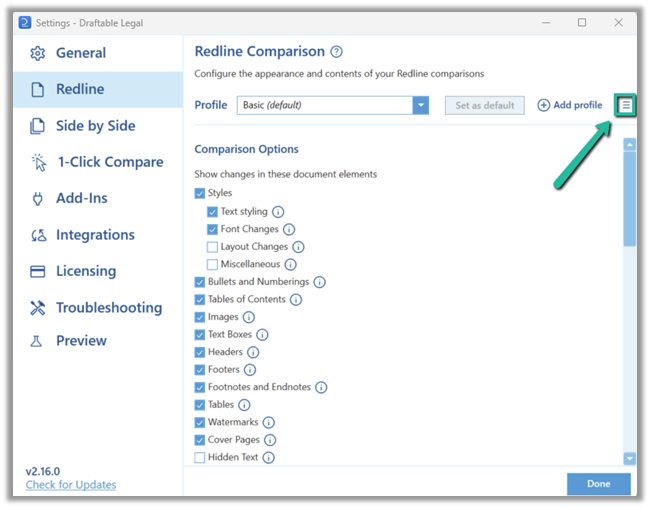
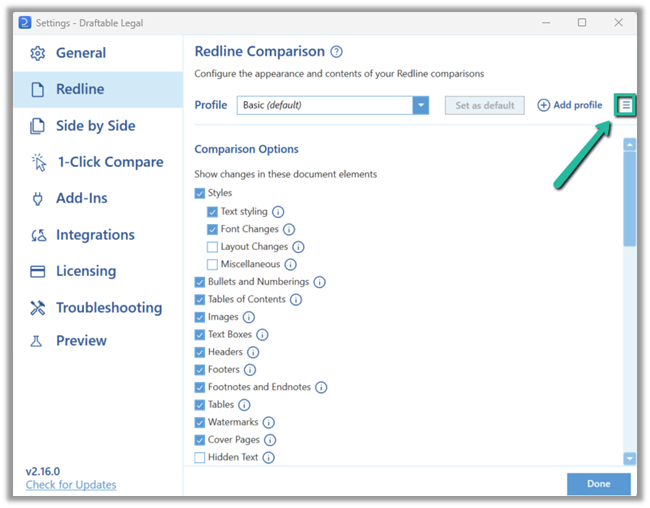
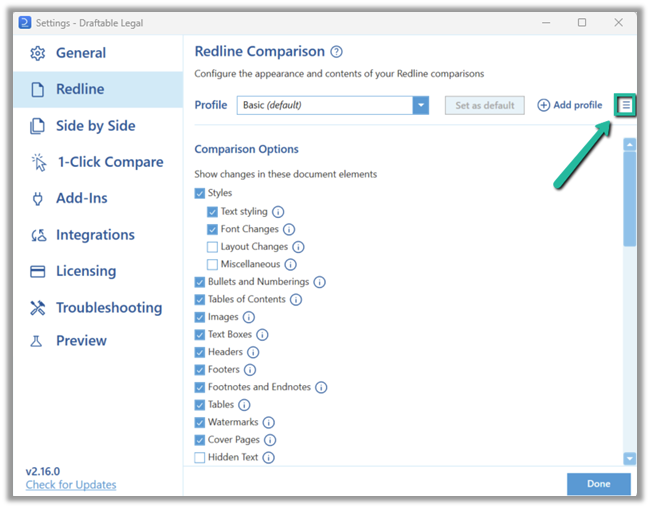
Once the settings menu is open navigate to the Redline section. Here you can access to the Redline profiles configurations, which is located at the top of the Redline comparisons section.
Within the Redline Comparison section, make all the changes you require to all the different settings for your Redline comparisons. Once you have completed doing so, go to the top of the Redline section, select Add profile.**
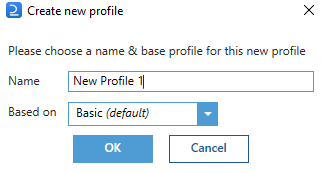
A new window will appear, you can provide a Name for the profile, and choose what the profile base template will be. If are creating a profile for the first time, the Basic profile you probably just edited will be the one you need to select (is selected by default).**
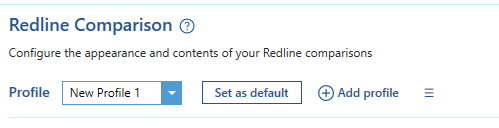
Click OK and you will see that the profile is created in the profile dropdown box.
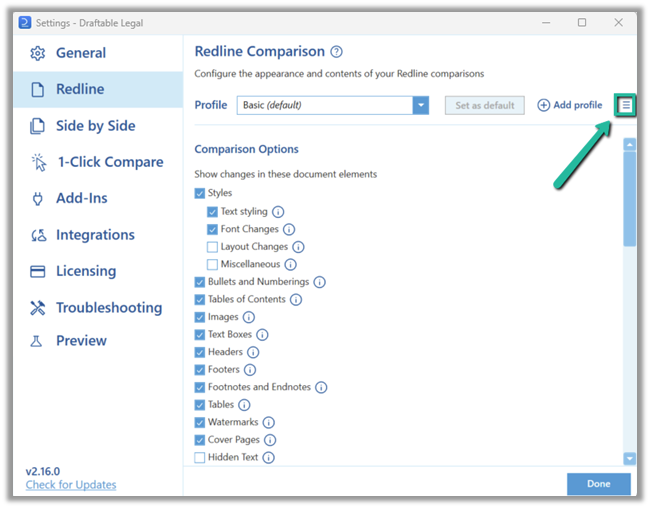
Within the profile section, ensure you have the profile you wish to rename selected in the profile dropdown box. Then select the menu icon as highlighted below.
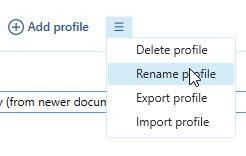
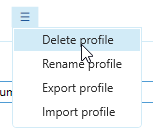
Select the rename profile option.
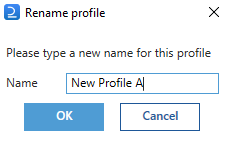
A new window will appear, rename the profile to your desired name. Then click OK to confirm the name change.
Within the profile section, ensure you have the profile you wish to delete selected in the profile dropdown box. Then select the menu icon as highlighted below.
Select the Delete profile option.
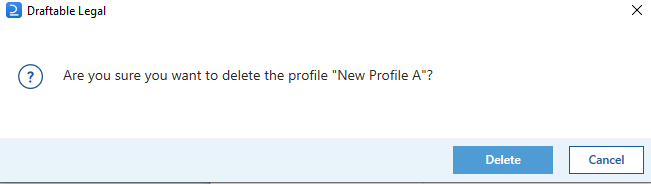
A new window will appear to confirm if you want to delete the profile. Select Delete if you want to confirm the deletion.
The profile will then be removed from your Draftable application.
Was this page helpful?
Assistant
Responses are generated using AI and may contain mistakes.